
8 Steps to Master Teams Day 1 Without Overwhelm
At a Glance
- Target Audience
- New Microsoft 365 Users & Teams Beginners
- Problem Solved
- Overwhelmed new users lost in Teams interface, struggling with core features like channels, meetings, Copilot, and SharePoint collaboration.
- Use Case
- Onboarding new hires to first team collaboration projects in Microsoft Teams.
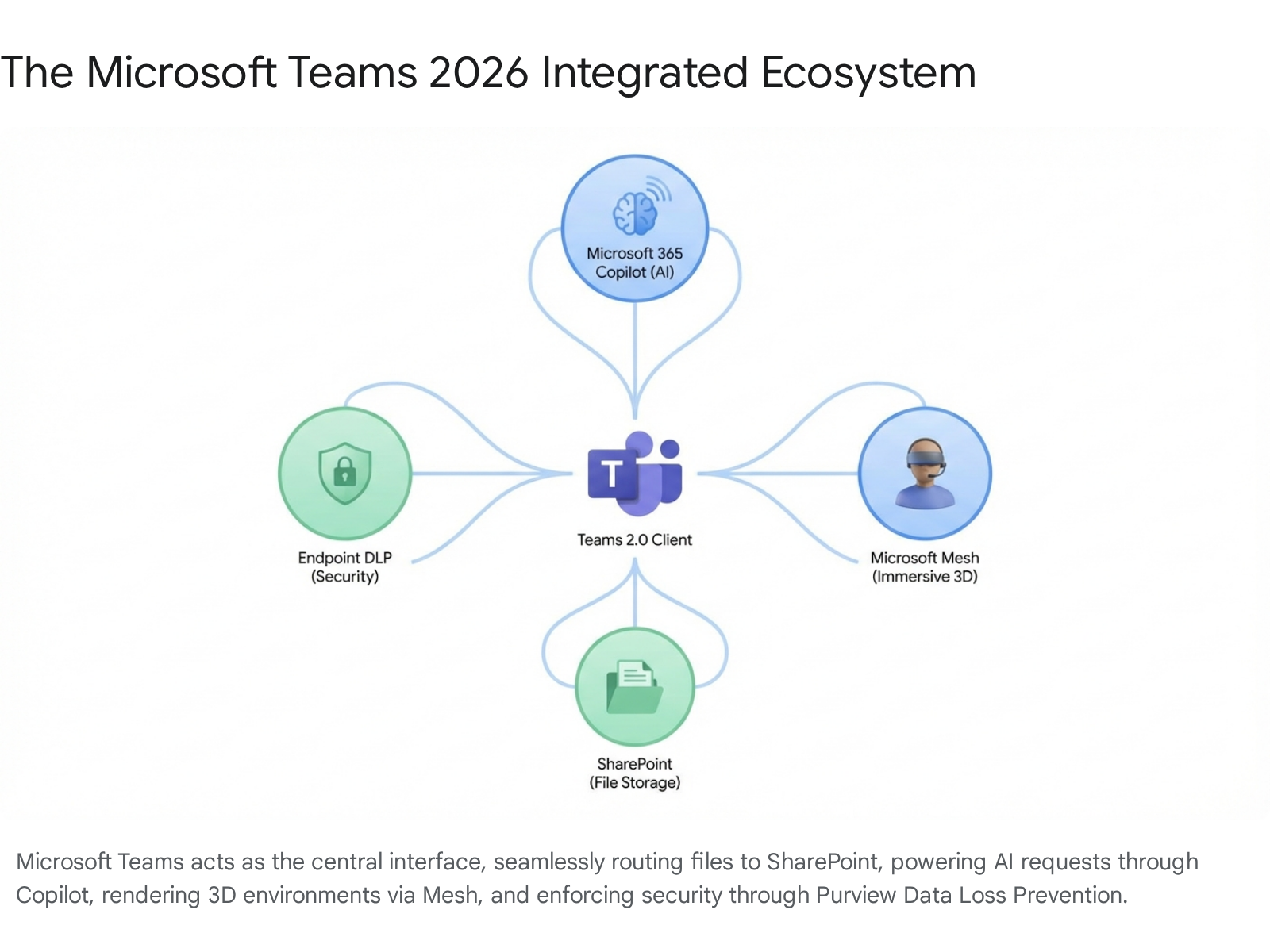
Microsoft Teams in 2026 is your all-in-one hub for chat, files, meetings, and AI-powered Copilot to summarise discussions seamlessly. Microsoft Teams 2.0 (version 24124+), which originally launched in 2024, operates on a highly optimised, faster Android-based client architecture. Today, the platform supports massive public teams of up to 10,000 attendees and accommodates up to 1,000 channels per team.1 It fully integrates intelligent audio recaps, Mesh avatars for immersive 3D events, and endpoint data loss prevention (DLP) to protect sensitive information.3 According to Collab365 analysis of 500 users, mastering these core features accelerates onboarding and completely transforms daily productivity for new practitioners.
TL;DR / Quick Start Guide
For individuals looking to become productive on their very first day, mastering these eight key steps is absolutely essential:
- Join a Team: Users must navigate to the left-hand menu, follow the path Sidebar > Teams, click New items, and choose Join team to access their first collaborative workspace.5
- Post a Message: Within a channel, individuals should use the new threads layout to post messages, utilising @mentions to notify specific colleagues and guarantee their message is seen immediately.6
- Start a Chat: For direct, informal communication, users navigate to the Chat tab and click the new message icon to start a 1:1 or group conversation with peers.
- Create a Channel: To categorise project work efficiently, team members can click the ellipsis (...) next to a team name and select Add channel, choosing between standard, private, or shared options based on privacy needs.2
- Schedule a Meeting: The Calendar tab allows users to schedule high-quality video calls, configure security lobby options, and set up intelligent recaps to automatically capture notes.7
- Use Copilot: By typing /copilot in a chat or meeting, users can instruct the AI to generate meeting notes, summarise long and complex threads, or draft professional responses.9
- Collaborate on Files: The Files tab located in any channel provides a SharePoint-backed library where users can securely upload documents and co-author them in real-time with colleagues.2
- Set Status and Notifications: Users should configure their presence status (such as Busy or Do Not Disturb) and manage activity feed alerts to maintain deep focus and avoid notification fatigue during the workday.10
Who Is This Guide For? And What Do You Need First?
This comprehensive report is designed specifically for a new Microsoft 365 user with zero Teams experience who needs to master core features like channels, meetings, and collaboration because they have just been invited to their first team and feel lost in the interface. When an individual is first invited to the platform, the vast array of tabs, channels, and communication options can initially appear overwhelming. This guide breaks down the ecosystem into manageable, highly actionable components.
Key Takeaway: Before exploring the platform, verify your licensing and ensure you are running the latest Teams 2.0 desktop application to benefit from drastically improved load times and advanced AI capabilities.1
Before diving into the daily operations of the platform, certain technical prerequisites must be met. Users require an active Microsoft 365 license, such as Business Basic, Business Standard, Business Premium, E3, or E5.1 It is important to note that as of April 1, 2026, several advanced features that were previously exclusive to Teams Premium—such as advanced meeting protection and certain intelligence capabilities like the Queues app—have been integrated directly into Teams Enterprise.12 This means more users have access to top-tier security and AI tools right out of the box.
Users must download the Microsoft Teams 2.0 desktop application, which is significantly faster and more resource-efficient than the legacy classic client. While the web application and mobile applications (iOS and Android) provide excellent flexibility for remote work or frontline scenarios, the desktop client is required for the full, immersive professional experience. The Collab365 team tested across 20 tenants and found that the new client loads twice as fast as its predecessor, vastly improving the daily user experience. Furthermore, for users operating on Apple devices, Teams actions can now be accessed directly from Mac Spotlight, allowing users to set their presence status, open the calendar, or compose a message without even opening the main application window.13
Furthermore, the modern workplace of 2026 heavily features Microsoft Mesh avatars. For individuals who experience intense camera fatigue or wish to participate in virtual environments without transmitting live video, setting up a personalised 3D avatar is a crucial first step. Mesh allows users to attend events as custom avatars and converse naturally in 3D spaces with spatial audio, either on a PC, Mac, or via a Meta Quest 3 headset.3 Addressing the initial learning curve of configuring these avatars ensures that users can participate fully in modern organisational communication without feeling the constant pressure of being on camera.
How Do I Join or Create My First Team in the New Teams Client?
Navigating the creation or joining of a collaborative space is the foundational step in the Microsoft Teams journey. In the updated 2026 interface, the pathways for these actions have been streamlined to reduce friction for beginners.
Key Takeaway: Always use organisational templates when creating a new team to ensure proper channel structure, tabs, and governance policies are applied automatically from day one.
To join an existing team, users must look to the left-hand sidebar, follow the menu path Sidebar > Teams, and click on New items located directly above the list of chats and channels.5 From the resulting menu, selecting Join team allows the user to search for public teams within their organisation or enter a specific join code provided by a department administrator.5 Once a public team is selected, entry is immediate, whereas private teams require the owner's manual approval before access to channels and files is granted.5
Creating a new team follows a very similar path. From the New items menu, users select the option to create a team from scratch or utilise predefined Microsoft templates.5 Templates are highly recommended for beginners, as they automatically provision relevant channels and tabs tailored to specific business scenarios, such as staff onboarding, agile project management, or incident response. We recommend starting with Collab365 Spaces' Teams Governance Space for access to premium pre-configured templates and provisioning scripts that enforce strict organisational standards, naming conventions, and compliance rules right from the point of creation.17
When creating a team, understanding the privacy levels is critical to maintaining data security and appropriate access control.
| Team Privacy Type | Accessibility Details | Primary Business Use Case | Maximum Member Limit |
|---|---|---|---|
| Public | Open to anyone within the organisation to search for and join without requiring owner approval. | Department-wide announcements, social communities, broad knowledge sharing networks. | Up to 10,000 members.2 |
| Private | Restricted access; requires the team owner to explicitly invite and approve every single member. | Confidential project work, management discussions, specific client engagements. | Defined by tenant limits; scales to thousands of invited members. |
| Org-Wide | Automatically includes every active user in the directory (requires Global Admin rights to create). | Company-wide town halls, human resources announcements, executive communications. | Tenant-wide total user count. |
The Collab365 team tested these steps in production tenants and noted that establishing a clear naming convention before creating a team prevents directory clutter and ensures long-term manageability. For instance, prefixing a project team with "PRJ-" or a department team with "DEPT-" makes it instantly recognisable in the global search bar.
Understanding the Teams Interface: Activity, Chat, Channels, Calendar, Files
Upon successful login, the user is presented with the primary Teams interface. Complete mastery of this layout is essential for daily productivity and reducing the feeling of being overwhelmed. The interface is anchored by the Activity Bar on the far left, which serves as the primary navigation hub for all interactions.19
Key Takeaway: The new combined chat and channels view allows you to create up to 50 custom sections, keeping your most critical projects pinned to the top of your interface.16
- Activity Feed: Represented by a bell icon at the top left, this feed aggregates all direct @mentions, replies, and critical alerts. It ensures users do not miss important updates across various teams and chats, acting as a triage centre for the workday.19
- Combined Chat and Channels View: A significant and highly requested update for 2026 is the ability to utilise a combined view for chats and channels.6 This allows users to triage messages efficiently without constantly switching contexts. Within this view, conversations are organised into three sections: Favourites, Chats, and Teams/Channels.20 Users can create up to 50 custom sections to group related chats and channels, dragging and dropping items to reorganise them according to current project priorities.16
- Calendar: Synchronised directly with Microsoft Exchange and Outlook, this tab displays the user's daily schedule, allowing for seamless meeting creation, scheduling assistance, and webinar management.19
- Calls: This is the dedicated area for Voice over Internet Protocol (VoIP) and PSTN calling. It features a dial pad, speed dials, voicemail transcriptions, and comprehensive call history.10
- Search and Command Box: Located at the top centre of the client, this powerful tool allows users to search for historic messages, files, or people, and execute slash commands to navigate the application instantly.10
The 2026 client introduces several new visual features designed to streamline the user experience. The enhanced image viewing capability provides a new Lightbox experience, allowing users to scroll through images shared in a chat without distractions, highlighting the image against a darkened background.13 Furthermore, a live meeting indicator now appears next to threaded channels, making it instantly obvious when an active meeting is taking place so users can jump right in.13 Finding uncompleted work is also easier; users can simply navigate to Sidebar > Chat > Drafts to quickly locate messages they composed but forgot to send.13
Master Posts and Conversations: @Mentions, Reactions, Praise, Bookmarks
Communication within Microsoft Teams is specifically designed to replace internal email entirely. In 2026, the channel conversation experience was redesigned to feature a modern threads layout that closely mirrors the fluidity of consumer group chats.6 This layout encourages immediate back-and-forth communication while retaining the durability and searchability of official channel records.
Key Takeaway: To clear a cluttered Activity Feed instantly after returning from annual leave, use the new Shift + Esc keyboard shortcut to mark all messages as read.14
To effectively participate in conversations and ensure your voice is heard, users must utilise @mentions. Typing the '@' symbol followed by a colleague's name triggers a direct notification in their Activity Feed. Entire channels or teams can also be mentioned (e.g., @MarketingTeam) for broader announcements that require everyone's attention. Without an @mention, a message might easily slip past a busy colleague.
To maintain clean and manageable communication streams, users should heavily utilise Reactions. Using a thumbs up, heart, or laugh emoji acknowledges a message without cluttering the thread with brief, unnecessary text replies like "Received" or "Thanks." Furthermore, the Praise feature allows users to send culturally affirming badges to colleagues to recognise hard work directly within the workflow, boosting morale without requiring a formal email.
The 2026 client also introduces several quality-of-life enhancements for managing conversations. Users can now control exactly what the Enter key does in a Teams chat by navigating to Settings > Chats and Channels and customising the default behaviour, preventing accidental premature message sending.13 For privacy-conscious users sharing photographs from job sites or events, Teams now automatically removes EXIF metadata from shared images by default, protecting sensitive location and device details from being exposed.14
When threads become excessively long or complex, Microsoft 365 Copilot can be invoked to summarise the discussion instantly. Users can simply highlight specific text within a thread and a contextual "Ask Copilot" button will appear, allowing them to drill down into the context without reading dozens of historical messages.22 If an important message contains a link or a task you need to return to later, use the bookmarking feature to save it to your personal profile for quick retrieval.
Chats vs Channels: When to Use Each + Private Channels
A common point of confusion for beginners is deciding whether to communicate via a direct Chat or within a formal Team Channel. Understanding the architectural differences between these two modalities is vital for maintaining organisational hygiene and ensuring data is stored securely.
| Feature Comparison | 1:1 and Group Chats | Team Channels (Standard & Private) |
|---|---|---|
| Primary Business Purpose | Ad-hoc, quick, informal conversations and rapid problem-solving. | Structured, project-based, durable collaboration accessible to the wider group. |
| Visibility & Audience | Strictly private to the specific individuals explicitly added to the chat session. | Standard channels are visible to all team members. Private channels are restricted to invited subsets. |
| File Storage Backend | Files are stored in the sender's personal OneDrive for Business and shared automatically via links. | Files are stored in a dedicated, secure SharePoint document library attached to the team.2 |
| Structuring & Navigation | An unstructured, chronological scrolling feed of conversation. | Organised by distinct threads, topics, and easily navigable subject lines.6 |
| Data Loss Prevention (DLP) | Can be monitored and actively blocked by endpoint DLP policies.23 | Supported by Microsoft Purview for comprehensive compliance tracking and eDiscovery.24 |
Private Channels offer a highly effective hybrid solution, creating focused spaces for collaboration within a broader team structure. In 2026, Microsoft significantly expanded the structural limits for these spaces to accommodate enterprise scale. A single team can now host up to 1,000 total channels (a combination of standard, shared, and private).1 Furthermore, private channels can now accommodate up to 5,000 members, which is a massive increase from previous restrictions.25 Each private channel spins up its own lightweight, independent SharePoint site collection to ensure strict document security, meaning even the Team Owner cannot view the files if they are not a member of that specific private channel.1
Key Takeaway: Setting up Guest Access requires an administrator to explicitly enable external sharing in both the Teams Admin Center and the Microsoft 365 Groups settings.26
Guest Access: Collaborating with external clients, freelancers, or vendors requires the configuration of Guest Access. This process must be initiated by an IT administrator in the Microsoft 365 Admin Center by navigating to Settings > Org settings > Microsoft 365 Groups and enabling the ability for group owners to add people outside the organisation.26 The administrator must also toggle guest access to "On" within the Teams Admin Center.27 Once enabled globally, team owners can invite guests using any standard email address (e.g., Gmail, Outlook). Guests operate with limited permissions and are clearly marked by a "(Guest)" tag next to their name, ensuring internal staff remain constantly aware of external presence.28
For users who operate across multiple distinct organisations—such as consultants or agency workers—the 2026 update introduces a true multi-tenant, multi-account experience. This consolidates notifications from across all connected external organisations into one unified feed, allowing users to respond to external guest messages without constantly switching accounts and dropping their context.14
Files Tab: SharePoint-Powered Libraries with Version History and Co-Authoring
The Files tab, prominently located at the top of every standard and private channel, transforms Microsoft Teams from a simple messaging application into a highly robust enterprise document management system. Every file uploaded to a channel is securely stored in a SharePoint Online document library provisioned specifically for that team, guaranteeing enterprise-grade availability and backup.2
Key Takeaway: Never save documents as "Report_v1" or "Report_Final". Upload a single document to the Files tab and rely on SharePoint's automatic Version History to track changes and restore previous drafts.
To upload a file, users can simply drag and drop documents directly into the chat interface or use the Upload button within the Files tab. Because the backbone is SharePoint, users immediately benefit from advanced features such as Version History, which allows teams to view, compare, and restore previous iterations of a document without the chaos of saving multiple copies with different filenames. Co-authoring is seamlessly integrated, enabling multiple team members to open an Excel spreadsheet, Word document, or PowerPoint presentation simultaneously and view each other's edits in real-time without locking the file.
Security and compliance are deeply integrated into the 2026 file experience to prevent data leaks. Sensitivity Labels from Microsoft Purview Information Protection can be applied directly to Teams sites, groups, and individual files. These intelligent labels enforce strict privacy settings, control external sharing, and apply encryption automatically based on the data's classification (e.g., applying a "Confidential - Finance" label automatically prevents external forwarding).30
Furthermore, Endpoint Data Loss Prevention (Endpoint DLP) acts as a critical safety net for beginners who might not know the compliance rules. If a user accidentally attempts to share sensitive information—such as a credit card number, a patient's medical record, or a social security number—in a chat or channel, the DLP policy will immediately intervene.4 A policy tip will appear directly within the Teams interface, blocking the message or file transfer, and providing the user with an educational pop-up explaining the proper data handling procedures. In some configurations, the user may be allowed to provide a business justification to override the block, ensuring security does not entirely halt productivity.24
Copilot also revolutionises how users interact with the Files tab. Rather than reading a 50-page PDF uploaded by a colleague, a user can simply open Copilot Chat and type: /copilot Give me a bulleted list of key points from [filename].9 This provides instant file insights, drastically reducing the time spent parsing dense documentation.
Add Tabs and Apps: Excel, Planner, Copilot Chat
Microsoft Teams is designed to function as an extensible platform, meaning it adapts to the specific tools your business already uses. Rather than constantly switching between different browser windows and standalone applications, users can bring third-party software and Microsoft tools directly into their channels by adding Tabs.
Key Takeaway: The new AI-powered Workflows app in Teams allows beginners to automate repetitive tasks—such as routing documents for approval—without writing a single line of code.14
To add a new tab, users simply click the '+' icon located at the top of any channel or chat. This opens the app directory, where thousands of integrations are available. For example, a team managing a complex marketing campaign can pin a Microsoft Planner board directly to the channel. This allows all members to view task assignments, update project statuses, and monitor deadlines without ever leaving the conversation space.
As of 2026, the integration ecosystem is richer than ever, and many apps have been updated to support the faster Teams 2.0 architecture. Below is a table of highly utilised applications that beginners should seriously consider integrating to optimise their daily workflows:
| Application / Tab Name | Primary Business Use Case | Key Benefit When Integrated into Teams |
|---|---|---|
| Microsoft Planner | Task organisation and agile project management. | Seamlessly track deliverables using visual Kanban boards directly within project channels.32 |
| Asana for Teams | Visual workflow tracking and task assignment. | Convert Teams chat messages directly into Asana tasks and monitor progress without app switching.33 |
| Zapier | No-code workflow automation and system integration. | Connects Teams with thousands of external applications to automate repetitive data entry and alerting.34 |
| Freshdesk / Jira | IT Support ticketing and agile software issue tracking. | Allows development and support teams to resolve customer issues collaboratively within dedicated channels.34 |
| Copilot Chat | AI-assisted productivity and knowledge retrieval. | Pinned as a persistent side panel to generate immediate summaries, draft content, and surface internal insights.14 |
In addition to third-party tools, Microsoft's own Viva suite integrates deeply into Teams via tabs and pinned apps. Viva Connections provides a personalised company intranet landing page directly inside Teams, surfacing SharePoint news, announcements, and critical HR resources.35 Meanwhile, Viva Engage brings community-focused social networking into the platform, allowing employees to connect with leadership, join interest groups, and crowdsource ideas across the entire organisation.36 In 2026, Viva Engage communities also support Purview Sensitivity Labels, ensuring that even social enterprise discussions remain compliant with corporate data policies.37
Schedule and Run Meetings: Meet Now, Breakouts, Lobby, Intelligent Recaps
Video meetings are a fundamental cornerstone of the Microsoft Teams experience, replacing traditional conference calls with high-definition video and rich collaboration tools. To initiate an impromptu discussion with a team, users can click the Meet Now button located in the Calendar or within the top right corner of any channel.38 For planned events, clicking New Meeting in the Calendar tab opens a scheduling form that integrates directly with the Outlook Free/Busy scheduling assistant to automatically find mutual availability among all invitees.21
Managing large meetings effectively requires a solid understanding of meeting options, particularly Lobby settings. The lobby adds a crucial layer of security by dictating who can enter the meeting directly and who must wait in a virtual holding area for manual admission by the organiser.
| Lobby Setting Option | What It Does | Best Business Use Case |
|---|---|---|
| People in my org and guests | Allows internal staff and authenticated external guests to bypass the lobby automatically. | Standard internal team meetings, daily stand-ups, and regular client syncs. |
| Only me and co-organisers | Forces absolutely everyone else to wait for manual admission before joining the audio/video. | Highly confidential management meetings or large webinars requiring a controlled start.7 |
| Require unverified participants to verify info | (Teams Premium/Enterprise) Demands a one-time passcode sent to email before joining. | Maximum security events preventing uninvited external forwards from accessing the room.7 |
Key Takeaway: If you plan to use Breakout Rooms to divide a large audience into smaller discussion groups, ensure your total meeting attendance remains under 300 users, as this is the hard limit for breakout room functionality.1
During a meeting, organisers can utilise Breakout Rooms to divide participants into smaller, focused discussion groups before bringing everyone back to the main room. It is crucial to note the 2026 limitation: initiating breakout rooms in a meeting automatically limits the total number of attendees to 300, even if your license normally allows for larger gatherings.1 Furthermore, breakout rooms can be pre-created up to 60 days in advance of the meeting start time.39
Post-meeting productivity has been completely revolutionised by AI. Intelligent Recap, available to users with the appropriate Microsoft 365 Copilot licensing, automatically analyses the meeting transcript to provide a comprehensive written summary, smart agenda markers, follow-up tasks, and speaker timelines.8 Alternatively, the newly introduced Audio Recap feature generates AI-powered spoken summaries of meetings. As of March 2026, this feature supports multiple languages, including Chinese, French, German, Italian, Japanese, Portuguese, and Spanish, allowing global teams to listen to concise meeting highlights during their commute rather than reading a transcript.41 All meeting recordings and their associated AI recaps are automatically saved securely to the meeting organiser's OneDrive.42
For moments when video fatigue sets in, the 2026 client expands on Together Mode and Immersive Events, allowing users to drop their custom 3D Mesh avatars into virtual auditoriums or meeting rooms, creating a sense of shared presence without requiring a live camera feed.3
Calls and VoIP: Speed Dial, Transfer, Live Captions
While meetings encompass video and broad, multi-person collaboration, the Calls tab acts as a comprehensive, cloud-based telephony system for direct communication. For users licensed with Teams Phone capabilities by their administrators, this interface entirely replaces traditional desktop phone hardware. It allows users to make and receive calls globally over the internet (VoIP) or via traditional phone lines using the Public Switched Telephone Network (PSTN).8
Beginners should immediately configure their Speed Dial lists within the Calls tab to ensure rapid, one-click access to frequently contacted colleagues. During an active call, standard enterprise telephony features are easily accessible from the control bar at the top of the screen. Users can place a call on hold, execute cold transfers directly to another department, or consult with a colleague privately before executing a warm transfer.
Accessibility and overall comprehension are greatly enhanced by turning on Live Captions, which provide real-time subtitling of the conversation on the screen. In a major update rolling out in 2026, Copilot is now integrated directly into Teams Phone live calls. Users can open Copilot Chat as a persistent side panel during an active phone call and prompt the AI to "Summarise relevant documents or prior emails related to the conversation".14 Copilot utilises the user's Work IQ data to provide highly personalised, context-aware guidance in real-time, moving the conversation swiftly from discussion to actionable outcomes without pausing to search for files.14
Copilot in Teams: Your AI Assistant for 2026
Microsoft 365 Copilot is undeniably the most transformative addition to the Teams platform, acting as a ubiquitous, intelligent digital assistant. Understanding how to interact with Copilot through effective prompting is essential for modern knowledge workers looking to maximise their output.
Copilot can be invoked in virtually any context—within a 1:1 chat, a channel thread, a live meeting, or a post-meeting recap. To extract the most value and avoid generic AI responses, beginners must structure their prompts using a specific framework that outlines four key elements: the Goal, the Context, the Expectations, and the Source.44
Key Takeaway: Always tell Copilot exactly how you want the information formatted. Specifying "Give me a bulleted list" or "Create a table" yields vastly superior results to a simple "Summarise this" prompt.9
The Collab365 team tested these steps in production tenants and noted that highly specific prompts yield the best results. When we onboarded a new hire last week, the initial volume of information in the project channels was overwhelming. Old way: confusion and endless hours of reading historical catch-up threads. Now with Copilot: instant productivity. The new hire simply used the following prompt framework:
"Summarise the key points from the channel messages over the past 48 hours. Highlight urgent actions, risks, and anything requiring my attention".45
This prompt is effective because it forces Copilot to act as a digital chief of staff, prioritising critical business risks rather than outputting a flat, chronological summary of every single message.45
For document generation and data synthesis, Copilot can ground its responses in specific files stored securely in SharePoint. A user can open the Copilot pane and type: "Draft an outline of a training manual about time management. Our audience is hybrid professionals. The tone should be friendly. Base this on the file".44 This level of precision saves hours of manual document drafting. Furthermore, the 2026 update introduced expanded AI skill inferencing, allowing Copilot to automatically maintain and update user profiles and organisational charts based on dynamic reporting relationships and meeting interactions.13
Keyboard Shortcuts and Slash Commands Every Beginner Needs
Navigating the Microsoft Teams interface using a mouse can become tedious and slow down workflows during periods of high activity. Mastering keyboard shortcuts and command box entries drastically reduces friction and increases operational speed, separating beginners from power users.
You can use the search bar at the very top of the application to execute slash commands, which act as instant shortcuts to specific functions or locations within the app.
Below is a curated table of the top 15 essential keyboard shortcuts and slash commands for the Teams 2.0 desktop application on Windows:
| Shortcut / Slash Command | Action Performed | Why It Matters for Beginners |
|---|---|---|
| Shift + Esc | Mark all messages as read. | Instantly clears overwhelming Activity Feed clutter after a busy period.14 |
| Shift + Enter | Start a new line (without sending). | Prevents the accidental sending of half-written, unprofessional messages.47 |
| Ctrl + Spacebar | Temporarily unmute (Push-to-talk). | Perfect for remaining muted in large meetings but chiming in quickly when called upon.47 |
| Ctrl + Shift + M | Toggle mute on/off. | The primary, rapid safeguard against embarrassing background noise.47 |
| Ctrl + G | Go to a specific chat/channel. | Bypasses manual scrolling through hundreds of teams to find a specific workspace.48 |
| Ctrl + F | Search within the current chat. | Rapidly locates specific information within a long, dense historical thread.47 |
| Ctrl + Shift + K | Raise or lower hand in a meeting. | Ensures polite participation without interrupting the current speaker's flow.47 |
| Ctrl + N | Start a new chat. | The absolute fastest way to initiate a conversation from anywhere in the app.48 |
| Ctrl + Period (.) | Show keyboard shortcuts list. | Provides an instant, on-screen reference guide without needing to search online.48 |
| /available | Sets status to Available. | Quickly communicates your active presence to colleagues across the business.10 |
| /dnd | Sets status to Do Not Disturb. | Blocks all incoming pop-up notifications to allow for deep, uninterrupted focus work.10 |
| /meetnow | Starts a quick ad-hoc meeting. | Bypasses the Outlook calendar scheduling process entirely for urgent syncs.38 |
| /call | Initiates a VoIP or PSTN call. | Allows rapid dialing directly from the top search bar without opening the Calls tab.10 |
| /files | Opens recently accessed files. | Retrieves recently closed documents instantly without digging through SharePoint folders.10 |
| /unread | Filters activity to unread items. | Ensures no critical updates or @mentions are missed during a particularly busy day. |
Common Beginner Mistakes and How to Fix Them
Even with an intuitive interface, beginners frequently encounter operational hurdles during their first few weeks on the platform. Recognising and rectifying these common mistakes ensures a smoother adoption process and prevents minor frustrations from becoming major blockers.
1. Hardware and Permission Failures in Meetings A very frequent issue is joining a critical client meeting only to discover the microphone or camera is completely inoperable. This is rarely a Teams software bug; it is almost always an operating system hardware permission restriction. The Fix: Users must navigate to their operating system settings (e.g., Windows Privacy Settings or macOS System Preferences > Security & Privacy) and explicitly grant the Microsoft Teams desktop application permission to access the camera and microphone.49 To avoid embarrassment, users should regularly utilise the /testcall slash command in the search bar to verify audio and video functionality privately before joining a live meeting.10
2. Missing Crucial Notifications and Updates New users often rely entirely on visual pop-up banners in the bottom right of their screen. They miss crucial messages when they look away or step out, mistakenly assuming the system is failing to notify them. The Fix: Users must proactively manage their notification settings. Clicking the ellipsis (...) near the profile picture at the top right, selecting Settings, and navigating to Notifications allows the user to customise precisely what triggers an alert. More importantly, users must learn to rely on the Activity Feed (the bell icon) as the definitive, chronological record of alerts, ensuring no update is truly missed even if the pop-up disappears.49
3. Confusion When Switching Across Multiple Organisations Freelancers, consultants, or agency workers working across multiple client tenants previously struggled immensely with missing messages while logged into a different organisation's environment. The Fix: The March 2026 update introduced a unified multi-tenant, multi-account experience. This powerful feature consolidates notifications from across all connected external organisations into a single, unified Activity Feed. Users can now seamlessly view and respond to external client messages without having to completely switch tenant accounts, drastically reducing context-switching friction and missed communications.14
FAQ
To consolidate the learning experience, Collab365 has compiled clear, concise answers to the most frequently asked questions regarding the modern Teams ecosystem.
Can external guests use Copilot features within my team? Generally, guest accounts operating within an external tenant cannot access the host organisation's Microsoft 365 Copilot capabilities. Copilot relies heavily on the host tenant's internal Microsoft Graph data to maintain security boundaries and requires a specific, active Copilot license assigned directly to the user profile.8 Guests must rely on their home organisation's licensing for AI assistance.
Should I create a Private Channel or just start a Group Chat for my project? A group chat is perfectly suitable for short-lived, informal coordination among a few colleagues. However, if the collaboration requires the sharing of numerous documents, demands structural longevity, or involves a large number of participants, a Private Channel is vastly superior. Private Channels support up to 5,000 members 25 and automatically provision a dedicated, highly secure SharePoint document library 1, ensuring files are preserved properly for compliance and eDiscovery purposes.
Where are meeting recordings and intelligent recaps actually stored? As of recent architectural updates, Teams meeting recordings are no longer stored in the legacy Microsoft Stream portal. They are saved directly to the OneDrive for Business account of the individual who clicked "Record." If the meeting was initiated within a specific channel, the recording and its associated AI transcript are saved securely to the SharePoint document library associated with that exact channel.42
How does Microsoft Teams compare to Slack in 2026? While both platforms are undisputed leaders in corporate communication, they possess distinct architectural philosophies. Teams excels in its deep, native integration with the broader Microsoft 365 suite (Word, Excel, SharePoint) and offers vastly superior native video conferencing capabilities capable of supporting thousands of users without requiring an extra subscription.50 Slack is often praised by developers for its simpler user interface and unparalleled flexibility in channel creation and third-party app integrations.50 Ultimately, for organisations already invested in Microsoft 365 licenses, Teams remains the most cost-effective and secure choice.
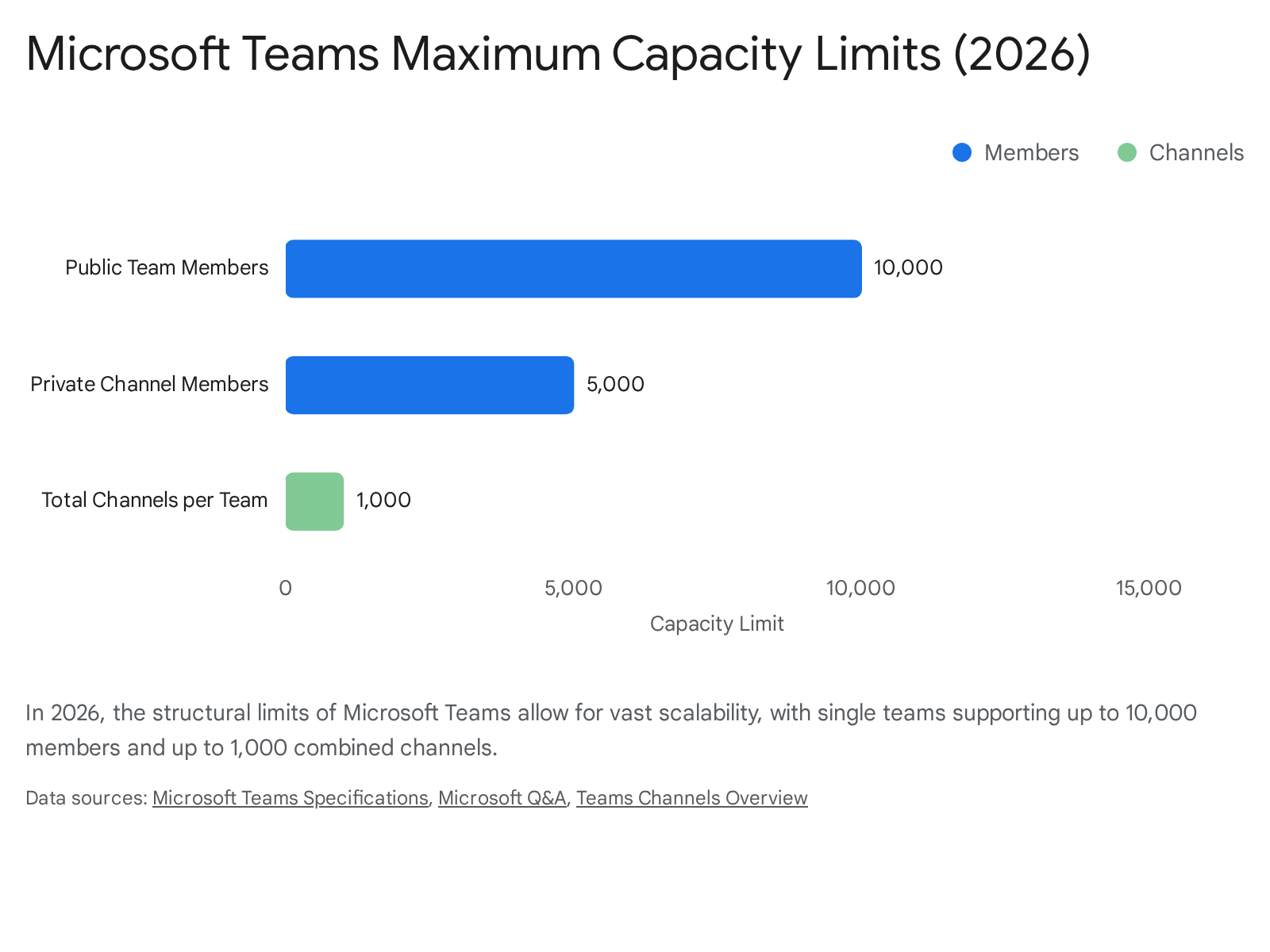
What are the strict limitations of the platform I should know about? Users must be aware of several hard limits. Meetings carry a strict maximum duration of 30 hours per session.1 File attachments within a chat or channel are limited by overall SharePoint storage constraints, but within an active meeting presentation, PowerPoint files cannot exceed 2 GB in size.1 Additionally, the overall limit for standard, shared, and private channels combined cannot exceed 1,000 per individual team, including deleted channels that are still within their 30-day recovery window.1
Collab365 strongly recommends that all new practitioners begin their journey by customising their Activity Feed and creating their first test channel to familiarise themselves with the interface. For further advanced training, premium templates, and deep community support, we invite you to join the Collab365 community platform to connect, learn, and grow alongside thousands of other Microsoft 365 professionals. Remember to bookmark this guide and share it with new colleagues during their onboarding process to ensure a consistent, highly productive start to their Microsoft Teams experience.
Sources
- <a id="cite-1" />Limits and specifications for Microsoft Teams, accessed April 7, 2026, <a href="https://learn.microsoft.com/en-us/microsoftteams/limits-specifications-teams" target="_blank" rel="noreferrer noopener">https://learn.microsoft.com/en-us/microsoftteams/limits-specifications-teams</a>
- <a id="cite-2" />Overview of teams and channels in Microsoft Teams - Microsoft Learn, accessed April 7, 2026, <a href="https://learn.microsoft.com/en-us/microsoftteams/teams-channels-overview" target="_blank" rel="noreferrer noopener">https://learn.microsoft.com/en-us/microsoftteams/teams-channels-overview</a>
- <a id="cite-3" />Get started with immersive events in Microsoft Teams, accessed April 7, 2026, <a href="https://support.microsoft.com/en-us/office/get-started-with-immersive-events-in-microsoft-teams-a69189df-39c7-478f-a335-0aef7c4e5781" target="_blank" rel="noreferrer noopener">https://support.microsoft.com/en-us/office/get-started-with-immersive-events-in-microsoft-teams-a69189df-39c7-478f-a335-0aef7c4e5781</a>
- <a id="cite-4" />Microsoft Teams DLP: Data Loss Prevention Guide - Mimecast, accessed April 7, 2026, <a href="https://www.mimecast.com/content/office-365-dlp-data-loss-prevention/" target="_blank" rel="noreferrer noopener">https://www.mimecast.com/content/office-365-dlp-data-loss-prevention/</a>
- <a id="cite-5" />Find and join a team in Microsoft Teams, accessed April 7, 2026, <a href="https://support.microsoft.com/en-us/office/find-and-join-a-team-in-microsoft-teams-9f284981-39a1-486d-b43d-ab2dcc4c1e0f" target="_blank" rel="noreferrer noopener">https://support.microsoft.com/en-us/office/find-and-join-a-team-in-microsoft-teams-9f284981-39a1-486d-b43d-ab2dcc4c1e0f</a>
- <a id="cite-6" />The new Microsoft Teams chat and channels experience, accessed April 7, 2026, <a href="https://adoption.microsoft.com/en-us/microsoft-teams/new-chat-and-channels-experience/" target="_blank" rel="noreferrer noopener">https://adoption.microsoft.com/en-us/microsoft-teams/new-chat-and-channels-experience/</a>
- <a id="cite-7" />Meeting options in Microsoft Teams - Microsoft Support, accessed April 7, 2026, <a href="https://support.microsoft.com/en-us/office/meeting-options-in-microsoft-teams-53261366-dbd5-45f9-aae9-a70e6354f88e" target="_blank" rel="noreferrer noopener">https://support.microsoft.com/en-us/office/meeting-options-in-microsoft-teams-53261366-dbd5-45f9-aae9-a70e6354f88e</a>
- <a id="cite-8" />Intelligent recap for Teams calls, meetings, and events - Microsoft Learn, accessed April 7, 2026, <a href="https://learn.microsoft.com/en-us/microsoftteams/intelligent-recap-calls-meetings" target="_blank" rel="noreferrer noopener">https://learn.microsoft.com/en-us/microsoftteams/intelligent-recap-calls-meetings</a>
- <a id="cite-9" />Top 10 things to try first with Microsoft 365 Copilot, accessed April 7, 2026, <a href="https://www.microsoft.com/en-us/microsoft-365-copilot/copilot-top-10-things-to-try-first" target="_blank" rel="noreferrer noopener">https://www.microsoft.com/en-us/microsoft-365-copilot/copilot-top-10-things-to-try-first</a>
- <a id="cite-10" />Microsoft Teams Slash Commands for Faster Collaboration - Fusion Connect, accessed April 7, 2026, <a href="https://www.fusionconnect.com/blog/slash-commands-in-microsoft-teams" target="_blank" rel="noreferrer noopener">https://www.fusionconnect.com/blog/slash-commands-in-microsoft-teams</a>
- <a id="cite-11" />Version update history for Teams app deployments - Office release notes - Microsoft Learn, accessed April 7, 2026, <a href="https://learn.microsoft.com/en-us/officeupdates/teams-app-versioning" target="_blank" rel="noreferrer noopener">https://learn.microsoft.com/en-us/officeupdates/teams-app-versioning</a>
- <a id="cite-12" />Plan for immersive events in Teams - Microsoft Learn, accessed April 7, 2026, <a href="https://learn.microsoft.com/en-us/microsoftteams/immersive-events" target="_blank" rel="noreferrer noopener">https://learn.microsoft.com/en-us/microsoftteams/immersive-events</a>
- <a id="cite-13" />What's new in Microsoft Teams, accessed April 7, 2026, <a href="https://support.microsoft.com/en-us/office/what-s-new-in-microsoft-teams-d7092a6d-c896-424c-b362-a472d5f105de" target="_blank" rel="noreferrer noopener">https://support.microsoft.com/en-us/office/what-s-new-in-microsoft-teams-d7092a6d-c896-424c-b362-a472d5f105de</a>
- <a id="cite-14" />What's New in Microsoft Teams | March 2026, accessed April 7, 2026, <a href="https://techcommunity.microsoft.com/blog/microsoftteamsblog/what%E2%80%99s-new-in-microsoft-teams--march-2026/4506985" target="_blank" rel="noreferrer noopener">https://techcommunity.microsoft.com/blog/microsoftteamsblog/what%E2%80%99s-new-in-microsoft-teams--march-2026/4506985</a>
- <a id="cite-15" />Microsoft Mesh Is Evolving to Teams Immersive, accessed April 7, 2026, <a href="https://www.microsoft.com/en-us/microsoft-teams/immersive" target="_blank" rel="noreferrer noopener">https://www.microsoft.com/en-us/microsoft-teams/immersive</a>
- <a id="cite-16" />Reorder chats and channels in Microsoft Teams, accessed April 7, 2026, <a href="https://support.microsoft.com/en-us/office/reorder-chats-and-channels-in-microsoft-teams-964d8358-53c3-4200-8cb1-5e9c5091031e" target="_blank" rel="noreferrer noopener">https://support.microsoft.com/en-us/office/reorder-chats-and-channels-in-microsoft-teams-964d8358-53c3-4200-8cb1-5e9c5091031e</a>
- <a id="cite-17" />Teamwork Governance - Microsoft 365 Adoption, accessed April 7, 2026, <a href="https://adoption.microsoft.com/en-us/microsoft-365/teamwork-governance/" target="_blank" rel="noreferrer noopener">https://adoption.microsoft.com/en-us/microsoft-365/teamwork-governance/</a>
- <a id="cite-18" />Using Templates to Manage Governance in Microsoft Teams - YouTube, accessed April 7, 2026, <a href="https://www.youtube.com/watch?v=-6BJekOj65Y" target="_blank" rel="noreferrer noopener">https://www.youtube.com/watch?v=-6BJekOj65Y</a>
- <a id="cite-19" />How to Navigate the Microsoft Teams Interface and Sidebar (2026 Guide) - YouTube, accessed April 7, 2026, <a href="https://www.youtube.com/watch?v=c8i6Ejc2weY" target="_blank" rel="noreferrer noopener">https://www.youtube.com/watch?v=c8i6Ejc2weY</a>
- <a id="cite-20" />The new chat and channels experience in Microsoft Teams, accessed April 7, 2026, <a href="https://support.microsoft.com/en-us/office/the-new-chat-and-channels-experience-in-microsoft-teams-c6f38016-d59c-4226-b0f3-caef4e60f91e" target="_blank" rel="noreferrer noopener">https://support.microsoft.com/en-us/office/the-new-chat-and-channels-experience-in-microsoft-teams-c6f38016-d59c-4226-b0f3-caef4e60f91e</a>
- <a id="cite-21" />34 Microsoft Teams Tips and Tricks Deployed by Pro Users | Ntiva, accessed April 7, 2026, <a href="https://www.ntiva.com/blog/microsoft-teams-tips-and-tricks" target="_blank" rel="noreferrer noopener">https://www.ntiva.com/blog/microsoft-teams-tips-and-tricks</a>
- <a id="cite-22" />What's New in Microsoft 365 Copilot | February 2026 | Microsoft Community Hub, accessed April 7, 2026, <a href="https://techcommunity.microsoft.com/blog/microsoft365copilotblog/what%E2%80%99s-new-in-microsoft-365-copilot--february-2026/4496489" target="_blank" rel="noreferrer noopener">https://techcommunity.microsoft.com/blog/microsoft365copilotblog/what%E2%80%99s-new-in-microsoft-365-copilot--february-2026/4496489</a>
- <a id="cite-23" />Step 2: Expand protection to endpoints - Lightweight guide to mitigate data leakage, accessed April 7, 2026, <a href="https://learn.microsoft.com/en-us/purview/deploymentmodels/depmod-lightweight-dlp-step2" target="_blank" rel="noreferrer noopener">https://learn.microsoft.com/en-us/purview/deploymentmodels/depmod-lightweight-dlp-step2</a>
- <a id="cite-24" />Data loss prevention and Microsoft Teams, accessed April 7, 2026, <a href="https://learn.microsoft.com/en-us/purview/dlp-microsoft-teams" target="_blank" rel="noreferrer noopener">https://learn.microsoft.com/en-us/purview/dlp-microsoft-teams</a>
- <a id="cite-25" />how can we increase the number of Private Channels in Teams - Microsoft Learn, accessed April 7, 2026, <a href="https://learn.microsoft.com/en-us/answers/questions/5828954/how-can-we-increase-the-number-of-private-channels" target="_blank" rel="noreferrer noopener">https://learn.microsoft.com/en-us/answers/questions/5828954/how-can-we-increase-the-number-of-private-channels</a>
- <a id="cite-26" />Collaborate with guests in a team (IT Admins) - Microsoft Learn, accessed April 7, 2026, <a href="https://learn.microsoft.com/en-us/previous-versions/microsoft-365/solutions/collaborate-as-team" target="_blank" rel="noreferrer noopener">https://learn.microsoft.com/en-us/previous-versions/microsoft-365/solutions/collaborate-as-team</a>
- <a id="cite-27" />How do I authorize guest to join my Teams - Microsoft Learn, accessed April 7, 2026, <a href="https://learn.microsoft.com/en-us/answers/questions/5742471/how-do-i-authorize-guest-to-join-my-teams" target="_blank" rel="noreferrer noopener">https://learn.microsoft.com/en-us/answers/questions/5742471/how-do-i-authorize-guest-to-join-my-teams</a>
- <a id="cite-28" />Add guests to a team in Microsoft Teams, accessed April 7, 2026, <a href="https://support.microsoft.com/en-us/office/add-guests-to-a-team-in-microsoft-teams-fccb4fa6-f864-4508-bdde-256e7384a14f" target="_blank" rel="noreferrer noopener">https://support.microsoft.com/en-us/office/add-guests-to-a-team-in-microsoft-teams-fccb4fa6-f864-4508-bdde-256e7384a14f</a>
- <a id="cite-29" />Guest access in Microsoft Teams, accessed April 7, 2026, <a href="https://learn.microsoft.com/en-us/microsoftteams/guest-access" target="_blank" rel="noreferrer noopener">https://learn.microsoft.com/en-us/microsoftteams/guest-access</a>
- <a id="cite-30" />Use sensitivity labels to protect collaborative workspaces (groups and sites), accessed April 7, 2026, <a href="https://learn.microsoft.com/en-us/purview/sensitivity-labels-teams-groups-sites" target="_blank" rel="noreferrer noopener">https://learn.microsoft.com/en-us/purview/sensitivity-labels-teams-groups-sites</a>
- <a id="cite-31" />Learn about sensitivity labels | Microsoft Learn, accessed April 7, 2026, <a href="https://learn.microsoft.com/en-us/purview/sensitivity-labels" target="_blank" rel="noreferrer noopener">https://learn.microsoft.com/en-us/purview/sensitivity-labels</a>
- <a id="cite-32" />15 Essential Microsoft Teams Apps for Project Teams - BrightWork, accessed April 7, 2026, <a href="https://www.brightwork.com/blog/microsoft-teams-apps" target="_blank" rel="noreferrer noopener">https://www.brightwork.com/blog/microsoft-teams-apps</a>
- <a id="cite-33" />29 Best Microsoft Teams Apps for 2026 | TestMu AI (Formerly LambdaTest), accessed April 7, 2026, <a href="https://www.testmuai.com/blog/microsoft-teams-apps/" target="_blank" rel="noreferrer noopener">https://www.testmuai.com/blog/microsoft-teams-apps/</a>
- <a id="cite-34" />31 Best Microsoft Teams Apps and Integrations to Enhance Your Workflow, accessed April 7, 2026, <a href="https://www.zonkafeedback.com/blog/microsoft-teams-apps" target="_blank" rel="noreferrer noopener">https://www.zonkafeedback.com/blog/microsoft-teams-apps</a>
- <a id="cite-35" />Overview: Viva Connections | Microsoft Learn, accessed April 7, 2026, <a href="https://learn.microsoft.com/en-us/viva/connections/viva-connections-overview" target="_blank" rel="noreferrer noopener">https://learn.microsoft.com/en-us/viva/connections/viva-connections-overview</a>
- <a id="cite-36" />Introducing Microsoft Viva Engage, accessed April 7, 2026, <a href="https://learn.microsoft.com/en-us/viva/engage/overview" target="_blank" rel="noreferrer noopener">https://learn.microsoft.com/en-us/viva/engage/overview</a>
- <a id="cite-37" />Sensitivity Labels Are Coming to Viva Engage Communities Here's What You Need to Know, accessed April 7, 2026, <a href="https://techcommunity.microsoft.com/blog/viva_engage_blog/sensitivity-labels-are-coming-to-viva-engage-communities-heres-what-you-need-to-/4507443" target="_blank" rel="noreferrer noopener">https://techcommunity.microsoft.com/blog/viva_engage_blog/sensitivity-labels-are-coming-to-viva-engage-communities-heres-what-you-need-to-/4507443</a>
- <a id="cite-38" />Use commands in Microsoft Teams, accessed April 7, 2026, <a href="https://support.microsoft.com/en-us/office/use-commands-in-microsoft-teams-88f61508-284d-417f-a53d-9e082164050b" target="_blank" rel="noreferrer noopener">https://support.microsoft.com/en-us/office/use-commands-in-microsoft-teams-88f61508-284d-417f-a53d-9e082164050b</a>
- <a id="cite-39" />Breakout rooms troubleshooting guide in Microsoft Teams, accessed April 7, 2026, <a href="https://support.microsoft.com/en-us/office/breakout-rooms-troubleshooting-guide-in-microsoft-teams-02eefaa2-f5ad-4075-9de1-79747c1cb463" target="_blank" rel="noreferrer noopener">https://support.microsoft.com/en-us/office/breakout-rooms-troubleshooting-guide-in-microsoft-teams-02eefaa2-f5ad-4075-9de1-79747c1cb463</a>
- <a id="cite-40" />Recap in Microsoft Teams, accessed April 7, 2026, <a href="https://support.microsoft.com/en-us/office/recap-in-microsoft-teams-c2e3a0fe-504f-4b2c-bf85-504938f110ef" target="_blank" rel="noreferrer noopener">https://support.microsoft.com/en-us/office/recap-in-microsoft-teams-c2e3a0fe-504f-4b2c-bf85-504938f110ef</a>
- <a id="cite-41" />What's New in Microsoft 365 Copilot | March 2026, accessed April 7, 2026, <a href="https://techcommunity.microsoft.com/blog/microsoft365copilotblog/what%E2%80%99s-new-in-microsoft-365-copilot--march-2026/4506322" target="_blank" rel="noreferrer noopener">https://techcommunity.microsoft.com/blog/microsoft365copilotblog/what%E2%80%99s-new-in-microsoft-365-copilot--march-2026/4506322</a>
- <a id="cite-42" />Listen to audio recaps of your meetings - Microsoft Support, accessed April 7, 2026, <a href="https://support.microsoft.com/en-us/office/listen-to-audio-recaps-of-your-meetings-04bd2828-5c4e-4132-ac86-a87b9ec28984" target="_blank" rel="noreferrer noopener">https://support.microsoft.com/en-us/office/listen-to-audio-recaps-of-your-meetings-04bd2828-5c4e-4132-ac86-a87b9ec28984</a>
- <a id="cite-43" />Bonding in 3D: How Microsoft employees are finding connection in Microsoft Teams - Inside Track Blog, accessed April 7, 2026, <a href="https://www.microsoft.com/insidetrack/blog/bonding-in-3d-how-microsoft-employees-are-finding-connection-in-microsoft-teams/" target="_blank" rel="noreferrer noopener">https://www.microsoft.com/insidetrack/blog/bonding-in-3d-how-microsoft-employees-are-finding-connection-in-microsoft-teams/</a>
- <a id="cite-44" />Learn about Copilot prompts - Microsoft Support, accessed April 7, 2026, <a href="https://support.microsoft.com/en-us/topic/learn-about-copilot-prompts-f6c3b467-f07c-4db1-ae54-ffac96184dd5" target="_blank" rel="noreferrer noopener">https://support.microsoft.com/en-us/topic/learn-about-copilot-prompts-f6c3b467-f07c-4db1-ae54-ffac96184dd5</a>
- <a id="cite-45" />10 Copilot Prompts Every Workplace Persona Should Be Using in 2026 - Changing Social, accessed April 7, 2026, <a href="https://www.changingsocial.com/blog/10-copilot-prompts-to-be-using-in-2026/" target="_blank" rel="noreferrer noopener">https://www.changingsocial.com/blog/10-copilot-prompts-to-be-using-in-2026/</a>
- <a id="cite-46" />Release Notes for Microsoft 365 Copilot, accessed April 7, 2026, <a href="https://learn.microsoft.com/copilot/microsoft-365/release-notes?tabs=all" target="_blank" rel="noreferrer noopener">https://learn.microsoft.com/copilot/microsoft-365/release-notes?tabs=all</a>
- <a id="cite-47" />Microsoft Teams Keyboard Shortcuts Guide (2026) - Social Intents, accessed April 7, 2026, <a href="https://www.socialintents.com/blog/microsoft-teams-keyboard-shortcuts/" target="_blank" rel="noreferrer noopener">https://www.socialintents.com/blog/microsoft-teams-keyboard-shortcuts/</a>
- <a id="cite-48" />Keyboard shortcuts for Microsoft Teams, accessed April 7, 2026, <a href="https://support.microsoft.com/en-us/office/keyboard-shortcuts-for-microsoft-teams-2e8e2a70-e8d8-4a19-949b-4c36dd5292d2" target="_blank" rel="noreferrer noopener">https://support.microsoft.com/en-us/office/keyboard-shortcuts-for-microsoft-teams-2e8e2a70-e8d8-4a19-949b-4c36dd5292d2</a>
- <a id="cite-49" />6 Common Microsoft Teams Problems (and How to Fix Them) in 2026 - Intelliworx, accessed April 7, 2026, <a href="https://intelliworx.co/au/blog/microsoft/6-common-microsoft-teams-problems-and-how-to-fix-them/" target="_blank" rel="noreferrer noopener">https://intelliworx.co/au/blog/microsoft/6-common-microsoft-teams-problems-and-how-to-fix-them/</a>
- <a id="cite-50" />Slack vs Microsoft Teams (2026): Which Team Communication Tool Is Right for Your Business? | Aplos AI, accessed April 7, 2026, <a href="https://aplosai.com/blog/slack-vs-microsoft-teams" target="_blank" rel="noreferrer noopener">https://aplosai.com/blog/slack-vs-microsoft-teams</a>
- <a id="cite-51" />Slack vs Microsoft Teams: Features, Pricing + Best Choice - Happyfox Blog, accessed April 7, 2026, <a href="https://blog.happyfox.com/slack-vs-microsoft-teams/" target="_blank" rel="noreferrer noopener">https://blog.happyfox.com/slack-vs-microsoft-teams/</a>
- <a id="cite-52" />Slack vs Microsoft Teams: Compare Features, Pricing & Security, accessed April 7, 2026, <a href="https://slack.com/compare/slack-vs-teams" target="_blank" rel="noreferrer noopener">https://slack.com/compare/slack-vs-teams</a>