
How to Build a Scalable SharePoint Wiki Without Legacy Traps
At a Glance
- Target Audience
- SharePoint Administrators, IT Managers, Knowledge Managers
- Problem Solved
- Centralized documentation bottlenecks, outdated info, 5K list view threshold errors, lack of collaboration in knowledge bases.
- Use Case
- Enterprise knowledge base for decentralized departmental collaboration via Hub Sites and modern wikis.
In 2026, building a wiki-based knowledge base in Microsoft 365 starts with a modern team site wiki library — and here is the exact path to get you up and running today. To deploy a dedicated wiki quickly, simply navigate via the classic menu to Site contents > New > App > Wiki Page Library.1
Alternatively, and preferably for modern architecture, you can use the new 2026 SharePoint app bar by navigating to Build > Start building > Site > Communication Site.2 SharePoint Online wiki page libraries are built to scale, easily supporting up to 5,000 pages per library view before requiring indexed columns, and up to 30 million items in total storage.4
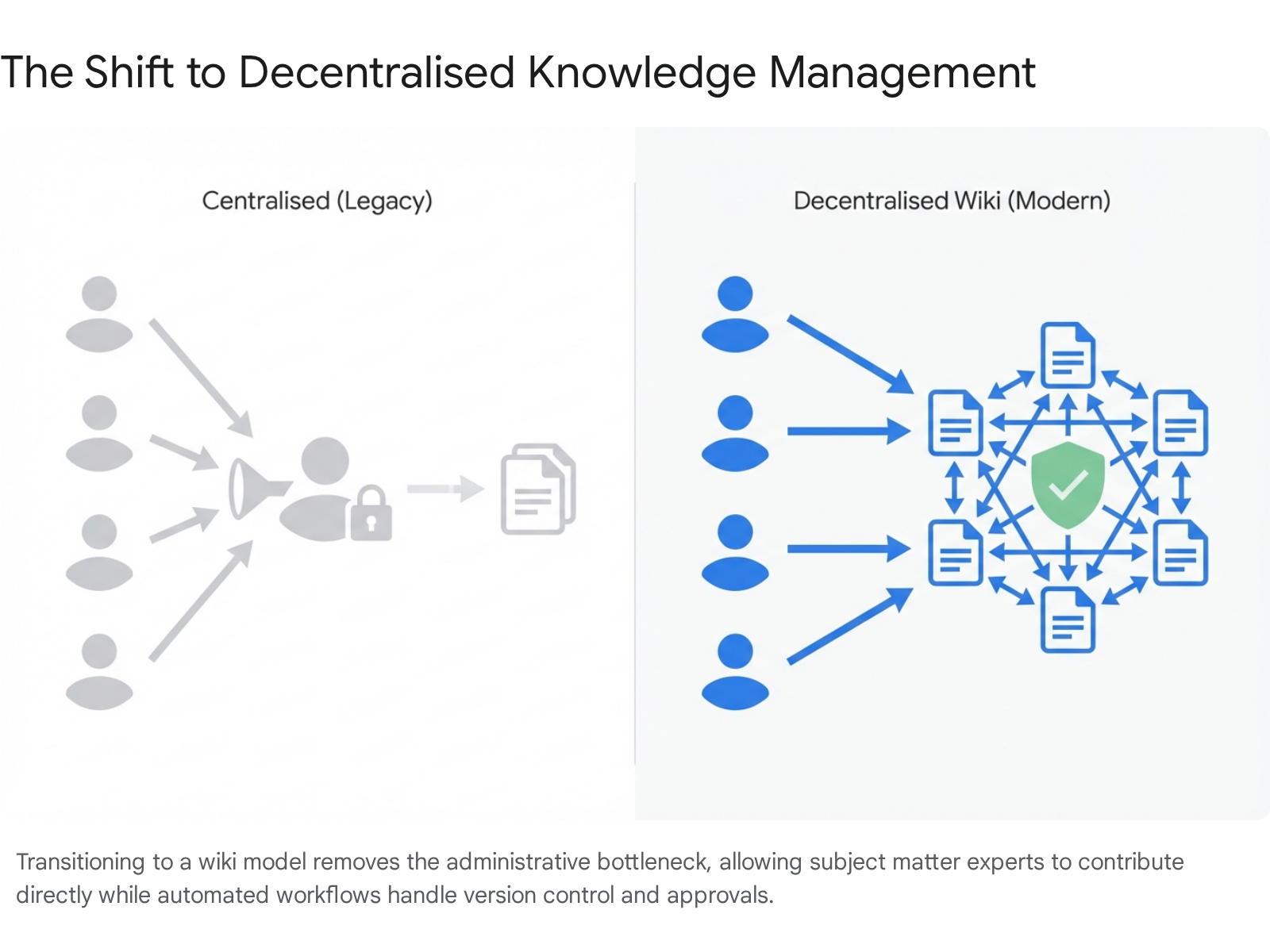
The modern SharePoint ecosystem has evolved significantly over the past few years, integrating advanced artificial intelligence and automated governance to replace the static, centrally curated pages of the past. Knowledge management in the modern workplace requires true decentralisation. When a central administration team is solely responsible for curating frequently asked questions, training videos, and cheat sheets, the entire process becomes a severe bottleneck.
Information quickly becomes outdated, and subject matter experts are hindered from sharing their daily operational insights. By transitioning to a collaborative wiki model, organisations distribute the documentation workload. This approach mirrors the operational structure of platforms like Wikipedia: it encourages open collaboration while maintaining strict oversight, version history, and quality control.
Key Takeaway: Stop relying on a single administrator to update company documentation. Moving to a SharePoint wiki decentralises content creation, allowing subject matter experts to update processes instantly while maintaining version control security.
This comprehensive guide details exactly how administrators can build, govern, and scale a SharePoint wiki knowledge base using the latest 2026 features, including modern pages, Copilot Agents, and Viva integration.
TL;DR / Quick Answer
- Modernise immediately: Rely on Modern Site Pages with [[ bracket linking rather than legacy classic wikis, which are being deprecated.6
- Enable versioning immediately: Protect your content by tracking up to 50,000 major versions to prevent accidental data loss from collaborative edits.8
- Use Copilot for content suggestions: Deploy SharePoint Agents to draft, summarise, and maintain wiki articles automatically based on existing tenant data.9
- Decentralise creation, centralise approval: Assign approvers via Power Automate page approval flows rather than giving full edit access to all users immediately.10
- Watch the limits: Organise content into folders or use strategically indexed columns to avoid the dreaded 5,000-item List View Threshold error.11
Who Should Use a SharePoint Wiki for Their Knowledge Base?
A SharePoint wiki is the ideal solution for organisations seeking to decentralise content creation because central curation is intensely time-consuming and severely limits employee contributions. If you are reading this, you likely fit our target profile. You are typically a SharePoint administrator, IT manager, or knowledge manager with two to four years of platform experience.
You understand the basics of site creation and document libraries, but you face scaling issues when trying to maintain accurate, up-to-date documentation across multiple rapidly expanding departments. You receive daily emails asking for the latest standard operating procedure (SOP) or onboarding checklist, and you spend more time formatting Word documents for the intranet than actually managing the system architecture.
The primary prerequisite for building this solution is an active Microsoft 365 or SharePoint Online licence, alongside the appropriate contributor, designer, or owner access levels to configure site settings and applications.8 When users possess these prerequisites, the shift from a static repository to a dynamic wiki can fundamentally alter how an organisation retains its institutional memory.
We at Collab365 shifted our own internal knowledge base from static, centrally managed pages to a modern wiki architecture and saw three times the contributions from our team. Previously, our specialists had to draft documents in Word, email them to an administrator, and wait days for publication. By opening the platform via a wiki structure, those same specialists could edit pages directly, safe in the knowledge that version control and automated approval workflows would prevent any critical errors.
This cultural shift from "read-only" to "read-and-contribute" is the defining advantage of the wiki format. It empowers the people actually doing the work to document the work.
Key Takeaway: A wiki architecture shifts the burden of documentation from a single bottlenecked administrator to the wider community of subject matter experts, drastically increasing the volume, speed, and accuracy of internal knowledge.
Furthermore, this solution serves organisations dealing with complex, interconnected processes. A standard document library requires users to click and open files individually in separate tabs, whereas a wiki allows for deep interconnectivity via hyperlinked text. A page detailing a new software deployment can link directly to a troubleshooting page, which in turn links to a specific human resources policy document.
This web of information maps much more closely to human problem-solving patterns than a rigid, nested folder hierarchy. It allows employees to "fall down the rabbit hole" of your corporate knowledge, discovering related procedures they might not have otherwise known existed.
How Do You Create a Wiki Library in SharePoint 2026?
Building a knowledge base in 2026 requires understanding the dual nature of SharePoint's architecture. Administrators have access to legacy application templates and modern authoring canvases. While the classic Wiki Page Library application is still technically available for specific legacy use cases, the modern Site Pages library offers vastly superior responsiveness and feature integration.
We will detail both methods below to ensure administrators can choose the exact path that fits their specific tenant's governance policies, but we strongly advocate for the modern approach.
Method 1: The Classic Wiki Page Library App
If the requirement from your compliance team is to use the dedicated, classic wiki container, the process remains relatively straightforward. A team site functions natively as a wiki, but managing knowledge separately often requires a dedicated library to keep things tidy.1
- Navigate to the target SharePoint site where you want the knowledge base to live.
- Select the Settings gear icon in the top right corner (often located on the SharePoint Online Public Website Settings ribbon).
- Click on Add an app from the dropdown menu.1
- The system will present the "Your Apps" page. In the modern 2026 interface, this may appear within the new site contents structure, visually distinct from the classic interface.
- Type "Wiki" into the search field and select the magnifying glass icon to filter the available templates.1
- Locate and select the Wiki Page Library tile.1 (Alt-text for your mental model: 'New app picker in SharePoint modern UI showing a blue folder icon').
- In the Name box, input a clear, descriptive title for the new wiki page library, such as "Engineering Knowledge Base" or "Corporate Wiki Pages".1
- Select Create.1
Once created, the new classic wiki library will appear in the Site Contents list. Administrators can then navigate into the library and use the Share button to grant contributor access to the relevant Microsoft 365 groups or specific team email aliases, such as "Engineering" or "Marketing".1
Key Takeaway: The classic 'Wiki Page Library' app is still accessible via Site Contents > Add an app. However, this method relies on older architectural frameworks that lack native mobile responsiveness compared to modern alternatives.
Method 2: The Modern 2026 "Build" Experience
In early 2026, Microsoft introduced a completely reimagined SharePoint navigation experience. This update features a distinct, persistent app bar on the left side of the screen with "Discover", "Publish", and "Build" nodes.2
The "Build" destination serves as a highly centralised, AI-assisted hub for makers to turn ideas into real solutions, providing a much more intuitive path than digging through the classic site contents menu.3 We recommend this path for all new knowledge bases.
- Select Build from the global SharePoint side app bar.3
- Under the "Start building with guided experiences" section, choose to create a new Site.3
- For a modern wiki, creating a new Communication Site or Team Site generates a modern "Site Pages" library by default.12 Choose a Communication Site if the knowledge is strictly top-down broadcasting, or a Team Site if you want open, cross-departmental collaboration.
- Navigate to the Site Pages library on your new site. This modern library supports all essential wiki functionalities natively, including responsive design and mobile compatibility.13
- Begin creating modern pages. These pages act precisely like wiki articles when combined with structural linking.
The modern Site Pages approach is widely considered the superior path for 2026. Unlike the text-heavy and plain classic wiki pages that struggled to look good on tablets or phones, modern pages support flexible sections, rich web parts, and complete integration with Microsoft 365 Copilot.14
Key Takeaway: For a future-proof knowledge base, use the 2026 'Build' hub to deploy a new site. The default Modern Site Pages library provides superior mobile responsiveness, beautiful templates, and native Copilot AI integration.
Mastering the Wiki Linking Syntax
A wiki is defined by its interconnectivity, not just its storage location. To mimic the rapid, fluid linking behaviour of legacy wikis in a modern environment, authors simply use the standard Text web part on a modern page.
By typing ` You simply click the page you want, and SharePoint builds the hyperlink automatically.
But what if the page you want to reference hasn't been written yet? This is where the true power of the wiki comes in. If the desired page does not exist, the author can continue typing a new name and close it with ]] (e.g., [[Upcoming 2027 Holiday Policy]]).
SharePoint will automatically generate a placeholder hyperlink.6 When the next reader clicks that phantom link, SharePoint will prompt them to create the missing page — replicating the exact collaborative behaviour that made original wiki platforms like Wikipedia so phenomenally successful.6
You can also format the display text so the sentence reads naturally. To do this, type the exact page name, followed by a vertical bar character (|), and then the text you want to display on the screen. For example, typing ] will display "the updated leave policy" to the reader, while secretly routing them to the exact technical document.1
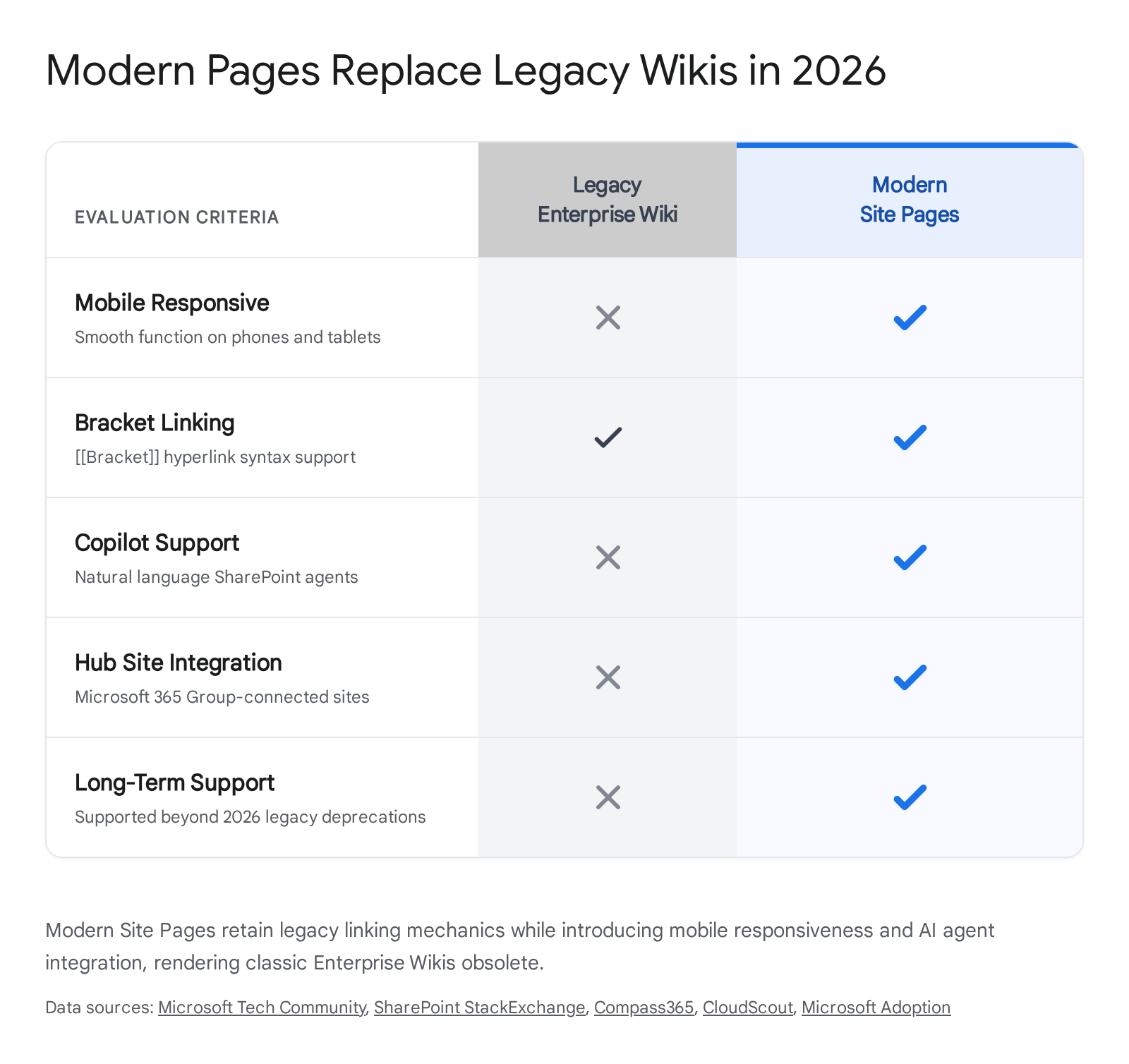
Key Takeaway: Train your content creators to use the ` However, as of 2026, Microsoft has effectively deprecated the Enterprise Wiki model.
Custom scripting, which these legacy publishing sites relied upon to function properly, is now disabled by default across SharePoint Online (specifically impacting the ENTERWIKI#0 template and others like CMSPUBLISHING#0).7 Attempting to build a new knowledge base on this deprecated template introduces significant technical debt, risks broken functionality, and entirely prevents the site from utilising modern AI features.18
A Team Wiki (often just a classic team site with the wiki feature enabled) is suitable for very small-scale, rapid idea capture.1 It functions adequately for isolated, short-term projects but lacks the visual polish, structural rigour, and mobile responsiveness required by modern workforces.13
Modern Pages, housed within a standard modern Team or Communication site, represent the definitive 2026 standard. They encompass all the collaborative, interconnected benefits of a wiki while operating on a highly responsive, cloud-first framework.13
The following comparison table provides a clear architectural breakdown to aid your decisions:
| Feature/Metric | Legacy Enterprise Wiki | Classic Team Wiki | Modern Site Pages (2026 Standard) |
|---|---|---|---|
| Base Template Code | ENTERWIKI#0 (Deprecated) | Classic Team Site | Modern Team / Communication Site |
| Architectural Scalability | High (but restricted by legacy code) | Low (Project-specific) | Extremely High (Hub Site ready) |
| Mobile Responsiveness | Poor (Requires custom master pages) | Poor (Fixed layouts) | Native out-of-the-box support 20 |
| Wiki Linking ([[ ]]) | Yes | Yes | Yes (Inside Text Web Part) 21 |
| Copilot / AI Features | Unsupported | Unsupported | Fully Integrated (SharePoint Agents) 9 |
| Primary Use Case | Legacy migrations only | Legacy project documentation | All new enterprise knowledge bases |
Key Takeaway: Do not build new knowledge bases using the legacy Enterprise Wiki template, as its foundational custom scripting features are disabled in 2026. Modern Site Pages deliver full wiki functionality alongside AI capabilities.
The recommendation for any new build is unequivocally the Modern Site Pages route. When modern pages are deployed within a broader Hub Site architecture, they allow for massive, enterprise-wide scalability.
A Hub Site acts as connective tissue. It can connect multiple isolated departmental wikis (for example, tying an HR wiki site, an IT wiki site, and a Finance wiki site together), providing a unified search scope and consistent top-level navigation across the entire knowledge base without forcing all thousands of pages into a single, unmanageable library.22
Setting Up Permissions and Versioning for Safe Collaboration
The fundamental premise of a wiki is open collaboration. You want people to share what they know. However, in a corporate environment, absolute freedom without guardrails leads to chaotic, unreliable, and potentially non-compliant data. Establishing proper permissions and version control is paramount to creating a safe environment where employees feel confident editing content without fear of breaking the system.
Configuring Versioning: The Ultimate Safety Net
Versioning acts as the primary safety net for a SharePoint knowledge base. It ensures that if a user accidentally overwrites crucial emergency instructions, deletes a vital paragraph, or completely messes up the formatting of a page, the previous state can be restored instantly with a few clicks.
SharePoint Online is incredibly strong in this regard. It supports tracking up to 50,000 major versions and 511 minor versions per individual item or page.8 By default, modern document and page libraries enable versioning automatically, but it is highly recommended that administrators physically verify and tune these settings before launch.
To configure versioning for your wiki:
- Navigate to your wiki library or Site Pages library.
- Select the Settings gear icon in the top right, then click Library settings.
- Choose More library settings (if you are in the modern settings pane), followed by Versioning settings.
- Ensure the radio button for "Create major versions" is selected.
- Define the number of versions to retain. While 50,000 is the hard technical boundary, setting a retention policy of 100 to 500 major versions is generally more than sufficient for standard knowledge base articles and helps optimise your backend storage efficiency.8
Key Takeaway: Never run a collaborative wiki without versioning enabled. Set your library to retain at least 100 major versions so any accidental deletions or bad edits by staff can be reverted instantly.
Structuring Permissions via Groups
Rather than assigning individual user permissions to specific pages—which quickly becomes a logistical nightmare as personnel change roles or leave the company—administrators must use Microsoft 365 Groups or SharePoint Groups to manage access at the site level.
- Wiki Owners (Full Control): This tier should be strictly restricted to the core administrative team. This group manages the site architecture, library settings, the overarching taxonomy, and can delete libraries.
- Wiki Members (Edit/Contribute): This group encompasses the subject matter experts. They hold the power to create, edit, and update pages. In a highly open culture, all internal employees might be added here.
- Wiki Visitors (Read): Users who only need to consume the documentation. They can view pages and click links but cannot alter the text.
Item-level permissions (the practice of breaking inheritance on a single specific page so only certain users can view it) should be avoided at all costs within a primary wiki. While the supported limit for unique security scopes in a SharePoint library is 50,000, performance degrades significantly past the recommended general limit of 5,000 unique permissions.8
If a subset of knowledge is highly confidential (e.g., executive-level HR dispute procedures), the structural best practice is to create an entirely separate, secure wiki site and link it via a Hub Site, rather than applying complex, fragile item-level security to individual pages.
Implementing Moderation and Approval Workflows
To bridge the gap between open collaborative editing and strict corporate quality control, administrators can deploy page approval workflows. This ensures that while anyone in the "Members" group can edit a page, those edits are not visible to the wider company until a designated expert approves them.
In the modern 2026 UI, setting up this workflow requires zero custom code and is built directly into the library interface.24
- From the Site Pages library, select Automate on the top command bar.
- Navigate to Power Automate > Configure page approval flow.10
- The system opens a configuration panel on the right side. Select Create flow.10
- Check that the flow's name is appropriate, and specify the designated Approvers. These should be site owners or lead subject matter experts with full control.10
- Select Create.10
Once configured, the standard "Publish" button on wiki pages transforms into a "Submit for approval" button.25 Approvers receive automated, actionable notifications via email or the Microsoft Teams Approvals app.
Rejected pages remain in a draft state for the author to revise, while approved pages are published to the main wiki interface.25 This built-in approval system is massively improved in 2026, allowing for ordered, multi-stage approvals without needing to build complex logic flows from scratch.24
Key Takeaway: Assign approvers via Power Automate page approval flows, rather than restricting edit access. This allows all employees to contribute updates while maintaining strict quality assurance before publication.
Supercharging Wikis with Copilot and Viva in 2026
The integration of artificial intelligence and employee experience platforms has fundamentally transformed the SharePoint wiki from a passive, quiet repository into a proactive, conversational knowledge engine. In 2026, the combined forces of Microsoft 365 Copilot and Microsoft Viva elevate documentation management to unprecedented efficiency levels.
Copilot and SharePoint Agents
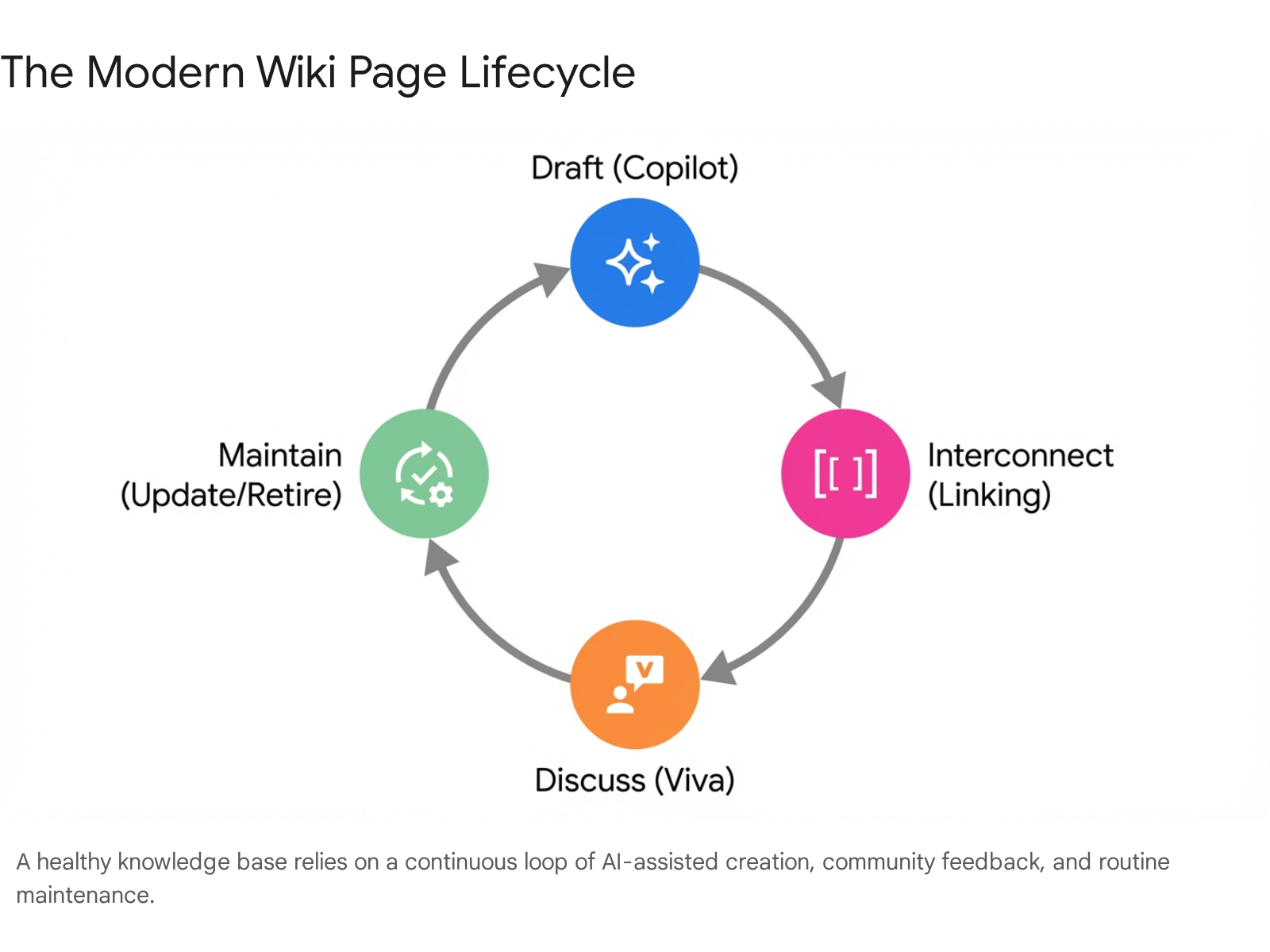
Microsoft 365 Copilot now operates natively within modern SharePoint pages, providing an "active partner" experience during the content creation process. Gone are the days of staring blankly at an empty wiki page wondering how to format an SOP.
When building a new article, authors can provide natural language prompts regarding their intent. SharePoint acts as an active partner, asking clarifying questions and proposing a structured plan.26 Copilot will then generate structured, on-brand content directly onto the canvas, drafting, refining, and reorganising content based on your instructions.26
Furthermore, Copilot excels at maintaining the wiki over time. An author can highlight text and ask the AI to summarise a lengthy procedure, adjust the tone of the writing to be more technical or more accessible, or reshape entire sections based on recent corporate policy updates.26
A defining feature for 2026 is the deployment of SharePoint Agents. Every SharePoint site now includes a pre-built natural language AI assistant grounded entirely in that specific site's content.9 If an employee cannot find the exact wiki page they need via standard search, they can query the site's Agent via chat.
The Agent retrieves precise answers, synthesises data across multiple wiki pages, and—crucially—provides deep, explainable inline citations linking directly back to the source wiki articles so the employee can verify the facts.9 Administrators can also build custom, scoped Agents that only access specific approved libraries, ensuring that the AI does not surface draft, deprecated, or highly sensitive content to general users.9
Key Takeaway: Embed SharePoint Agents to allow employees to query the knowledge base using natural language. The AI will read your wiki pages and provide conversational answers with direct citation links back to your documentation.
The Collab365 team tested these integrations deeply across multiple configurations. Early iterations involved incorporating Microsoft Viva Topics into wiki pages, which successfully highlighted corporate acronyms and generated topic cards, resulting in 40% faster onboarding for new hires as they learned the company jargon.
However, as the technology matured, Viva Topics was officially retired to merge its capabilities into the broader AI ecosystem.28 Those same knowledge management functions—automatically structuring information and enriching it with metadata—are now handled seamlessly in the background by Copilot.26
We also see exciting developments with the introduction of "Copilot Pages" in 2026, an interactive canvas that allows users to turn Copilot chat responses into editable, shareable pages. Beginning in late May 2026, users can move content created in Copilot Pages directly into a SharePoint News post or wiki page for formal publishing, streamlining the journey from a rough AI idea to a formal corporate document.29
Viva Engage Integration for Community Feedback
While Copilot handles content generation and retrieval, Microsoft Viva Engage facilitates human community discussion around the knowledge. Knowledge bases are rarely static; a new piece of documentation often sparks questions, requests for clarification, and debates about edge cases not covered in the text.
Administrators can embed the new Viva Engage Conversations web part directly onto modern wiki pages.31 This integration allows users to:
- Start conversations or ask questions related to specific wiki procedures directly from the SharePoint page, without leaving the context of the document.31
- Mark the "Best Answer" to a question, creating a dynamic, crowdsourced FAQ section right beneath the formal documentation.31
- Engage subject matter experts directly by tagging them in the feed.
By positioning a Viva Engage feed at the bottom of a complex policy wiki page, administrators create a continuous feedback loop. When a procedure changes, the resulting discussion occurs on the page itself. The knowledge manager can then use Copilot to summarise that Viva Engage discussion and formally update the main wiki text above it, ensuring the documentation continuously evolves alongside operational reality.
Best Practices: Linking Pages, Embedding Media, and Maintenance
Creating the wiki infrastructure is only the first technical step; maintaining a logical, navigable, and visually engaging environment dictates its long-term success. Administrators must establish clear best practices for content authors to follow from day one.
Perfecting Information Architecture and Hub Sites
As a wiki grows from fifty pages to five thousand pages, flat structures become utterly unmanageable. You cannot expect users to find anything if every single document lives in one massive list. The 2026 best practice is to deploy a Hub Site architecture. A Hub Site acts as connective organisational tissue, allowing administrators to group related, but separate, team wiki sites together into a cohesive family.22
For example, an organisation might create a top-level "Corporate Knowledge Hub." The IT Department, HR Department, and Operations Department each maintain their own independent modern wiki sites where their specific experts have edit rights.
By associating these three departmental sites with the Corporate Knowledge Hub, they instantly share a unified top-level navigation menu (the Mega Menu) and a combined search scope.22 This means an employee can search from the Hub and retrieve a wiki page from any of the associated departments, while the individual departments retain total control over their own local permissions and approval flows.
To create this setup:
- Register a main Communication site as a Hub Site via the SharePoint Admin Center.22
- Navigate to your specific wiki sites, click Settings, and select "Site Information".
- Under the "Hub site association" dropdown, select your newly created Hub Site to link them together.22
- Build out the Hub Navigation Mega Menu on the main site to link to the most important wiki indices across the associated departments.23
Embedding Rich Media for Context
A massive wall of text is poor documentation, regardless of how accurate it is. Modern Site Pages excel at handling rich media natively without requiring complex, fragile embedded HTML iframe codes.
- Stream Videos: Embed internal training videos or recorded Teams meetings directly onto the page to provide visual walkthroughs of complex tasks.
- Visio Diagrams: Technical wikis benefit heavily from process maps. Using the File Viewer web part allows users to pan, zoom, and interact with high-resolution Visio architectures without ever leaving the wiki page.
- Power BI Dashboards: Embed live data metrics alongside the documentation explaining how those metrics are calculated, ensuring users understand both the "what" and the "why".
Key Takeaway: Use Hub Sites to connect multiple smaller departmental wikis into a single, searchable enterprise knowledge network. This prevents any single library from becoming bloated and unmanageable over time.
Routine Maintenance and Archiving
Wikis fail when they become cluttered with outdated, contradictory information. Employees will lose trust in the system if they follow a procedure that was deprecated three years ago. You must establish a quarterly maintenance routine.
Use the new SharePoint "Build" hub's proactive recommendations, which automatically suggest retiring low-activity pages to keep the site healthy.2 Implement standard naming conventions for all pages to ensure alphabetical sorting remains logical. Furthermore, audit your libraries with non-indexed filter columns to ensure search remains fast and responsive as your page count grows.11
Common Pitfalls and How to Avoid Them
Even with the best architectural planning, large-scale knowledge bases encounter technical and operational hurdles. Understanding SharePoint's strict backend limitations is critical to preventing catastrophic performance degradation for your users.
Surviving the 5,000-Item List View Threshold
The most notorious issue in SharePoint is the List View Threshold. While a modern SharePoint document library can physically store up to 30 million items, the system enforces a strict 5,000-item limit on what it can query and display in a single list view.4
This is not a storage capacity issue; it is a SQL Server indexing safeguard designed to protect tenant-wide performance on Microsoft's end.11 When a wiki library exceeds 5,000 pages and an employee attempts to view, sort, or filter them without proper indexing, SharePoint attempts a massive table scan, hits the threshold, and returns an error message, essentially locking users out of the view.11
If you are migrating thousands of old documents into your new wiki, you must plan for this.
Key Takeaway: The 5,000-item limit restricts how many pages can be viewed at once, not how many can be stored. You must implement indexed columns and folder hierarchies before the wiki grows to this size.
The following table outlines the most common pitfalls encountered when building a wiki, alongside their engineered 2026 solutions:
| Common Issue | Root Cause | The 2026 Solution |
|---|---|---|
| The 5,000 Item View Error | A single library view attempts to load or filter more than 5,000 wiki pages simultaneously without indices.32 | Index Columns Early: Proactively create indexed metadata columns before hitting the threshold. Organise massive datasets into distinct folders (which act as boundaries) or split content across multiple libraries.11 |
| "Broken" Phantom Links | Authors use [[New Page]] syntax, but no one ever clicks through to actually create the stub page, leaving dead ends.6 | Content Audits: Run monthly reports on uncreated pages. Use the new 2026 "Publish" hub analytics to track dead ends and assign subject matter experts to draft the missing pages. |
| AI Hallucinations | SharePoint Agents surface outdated or incorrect wiki procedures in response to user queries because old data was left active.9 | Archiving Policies: AI is only as good as its grounding data. Use strict retention policies to move deprecated articles to an unindexed archive library, ensuring Copilot only reads current policies. |
| Navigation Sprawl | Every new wiki page is added to the top navigation bar by default, creating a massive, unusable dropdown menu. | Hub Site Mega Menus: Transition to a Hub Site architecture. Use Mega Menus to group links logically by department, and rely heavily on search rather than hardcoded navigation links.23 |
| Accidental Deletions | A user with edit access accidentally deletes a highly complex, media-rich wiki page that took days to build. | Recycle Bin & Versioning: Train administrators to recover items from the two-stage Recycle Bin. Ensure versioning is set to retain major versions, allowing instant rollback of disastrous edits.8 |
By anticipating the 5,000-item threshold and indexing columns during the initial setup phase—rather than waiting until the error appears—administrators save countless hours of backend troubleshooting down the line. Track folders approaching 4,000 items and segment high-volume entities into dedicated libraries when necessary.11
FAQ
Can I use wikis inside Microsoft Teams?
Yes. Because Microsoft Teams is fundamentally built on top of SharePoint architecture, any modern SharePoint Site Page can be easily added as a dedicated tab within a Teams channel. This allows frontline workers to access and read the knowledge base directly within their primary communication client without needing to open a separate web browser.
How does Copilot work with modern wiki pages? Microsoft 365 Copilot operates as both a creation tool and a retrieval tool. Authors can prompt Copilot to draft, format, or summarise content directly on the modern page canvas during the writing phase.26 For readers, SharePoint Agents can scan all the pages in the wiki site to provide conversational, natural language answers to questions, complete with inline citations linking back to the source pages.9
Are classic Enterprise Wikis completely dead in 2026? Yes, for all practical purposes. Microsoft has disabled custom scripting by default across SharePoint Online, which fundamentally breaks the legacy publishing infrastructure that Enterprise Wikis (ENTERWIKI#0) rely upon to function.7 Administrators must migrate existing content to Modern Site Pages.
How do I prevent unauthorised users from ruining the wiki? Permissions should be managed at the site or library level using Microsoft 365 Groups. Add trusted subject matter experts to the "Members" group (granting edit rights) and all general employees to the "Visitors" group (granting read-only rights). Avoid breaking inheritance on individual pages unless absolutely necessary, as it severely impacts performance.8
How do I handle pages that need multiple executive approvals? Administrators can use the native "Configure page approval flow" integration with Power Automate.10 This allows the configuration of complex, ordered, multi-stage approval routings directly from the library.24 Edits remain in a pending draft state and are entirely invisible to standard readers until all designated approvers sign off.25
Next Steps
Building a successful SharePoint wiki in 2026 is less about struggling with the technology and more about managing the cultural shift towards decentralised knowledge sharing. The tools available today—from intuitive ` Transitioning from central curation to community collaboration will ultimately free up your administrative time and drastically improve the accuracy of your corporate knowledge.
Sources
- <a id="cite-1" />Create and edit a wiki - Microsoft Support, accessed April 7, 2026, <a href="https://support.microsoft.com/en-au/office/create-and-edit-a-wiki-dc64f9c2-d1a2-44b5-ac59-b9d535551a32" target="_blank" rel="noreferrer noopener">https://support.microsoft.com/en-au/office/create-and-edit-a-wiki-dc64f9c2-d1a2-44b5-ac59-b9d535551a32</a>
- <a id="cite-2" />A tour of the new 2026 SharePoint experience - Intelogy, accessed April 7, 2026, <a href="https://www.intelogy.co.uk/blog/a-tour-of-the-new-2026-sharepoint-experience/" target="_blank" rel="noreferrer noopener">https://www.intelogy.co.uk/blog/a-tour-of-the-new-2026-sharepoint-experience/</a>
- <a id="cite-3" />Getting started with Build in SharePoint - Microsoft Support, accessed April 7, 2026, <a href="https://support.microsoft.com/en-us/office/getting-started-with-build-in-sharepoint-cb17406a-59ea-488a-beb5-f8160af3ecb5" target="_blank" rel="noreferrer noopener">https://support.microsoft.com/en-us/office/getting-started-with-build-in-sharepoint-cb17406a-59ea-488a-beb5-f8160af3ecb5</a>
- <a id="cite-4" />SharePoint Document Library: Creation, Limits, and Best Practices - intranet.ai, accessed April 7, 2026, <a href="https://intranet.ai/articles/microsoft-365/sharepoint-document-library/" target="_blank" rel="noreferrer noopener">https://intranet.ai/articles/microsoft-365/sharepoint-document-library/</a>
- <a id="cite-5" />SharePoint Online 5000 file limit - Microsoft Q&A, accessed April 7, 2026, <a href="https://learn.microsoft.com/en-us/answers/questions/1007253/sharepoint-online-5000-file-limit" target="_blank" rel="noreferrer noopener">https://learn.microsoft.com/en-us/answers/questions/1007253/sharepoint-online-5000-file-limit</a>
- <a id="cite-6" />How To: Hyperlink to missing pages in modern SharePoint, accessed April 7, 2026, <a href="https://www.goaerie.com/blog/how-to-hyperlink-to-missing-pages-in-modern-sharepoint" target="_blank" rel="noreferrer noopener">https://www.goaerie.com/blog/how-to-hyperlink-to-missing-pages-in-modern-sharepoint</a>
- <a id="cite-7" />2026 CW 05 Microsoft 365 Message Center changes | cloudscout.one, accessed April 7, 2026, <a href="https://app.cloudscout.one/2026/2026-cw-05-microsoft-365-message-center-changes/" target="_blank" rel="noreferrer noopener">https://app.cloudscout.one/2026/2026-cw-05-microsoft-365-message-center-changes/</a>
- <a id="cite-8" />SharePoint limits - Service Descriptions - Microsoft Learn, accessed April 7, 2026, <a href="https://learn.microsoft.com/en-us/office365/servicedescriptions/sharepoint-online-service-description/sharepoint-online-limits" target="_blank" rel="noreferrer noopener">https://learn.microsoft.com/en-us/office365/servicedescriptions/sharepoint-online-service-description/sharepoint-online-limits</a>
- <a id="cite-9" />SharePoint agents - Microsoft 365 Adoption, accessed April 7, 2026, <a href="https://adoption.microsoft.com/en-us/ai-agents/sharepoint-agents/" target="_blank" rel="noreferrer noopener">https://adoption.microsoft.com/en-us/ai-agents/sharepoint-agents/</a>
- <a id="cite-10" />Configure page approval using Power Automate - Microsoft Support, accessed April 7, 2026, <a href="https://support.microsoft.com/en-gb/office/configure-page-approval-using-power-automate-14ce6976-a0a7-427b-b4ab-d28d344a5222" target="_blank" rel="noreferrer noopener">https://support.microsoft.com/en-gb/office/configure-page-approval-using-power-automate-14ce6976-a0a7-427b-b4ab-d28d344a5222</a>
- <a id="cite-11" />Fix SharePoint's 5000-Item Limit in Dynamics 365 (2026 Guide) - Inogic, accessed April 7, 2026, <a href="https://www.inogic.com/blog/2025/12/fix-sharepoints-5000-item-limit-in-dynamics-365-2026-guide/" target="_blank" rel="noreferrer noopener">https://www.inogic.com/blog/2025/12/fix-sharepoints-5000-item-limit-in-dynamics-365-2026-guide/</a>
- <a id="cite-12" />Create different kinds of SharePoint sites using site templates - Microsoft Support, accessed April 7, 2026, <a href="https://support.microsoft.com/en-us/office/create-different-kinds-of-sharepoint-sites-using-site-templates-449eccec-ff99-4cf3-b62e-dcfee37e8da4" target="_blank" rel="noreferrer noopener">https://support.microsoft.com/en-us/office/create-different-kinds-of-sharepoint-sites-using-site-templates-449eccec-ff99-4cf3-b62e-dcfee37e8da4</a>
- <a id="cite-13" />SharePoint Modern Team sites Vs Communication sites - Microsoft Community Hub, accessed April 7, 2026, <a href="https://techcommunity.microsoft.com/discussions/sharepoint_general/sharepoint-modern-team-sites-vs-communication-sites/290837/replies/680864" target="_blank" rel="noreferrer noopener">https://techcommunity.microsoft.com/discussions/sharepoint_general/sharepoint-modern-team-sites-vs-communication-sites/290837/replies/680864</a>
- <a id="cite-14" />SharePoint Pages Designs | What's New in 2026 - YouTube, accessed April 7, 2026, <a href="https://www.youtube.com/watch?v=KIg2d9HWv5c" target="_blank" rel="noreferrer noopener">https://www.youtube.com/watch?v=KIg2d9HWv5c</a>
- <a id="cite-15" />Wiki Page vs Web Part Page vs Site Pages in SharePoint Online - Microsoft 365 Scripts, accessed April 7, 2026, <a href="https://m365scripts.com/microsoft365/difference-between-wiki-pages-web-part-pages-and-site-pages-in-sharepoint/" target="_blank" rel="noreferrer noopener">https://m365scripts.com/microsoft365/difference-between-wiki-pages-web-part-pages-and-site-pages-in-sharepoint/</a>
- <a id="cite-16" />MC1117115 - Updates to custom scripting in sites and Classic Publishing site creation, accessed April 7, 2026, <a href="https://mc.merill.net/message/MC1117115" target="_blank" rel="noreferrer noopener">https://mc.merill.net/message/MC1117115</a>
- <a id="cite-17" />Major SharePoint Online Changes Are Coming in 2026 - Core Technology Systems, accessed April 7, 2026, <a href="https://www.core.co.uk/news/sharepoint-online-changes" target="_blank" rel="noreferrer noopener">https://www.core.co.uk/news/sharepoint-online-changes</a>
- <a id="cite-18" />Sharepoint modern pages > wiki. Is it possible? If not, what are alternatives? - Reddit, accessed April 7, 2026, <a href="https://www.reddit.com/r/sharepoint/comments/1mifr89/sharepoint_modern_pages_wiki_is_it_possible_if/" target="_blank" rel="noreferrer noopener">https://www.reddit.com/r/sharepoint/comments/1mifr89/sharepoint_modern_pages_wiki_is_it_possible_if/</a>
- <a id="cite-19" />SharePoint Modernization: Classic vs Modern Experience - Compass 365, accessed April 7, 2026, <a href="https://compass365.com/sharepoint-modernization-classic-vs-modern/" target="_blank" rel="noreferrer noopener">https://compass365.com/sharepoint-modernization-classic-vs-modern/</a>
- <a id="cite-20" />How to use Brackets with Modern Pages as Wiki? - SharePoint Stack Exchange, accessed April 7, 2026, <a href="https://sharepoint.stackexchange.com/questions/257946/how-to-use-brackets-with-modern-pages-as-wiki" target="_blank" rel="noreferrer noopener">https://sharepoint.stackexchange.com/questions/257946/how-to-use-brackets-with-modern-pages-as-wiki</a>
- <a id="cite-21" />How to Create a SharePoint Hub Site for Beginners - YouTube, accessed April 7, 2026, <a href="https://www.youtube.com/watch?v=msIlKkVno4k" target="_blank" rel="noreferrer noopener">https://www.youtube.com/watch?v=msIlKkVno4k</a>
- <a id="cite-22" />How to create Hub Sites in SharePoint - YouTube, accessed April 7, 2026, <a href="https://www.youtube.com/watch?v=Jb5mEboyjRY" target="_blank" rel="noreferrer noopener">https://www.youtube.com/watch?v=Jb5mEboyjRY</a>
- <a id="cite-23" />SharePoint Just Got WAY Better: Workflows, Approvals, Quick Steps & Rules Explained, accessed April 7, 2026, <a href="https://www.youtube.com/watch?v=963VlahSuO8" target="_blank" rel="noreferrer noopener">https://www.youtube.com/watch?v=963VlahSuO8</a>
- <a id="cite-24" />How to set up page publishing approval workflows for your SharePoint intranet, accessed April 7, 2026, <a href="https://www.habaneroconsulting.com/stories/insights/2026/how-to-setup-page-publishing-approval-workflows-for-your-sharepoint-intranet" target="_blank" rel="noreferrer noopener">https://www.habaneroconsulting.com/stories/insights/2026/how-to-setup-page-publishing-approval-workflows-for-your-sharepoint-intranet</a>
- <a id="cite-25" />Introducing new agentic building in SharePoint and more updates ..., accessed April 7, 2026, <a href="https://techcommunity.microsoft.com/blog/spblog/introducing-new-agentic-building-in-sharepoint-and-more-updates/4497987" target="_blank" rel="noreferrer noopener">https://techcommunity.microsoft.com/blog/spblog/introducing-new-agentic-building-in-sharepoint-and-more-updates/4497987</a>
- <a id="cite-26" />Release Notes for Microsoft 365 Copilot, accessed April 7, 2026, <a href="https://learn.microsoft.com/en-us/copilot/microsoft-365/release-notes" target="_blank" rel="noreferrer noopener">https://learn.microsoft.com/en-us/copilot/microsoft-365/release-notes</a>
- <a id="cite-27" />Changes coming to Topics - Microsoft Learn, accessed April 7, 2026, <a href="https://learn.microsoft.com/en-us/microsoft-365/topics/changes-coming-to-topics?view=o365-worldwide" target="_blank" rel="noreferrer noopener">https://learn.microsoft.com/en-us/microsoft-365/topics/changes-coming-to-topics?view=o365-worldwide</a>
- <a id="cite-28" />What's New in Microsoft 365 – March 2026 - Seton Hall University, accessed April 7, 2026, <a href="https://www.shu.edu/technology/news/what-new-in-microsoft-365-march-2026.html" target="_blank" rel="noreferrer noopener">https://www.shu.edu/technology/news/what-new-in-microsoft-365-march-2026.html</a>
- <a id="cite-29" />Microsoft 365 Copilot - Service Descriptions, accessed April 7, 2026, <a href="https://learn.microsoft.com/en-us/office365/servicedescriptions/office-365-platform-service-description/microsoft-365-copilot" target="_blank" rel="noreferrer noopener">https://learn.microsoft.com/en-us/office365/servicedescriptions/office-365-platform-service-description/microsoft-365-copilot</a>
- <a id="cite-30" />Use a Viva Engage web part in SharePoint - Microsoft Support, accessed April 7, 2026, <a href="https://support.microsoft.com/en-us/office/use-a-viva-engage-web-part-in-sharepoint-a53cfa0c-3d09-42c8-a286-1038a81c59da" target="_blank" rel="noreferrer noopener">https://support.microsoft.com/en-us/office/use-a-viva-engage-web-part-in-sharepoint-a53cfa0c-3d09-42c8-a286-1038a81c59da</a>
- <a id="cite-31" />Best practice for Sharepoint with large number of files - Microsoft Q&A, accessed April 7, 2026, <a href="https://learn.microsoft.com/en-ca/answers/questions/5767562/best-practice-for-sharepoint-with-large-number-of" target="_blank" rel="noreferrer noopener">https://learn.microsoft.com/en-ca/answers/questions/5767562/best-practice-for-sharepoint-with-large-number-of</a>
- <a id="cite-32" />Living Large with Large Lists and Large Libraries | Microsoft Learn, accessed April 7, 2026, <a href="https://learn.microsoft.com/en-us/microsoft-365/community/large-lists-large-libraries-in-sharepoint" target="_blank" rel="noreferrer noopener">https://learn.microsoft.com/en-us/microsoft-365/community/large-lists-large-libraries-in-sharepoint</a>
- <a id="cite-33" />How to create Hub Sites in SharePoint, accessed April 7, 2026, <a href="https://sharepointmaven.com/how-to-create-hub-sites-in-sharepoint/" target="_blank" rel="noreferrer noopener">https://sharepointmaven.com/how-to-create-hub-sites-in-sharepoint/</a>