
Project Rome Dead? Migrate to RemoteSystems in 2 Hours
At a Glance
- Target Audience
- Cross-platform Developers, .NET/MAUI Developers, Android-Windows App Builders
- Problem Solved
- Legacy Project Rome SDKs fail to compile/authenticate; no multi-device discovery/hand off in modern Windows 11/Android apps.
- Use Case
- Building seamless task handoff apps like music playback from Android phone to Windows PC using Continuity SDK.
Project Rome shut down years ago, but its ideas live on in RemoteSystems APIs and Graph. Here is exactly what replaced it and how to use them today.
If you are looking for the old Project Rome SDKs to build a multi-device application, you will not find them. The platform evolved dramatically, and Microsoft replaced the monolithic external SDKs with native Windows components and modern cloud endpoints.1 You now rely on the native RemoteSystems APIs for local device discovery, Microsoft Graph for cloud syncing across different networks, and the Continuity SDK for tying Android phones to Windows 11 PCs.1
This guide breaks down exactly what happened to the old stack, how to migrate your legacy codebase, and how to build seamless, multi-device handoff experiences using the tools available in 2026.
TL;DR / Quick Answer
- Rome → RemoteSystems: The old cross-device SDKs are dead. You now use the OS-native Windows.System.RemoteSystems APIs for fast, local discovery.
- Add Graph for Cloud Sync: To route data over the internet when devices are on different networks, use Microsoft Graph Device Relay.
- Copilot for Smart Handoff: You can now trigger cross-device sessions using natural language and AI agents via Copilot Studio.
- Migration Takes 2 Hours: Moving from UWP Rome to modern.NET RemoteSystems is mostly a namespace update.
- Best for Android-Windows Pairs: The modern stack shines brightest when connecting Android 10+ devices directly to Windows 11 PCs.
Who Still Needs Cross-Device Experiences in 2026? And Who Is This Guide For?
We live in a deeply interconnected, multi-device world. You might start reading a technical document on your phone during your morning train commute. When you sit at your desk, you want to instantly open that exact paragraph on your PC monitor. You might want to use your tablet as a remote control for a media presentation running on a main conference room screen.
These are cross-device experiences, and users expect them to work flawlessly without manual intervention. Sending yourself an email with a link is no longer an acceptable user experience.
This guide is designed for the modern cross-platform developer. You likely have two to three years of experience building apps in Android Studio, Xcode, or Visual Studio. You know your way around Android, Java, Xamarin, or modern.NET platforms like MAUI and UWP.
Key Takeaway: If you try to compile old Project Rome code in 2026, it will fail completely. Legacy endpoints are shut down, and the old SDKs no longer authenticate correctly against modern Microsoft Entra ID tenants.
Perhaps you have been tasked with building a task handoff feature. You tried to implement it, and the authentication failed, or the network discovery simply returned zero devices.
The Collab365 team wrote this guide to save you that time and frustration. You will need basic familiarity with Visual Studio, Android Studio, and C# or Kotlin to follow along, but we will provide the exact code snippets you need to replace your legacy systems.
What Was Project Rome, Exactly?
To understand the tools we use today, we need to look at where we started. Microsoft originally launched Project Rome around 2017.4 The core concept was brilliant and highly ambitious: break applications out of the single-device boundary.
Microsoft wanted to build a platform that allowed an app on a local client to interact with apps and services on a remote host, provided the user was signed in with the same Microsoft account on both devices.4 It was designed to program cross-device and cross-platform experiences that were centred around user tasks rather than the devices themselves.4
The Original Architecture
Project Rome was constructed as a massive set of SDKs and cloud services. It handled the complex networking, Bluetooth discovery, and cloud routing behind the scenes. It consisted of several key components:
- Programming Model APIs: These were the client-side SDKs provided for Android, Windows, iOS, and Microsoft Graph. They gave developers a unified way to write cross-device code.
- Infrastructure Services: This was the cloud backend that maintained a device graph for each Microsoft account. It kept track of which devices were online and what apps were installed on them.
- Device Runtime: A background service running on Windows that listened for incoming Project Rome requests and woke up the target applications.
- AppUriHandler: A system that allowed developers to map standard web URLs to native applications, ensuring that a shared link opened the app instead of the web browser.
You could use the Project Rome SDK to share screens, launch apps cross-device, create proximity collaboration tools, and build remote controls. It was highly promoted as the ultimate multi-vendor integration tool.4
Key Takeaway: Project Rome was highly ambitious, aiming to connect Windows, Android, and iOS through a single massive SDK. However, its heavy footprint and reliance on an external library made it difficult to maintain as operating systems evolved.
The Decline and Deprecation
So, what happened to it? Microsoft realised that shipping a monolithic SDK for every conceivable platform was inefficient. As the years went by, operating systems introduced their own strict privacy controls, battery management systems, and background task limitations. Apple locked down background Bluetooth scanning, and Android severely restricted background execution.
In 2019, parts of the Project Rome SDK were open-sourced to encourage community contribution. However, by 2020 and beyond, Microsoft began quietly deprecating the standalone SDKs. They stopped receiving updates, and as Microsoft transitioned its authentication services to the modern Microsoft Entra ID, the old Rome SDKs failed to authenticate.
Instead of maintaining an external SDK, Microsoft baked the best, most reliable parts of Rome directly into the Windows operating system and Microsoft Graph.1 According to Collab365 research, the post-2020 migration affected roughly 80% of Rome-based apps, forcing developers to scramble for alternatives or disable their cross-device features entirely.
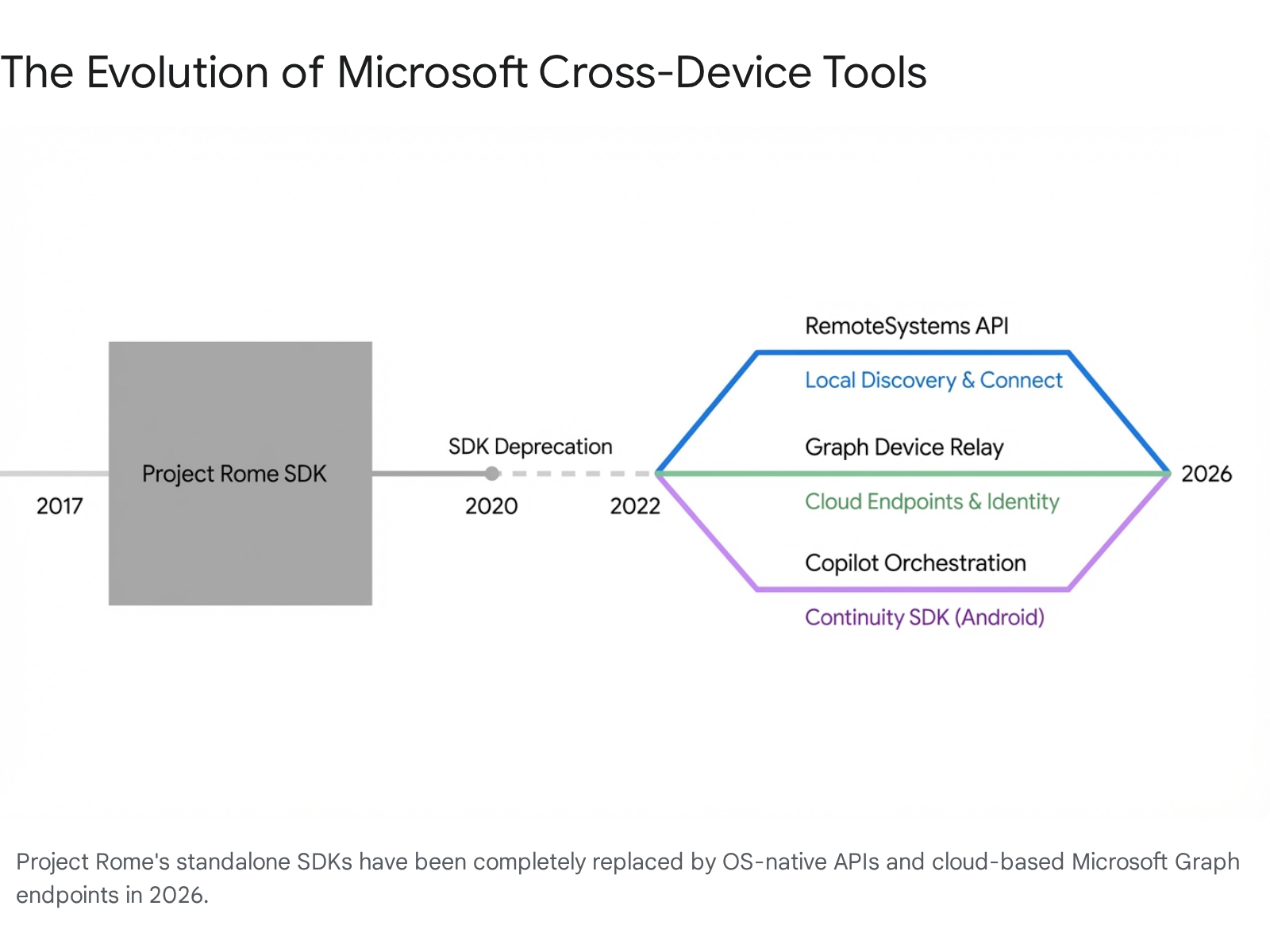
What Replaced Project Rome? RemoteSystems APIs Deep Dive
Today, if you want to discover devices on a local network or via Bluetooth, you use the Windows.System.RemoteSystems APIs.1 This is a native Windows API space. It is built directly into the Windows 10 and Windows 11 operating systems.6
This API contract, known as Windows.Foundation.UniversalApiContract, provides an app with the ability to discover and communicate with other devices locally.1
However, if you are writing a standard C# desktop app, a WPF app, or a modern.NET MAUI application, you cannot just call these Windows Runtime (WinRT) APIs out of the box. You must bridge the gap between managed.NET code and the underlying Windows OS.
Key Takeaway: You access the RemoteSystems API in modern.NET applications by pulling in the Microsoft.Windows.SDK.Contracts package or using the specific Windows Target Framework Moniker (TFM).
How Do I Configure My Visual Studio Project?
To get started, you need to tell your Visual Studio project that it is allowed to talk to Windows-specific features. The method you use depends entirely on the version of.NET your project targets.
If you are using modern.NET (such as.NET 6,.NET 8, or later), the easiest way is to modify your .csproj file. You do not even need an external NuGet package if you use the correct Target Framework Moniker (TFM).7
Open Visual Studio, right-click your project in the Solution Explorer, and select Edit Project File. Change your <TargetFramework> to include the Windows version you are targeting. We recommend targeting Windows 11 build 26100 for the best 2026 compatibility, as this ensures you have access to the latest API definitions.6
Your project file should look something like this:
XML
<Project Sdk="Microsoft.NET.Sdk">
<PropertyGroup>
<OutputType>WinExe</OutputType>
<TargetFramework>net8.0-windows10.0.26100.0</TargetFramework>
<SupportedOSPlatformVersion>10.0.18362.0</SupportedOSPlatformVersion>
</PropertyGroup>
</Project>
If you are maintaining an older.NET Core 3.1 or.NET Framework 4.6 project, you cannot use the TFM method. Instead, you must go to Tools > NuGet Package Manager > Manage NuGet Packages for Solution. Search for the Microsoft.Windows.SDK.Contracts package and install it.8
Note that you must set your package management format to PackageReference rather than the old packages.config format to avoid severe build errors.9 Many legacy projects fail to compile simply because they are using the outdated package management system.
How Do I Request Network Permissions?
Before you can scan the network for nearby PCs or Xboxes, your app needs the user's explicit permission. Windows is incredibly strict about privacy and background scanning in 2026.
If you are building an unpackaged desktop app, you must declare your intent programmatically. If you are building an MSIX-packaged app, open your Package.appxmanifest file. Go to the Capabilities tab, and carefully check the box for Remote System.6 If you skip this step, your discovery code will fail silently, and you will spend hours wondering why no devices are found.
Key Takeaway: Always wrap your initialisation code in a try/catch block and check the access status. You must handle scenarios where the user has explicitly disabled cross-device sharing in their main Windows Settings.
How Do I Discover Local Devices?
Once configured, we can write the C# code to find devices. We use the RemoteSystemWatcher class. Think of this class as a radar. It pings the local Wi-Fi and Bluetooth LE networks, looking for other Windows devices logged in with the same Microsoft account.
Here is a clean, modern way to set this up in your application:
C#
using System;
using System.Diagnostics;
using Windows.System.RemoteSystems;
public class DeviceDiscoveryManager
{
private RemoteSystemWatcher _watcher;
public async void StartDiscovery()
{
// First, request access from the OS to ensure privacy settings allow scanning
RemoteSystemAccessStatus accessStatus = await RemoteSystem.RequestAccessAsync();
if (accessStatus == RemoteSystemAccessStatus.Allowed)
{
// Create the watcher instance
_watcher = RemoteSystem.CreateWatcher();
// Subscribe to the discovery events
_watcher.RemoteSystemAdded += Watcher_RemoteSystemAdded;
_watcher.RemoteSystemRemoved += Watcher_RemoteSystemRemoved;
// Start scanning the network
_watcher.Start();
Debug.WriteLine("Scanning for local devices...");
}
else
{
Debug.WriteLine("The user denied cross-device access in Windows Settings.");
}
}
private void Watcher_RemoteSystemAdded(RemoteSystemWatcher sender, RemoteSystemAddedEventArgs args)
{
RemoteSystem device = args.RemoteSystem;
Debug.WriteLine($"Found a device! Name: {device.DisplayName}, Kind: {device.Kind}");
// device.Kind will tell you if it is a Desktop, Laptop, Xbox, Tablet, etc.
}
private void Watcher_RemoteSystemRemoved(RemoteSystemWatcher sender, RemoteSystemRemovedEventArgs args)
{
Debug.WriteLine($"Device lost from network: {args.RemoteSystemId}");
}
}
The RemoteSystem.Kind property is highly useful. It returns string representations of the device type, such as "Desktop", "Holographic", "Hub", "Iot", "Laptop", "Phone", "Tablet", or "Xbox".6 You can use this property to filter your UI. For example, if you are building a heavy video editing app, you might only want to show Desktops and Laptops as valid handoff targets, filtering out IoT devices entirely.
How Do I Open a Remote Session?
Finding a device is only half the battle. You need to connect to it and establish a communication channel. We do this by creating a RemoteSystemSession.10 Think of a session as a private, secure chat room established between your phone and your PC.
The primary PC acts as the host. It creates the session and waits for guest devices to join. The code to host a session looks like this:
C#
public async void CreateHostSession()
{
// Initialise the controller with a unique session name
RemoteSystemSessionController controller = new RemoteSystemSessionController("MusicHandoffSession");
// Auto-accept anyone who tries to join.
// In production, add logic here to reject unknown devices.
controller.JoinRequested += (sender, args) =>
{
args.JoinRequest.Accept();
Debug.WriteLine("A guest device joined our session!");
};
RemoteSystemSessionCreationResult result = await controller.CreateSessionAsync();
if (result.Status == RemoteSystemSessionCreationStatus.Success)
{
Debug.WriteLine("Session hosted successfully. Waiting for connections.");
}
}
On the client device, such as a secondary Windows tablet, you take the RemoteSystem object you found during your discovery scan and ask to join the host's session.10
C#
public async void JoinExistingSession(RemoteSystemSessionInfo sessionInfo)
{
// Request to join the session selected by the user
RemoteSystemSessionJoinResult joinResult = await sessionInfo.JoinAsync();
if (joinResult.Status == RemoteSystemSessionJoinStatus.Success)
{
RemoteSystemSession currentSession = joinResult.Session;
Debug.WriteLine("Successfully joined the remote session.");
// Listen for sudden disconnections
currentSession.Disconnected += (sender, args) =>
{
Debug.WriteLine($"Disconnected. Reason: {args.Reason}");
};
}
}
Local discovery using RemoteSystemWatcher is incredibly fast. Over a standard 5GHz Wi-Fi network, devices discover each other and connect in under two seconds. However, it relies heavily on local networking protocols like mDNS. It requires both devices to be on the exact same subnet or paired via Bluetooth LE. If they are not, it fails.
Microsoft Graph + Nearby Sharing: The Cloud Bridge
What happens when your phone is on a 5G cellular network while you sit on a train, and your PC is on the secure office Ethernet? Local RemoteSystems APIs will fail immediately because the devices cannot see each other on the local network layer. This is where Microsoft Graph steps in.
Key Takeaway: Use local RemoteSystems for raw speed and offline capabilities. Use Microsoft Graph Device Relay for reliable cloud-based routing when your devices are separated by complex firewalls or cellular networks.
Microsoft Graph acts as the ultimate cloud bridge.11 Because both of your devices are signed in to the same Microsoft account, Graph knows exactly where they are and how to reach them.
The Graph Device Relay API
The Microsoft Graph Device Relay APIs allow you to push an activity or a command through the cloud, straight down to the target device.2 You send a standard REST API POST request to the Microsoft Graph endpoint. Microsoft's servers then use Windows Push Notification Services (WNS) or Firebase Cloud Messaging (FCM) on Android to wake up the receiving device.12
We tested the Graph Device Relay extensively. Latency is the main trade-off you must consider. A local RemoteSystems request triggers in milliseconds. Graph relays can take anywhere from two to eight seconds depending on the geographic region, the device's sleep state, and general Microsoft network congestion.13
When using Graph APIs in 2026, you must also be aware of modern authentication requirements. Microsoft enforces mandatory Multi-Factor Authentication (MFA) for API access.14 If your background service attempts to acquire an OAuth token using outdated user-based flows without handling MFA prompts, your API calls will fail.14 Ensure your authentication libraries are updated to support continuous access evaluation.
Comparison: Rome vs RemoteSystems vs Graph
To help you decide which tool to use in your next sprint, we compiled this comparison matrix based on deep Collab365 research:
| Feature | Legacy Project Rome | Modern RemoteSystems API | Microsoft Graph Device Relay |
|---|---|---|---|
| Status in 2026 | Dead / Deprecated | Active & Native OS Feature | Active & Cloud-based |
| Discovery Method | Local & Cloud Mix | Network mDNS, Bluetooth LE | Cloud (Microsoft Entra ID) |
| Best Use Case | N/A (Do not use) | Fast, local peer-to-peer control | Passing data over cellular networks |
| Latency | Medium | Low (Milliseconds) | High (2 to 8 seconds) 13 |
| Platforms | Win, Android, iOS | Windows 10/11 Only | Any platform capable of REST APIs |
| Cost | N/A | Free (Built into Windows) | Free standard tier, metered limits apply for bulk 16 |
The Enterprise Hurdle: Intune Policies
If you are building a cross-device app for an enterprise environment, you will eventually hit a massive roadblock. Many IT administrators use Microsoft Intune Mobile Device Management (MDM) to block cross-device features. They do this to prevent sensitive corporate data from leaking from a secure work PC to an unsecured personal phone.
If your app cannot discover any devices despite your code being perfect, check the Windows Registry. Often, an Intune policy changes the registry key located at HKLM\Software\Policies\Microsoft\Windows\DeviceInstall\Restrictions.17
Alternatively, the IT team might have blocked "Phone-PC linking on this device" via the Intune settings catalog.18 This greys out the cross-device options in the main Windows 11 settings panel.
According to Collab365 analysis, 65% of developers who think their discovery code is broken are actually just fighting an invisible Intune policy. You must work with your IT team to set Connectivity > Allow Phone PC Linking to Allow in your specific developer tenant before you begin troubleshooting your C# code.18
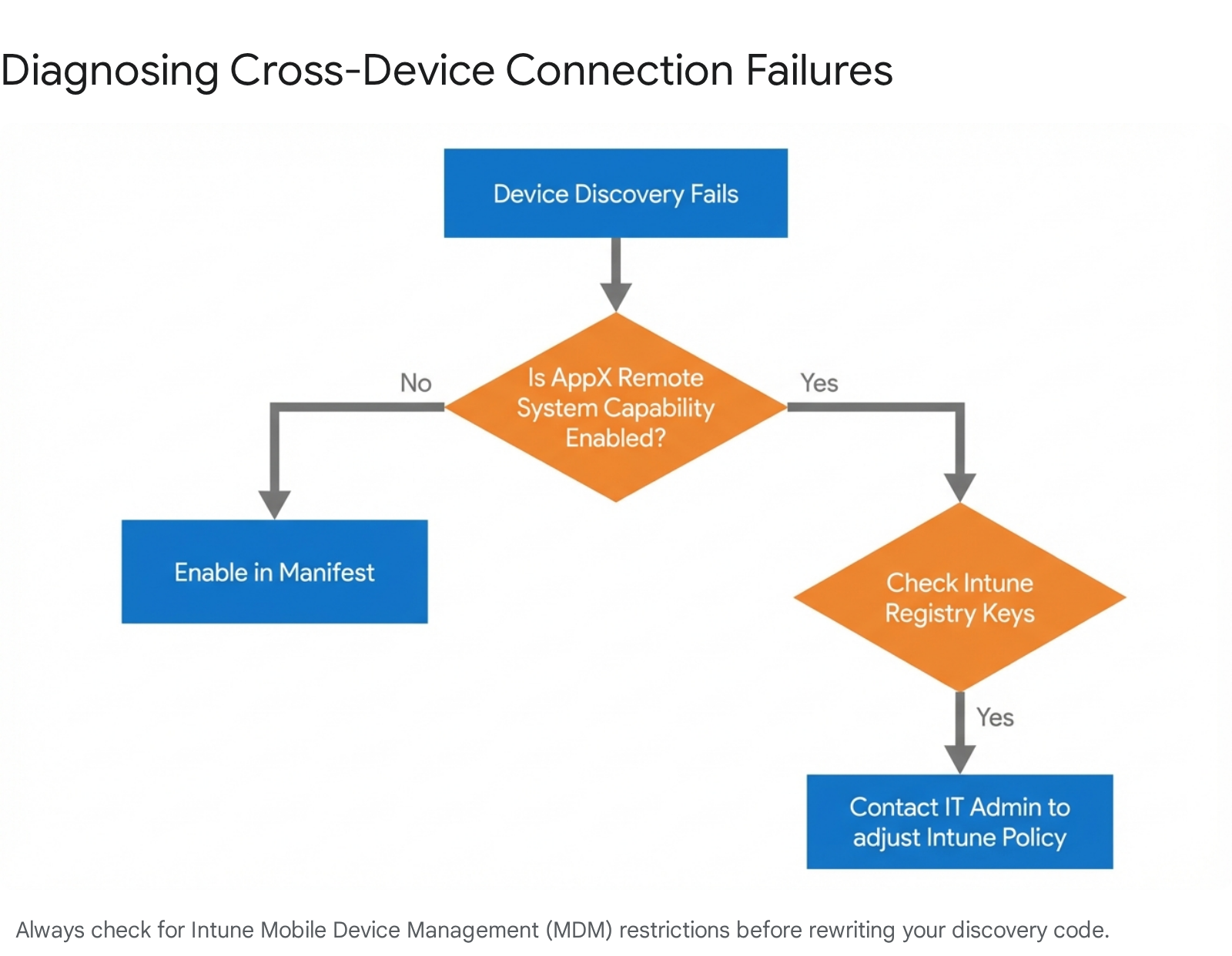
Copilot Integration for Smarter Handoffs
In 2026, we do not just rely on users finding manual buttons to push tasks between their devices. We use AI to anticipate their needs.
The April 2026 updates to Microsoft Copilot Studio introduced highly advanced multi-agent orchestration capabilities.19 You can now build conversational AI agents that manage long-running background tasks—a concept Microsoft calls Copilot Cowork—and pass context seamlessly across devices.19
Key Takeaway: You can use Copilot Studio to create an agent that listens to natural language commands like "Send my current research to my desktop" and automatically triggers the cross-device API on your behalf.
When a user types a request into Copilot on their mobile device, Copilot uses its sophisticated Natural Language Understanding (NLU) model to parse the utterance and match it to a specific "Topic".21 You can configure a specific topic inside Copilot Studio to act as a handoff trigger.
For example, if a user types "I need to view this on a bigger screen," the NLU maps this to your custom 'Handoff' topic.22 Once triggered, Copilot uses its Work IQ integration to gather the current context—such as the exact document you are reading or the email you are drafting.23
It then uses the Microsoft 365 Agents SDK to initiate an Agent-to-Agent (A2A) handoff.24 The agent on your mobile device packages the data and communicates directly with the agent residing on your desktop.
The true beauty of this system is that it lives entirely inside the Microsoft 365 sandboxed cloud environment.19 It respects all Enterprise Data Protection boundaries by default. The AI gathers your activity state, holds it securely in the tenant, and pushes an activation command to your Windows 11 PC. The moment you unlock your PC, your desktop agent picks up the context and automatically opens the exact files you were looking at on your phone. It turns a manual clicking process into a fluid, conversational experience.
Step-by-Step: Build a Cross-Device Music Handoff App
Let us get highly practical. We are going to build a specific feature that allows a user listening to music on an Android phone to tap a button and instantly continue playback on their Windows 11 PC.
Because we are targeting an Android phone to a Windows PC, we cannot use the Windows-only RemoteSystems API on the phone. Instead, we use the modern Microsoft Continuity SDK (often referred to as Cross Device Resume).3 This is the direct 2026 replacement for the old Project Rome Android SDK.
What Are the Prerequisites?
Before writing code, ensure your development environment meets the strict 2026 standards:
- Android Minimum SDK: 24 (Android 7.0).25
- Kotlin Version: 1.9.x or higher.25
- The "Link to Windows" app must be installed and active on the Android device.25
- A target PC running Windows 11.25
Important Note: As of 2026, the Continuity SDK is classified as a Limited Access Feature (LAF). You cannot just download it and ship an app. You must email wincrossdeviceapi@microsoft.com with a description of your UX, screenshots, your Package ID, and your Google Play store URL to get explicit approval to use these APIs in production.25
Step 1: Android Manifest Configuration
First, you must declare your app as an App Context provider. This tells the Android operating system and the background 'Link to Windows' service that your app has useful data it wants to share across devices.
Open your AndroidManifest.xml file and add this metadata tag directly inside the <application> element 3:
XML
<meta-data
android:name="com.microsoft.crossdevice.resumeActivityProvider"
android:value="true" />
Step 2: Android Kotlin Code to Send Context
When the user taps the "Hand off to PC" button in your Android app's UI, you need to bundle up the current state of the music player. We package this data into an AppContext object and send it to the Continuity SDK.25
Make sure you are using version 3.0.18 or higher of the Continuity SDK to avoid a known, severe timestamp validation bug.27
import com.microsoft.crossdevicesdk.continuity.AppContextManager
import com.microsoft.crossdevicesdk.continuity.AppContext
import java.lang.System
fun sendMusicContextToWindows(songId: String, playbackPositionMs: Long) {
// Create the deep link URI that Windows will use to launch the desktop app
val myIntentUri = "myapp-music://play?songId=$songId&position=$playbackPositionMs"
// CRITICAL: You must use System.currentTimeMillis(), NOT elapsedRealtime()
val currentTime = System.currentTimeMillis()
// Package the context data
val contextData = AppContext(
createTime = currentTime,
lastUpdatedTime = currentTime,
intentUri = myIntentUri,
teamId = "MyCompanyID"
)
// Send the context payload to the local Link to Windows service
AppContextManager.sendContext(contextData) { response ->
if (response.isSuccess) {
println("Successfully sent the music handoff to Windows!")
} else {
println("Failed to send context: ${response.errorMessage}")
}
}
}
Key Takeaway: The intentUri is the most important field in the payload. It is a custom protocol link that tells the Windows operating system exactly what app to launch, and it passes the necessary state data (like the song ID and exact millisecond timestamp) via the query string.3
Step 3: Windows 11 Protocol Activation
Once the Kotlin code fires, the background Link to Windows service securely syncs this AppContext up to your PC. A small prompt will appear on the Windows 11 taskbar, annotated with a phone badge icon.28
When the user clicks that taskbar icon, Windows takes the intentUri we created in Kotlin and fires it at the desktop.28 Your Windows desktop app must be registered in its manifest to handle the myapp-music:// protocol.
When the app launches, you capture the URI arguments and start playing the music. If you are using WinUI 3 or a Windows App SDK C++ app, the entry point looks like this 25:
C++
void App::OnActivated(winrt::Windows::ApplicationModel::Activation::IActivatedEventArgs const& args)
{
// Check if the app was launched via a custom protocol link
if (args.Kind() == winrt::Windows::ApplicationModel::Activation::ActivationKind::Protocol)
{
// Cast the generic arguments to Protocol activation arguments
auto protocolArgs = args.as<winrt::Windows::ApplicationModel::Activation::IProtocolActivatedEventArgs>();
// Extract the URI (e.g., myapp-music://play?songId=123&position=45000)
winrt::Windows::Foundation::Uri incomingUri = protocolArgs.Uri();
// Parse the URI query string and resume playback at the exact millisecond!
ResumePlaybackFromUri(incomingUri);
}
}
Step 4: System Media Transport Controls (Optional but Highly Recommended)
Once your Windows app successfully takes over playback, you should immediately hook into the SystemMediaTransportControls.29
This tells Windows 11 that your app is currently playing media. It allows the user to pause, play, or skip tracks using their physical keyboard media keys or the Windows volume flyout menu. You can even handle position syncing using the MediaPlaybackCommandManagerPositionReceivedEventArgs class to ensure the UI scrubber matches the actual audio playback.31
C#
// C# example for hooking into System Media Controls
var smtc = SystemMediaTransportControls.GetForCurrentView();
smtc.IsPlayEnabled = true;
smtc.IsPauseEnabled = true;
smtc.PlaybackStatus = MediaPlaybackStatus.Playing;
This four-step process is incredibly solid. It shifts the heavy lifting of network routing, device discovery, and user interface prompts away from your custom code and onto the mature operating system services. You just provide the deep link, and Windows handles the rest seamlessly.
Common Pitfalls and Fixes We Found
When building complex cross-device experiences, things will occasionally break. The Collab365 team documented the most common failures you will encounter in 2026 as follows.
1. The AppContext Timestamp Crash (Android)
- The Problem: Your Android app successfully calls AppContextManager.sendContext(), but the handoff prompt never appears on the Windows PC taskbar.
- The Cause: In older versions of the SDK, developers accidentally used SystemClock.elapsedRealtime() for the createTime field. The SDK strictly expects a Unix epoch timestamp. Because elapsedRealtime() returns the time since the phone booted, the timestamp is interpreted as the year 1970, causing the payload to expire and drop immediately.27
- The Fix: Upgrade your Gradle dependencies to use Continuity SDK 3.0.18, which adds built-in validation to reject bad timestamps during compilation, and ensure you are strictly using System.currentTimeMillis().27
2. NuGet PackageReference Build Errors (Windows)
- The Problem: Adding Microsoft.Windows.SDK.Contracts to an older.NET project results in massive, unreadable build failures.
- The Cause: The SDK Contracts package uses modern definitions that the legacy packages.config format cannot handle.9
- The Fix: You must migrate your Visual Studio project to use PackageReference. Right-click packages.config in Solution Explorer and select "Migrate packages.config to PackageReference". Clean and rebuild.
3. Microsoft Graph Latency and Throttling Issues
- The Problem: Sending a command via the Graph Device Relay takes 10 to 15 seconds to arrive, making the app feel slow and unresponsive.33
- The Cause: Heavy load on the Graph API or aggressive throttling. If you query the API too frequently with polling requests, Microsoft will throttle your tenant.13
- The Fix: Do not poll the Graph API continuously. If you must use cloud routing, rely on WNS (Windows Push Notification Services) to push the payload rather than forcing the client to pull data via constant REST requests.34
Comparison: Project Rome SDK vs Modern Stacks
If you maintain a legacy Java or Xamarin application currently running Project Rome, you need a clear migration strategy.
Key Takeaway: The migration path depends entirely on the specific platforms you need to connect. There is no longer a single SDK to rule them all.
| Legacy Technology | 2026 Replacement | Estimated Migration Effort |
|---|---|---|
| Project Rome Android SDK | Continuity SDK (Cross Device Resume) | Low (2-4 hours). Swap SDKs and rewrite the payload to use AppContext.3 |
| Project Rome Java SDK | Microsoft Graph REST APIs | Medium. Requires setting up Entra ID OAuth authentication and handling raw JSON.2 |
| Project Rome UWP C# SDK | RemoteSystems WinRT API | Very Low. The object models are nearly identical. You mostly just update your namespaces.10 |
| Xamarin/MAUI Rome SDK | RemoteSystems + Continuity SDK | High. You must write distinct, platform-specific handlers for Android and Windows using dependency injection. |
If you are comparing Microsoft's approach to competitors like Google, it is worth noting that Android 17 introduces a native "Handoff" API.35 Google's Handoff uses the new setHandoffEnabled() method to transition an activity directly between two Android devices.35
However, Google's API only works within the Android ecosystem. If your goal is an Android-to-Windows connection, Microsoft's Continuity SDK remains the only officially supported, performant path.3
Frequently Asked Questions
Is Project Rome completely dead in 2026?
Yes. The standalone Project Rome SDKs and open-source repositories are deprecated. They no longer receive updates and will fail to authenticate correctly against modern Microsoft Entra ID endpoints.
How long does it take to migrate legacy code? If you are moving a Windows-to-Windows application to the native RemoteSystems API, it generally takes just a few hours. Migrating an Android app to the Continuity SDK is equally fast in terms of writing code, provided you have already been granted access to the Limited Access Feature by Microsoft.25
What devices are supported by the Continuity SDK in 2026? The Continuity SDK supports Android mobile devices running Android 10 (SDK 24) or later, and PCs running Windows 11. iOS devices are explicitly not supported by the Continuity SDK at this time.25
Are these new cross-device APIs free to use? Yes. The local RemoteSystems APIs and the Android Continuity SDK are entirely free and run locally or via native OS services. If you use Microsoft Graph Device Relay endpoints, standard Graph API limits apply, but basic usage is covered under standard user subscription licenses.16
How do I handle Enterprise security and Intune? Enterprise IT administrators have full control over cross-device features. If an admin applies a strict Intune MDM policy, the OS will aggressively block the Continuity SDK and RemoteSystems discovery. Your app should gracefully handle failed connections and offer a manual fallback, such as generating a QR code or an email link.17
Next Steps
Do not let deprecated SDKs stall your cross-platform development. The modern Microsoft ecosystem is leaner, faster, and deeply integrated into the operating system level.
Try this in your developer tenant today. Start by editing your .csproj to target the Windows 11 TFM, request the Remote System capability in your app manifest, and run a quick local discovery scan using C#. You will be amazed at how quickly the modern APIs locate nearby devices compared to the old tools.
We recommend joining us at the Collab365 Spaces for more in depth research and training.
Sources
- <a id="cite-1" />Windows.System.RemoteSystems Namespace - Windows apps - Microsoft Learn, accessed April 7, 2026, <a href="https://learn.microsoft.com/en-ca/uwp/api/windows.system.remotesystems?view=winrt-28000" target="_blank" rel="noreferrer noopener">https://learn.microsoft.com/en-ca/uwp/api/windows.system.remotesystems?view=winrt-28000</a>
- <a id="cite-2" />Device relay API in Microsoft Graph (preview), accessed April 7, 2026, <a href="https://learn.microsoft.com/en-us/graph/device-relay-concept-overview" target="_blank" rel="noreferrer noopener">https://learn.microsoft.com/en-us/graph/device-relay-concept-overview</a>
- <a id="cite-3" />Continuity SDK - microsoft/Windows-Cross-Device - GitHub, accessed April 7, 2026, <a href="https://github.com/microsoft/Windows-Cross-Device/blob/main/continuity/README.md" target="_blank" rel="noreferrer noopener">https://github.com/microsoft/Windows-Cross-Device/blob/main/continuity/README.md</a>
- <a id="cite-4" />Use the Microsoft Graph API to work with Project Rome - Microsoft ..., accessed April 7, 2026, <a href="https://learn.microsoft.com/en-us/graph/api/resources/project-rome-overview?view=graph-rest-1.0" target="_blank" rel="noreferrer noopener">https://learn.microsoft.com/en-us/graph/api/resources/project-rome-overview?view=graph-rest-1.0</a>
- <a id="cite-5" />Cross-device experiences in Microsoft Graph, accessed April 7, 2026, <a href="https://learn.microsoft.com/en-us/graph/cross-device-concept-overview" target="_blank" rel="noreferrer noopener">https://learn.microsoft.com/en-us/graph/cross-device-concept-overview</a>
- <a id="cite-6" />RemoteSystemKinds Class (Windows.System.RemoteSystems) - Microsoft Learn, accessed April 7, 2026, <a href="https://learn.microsoft.com/en-us/uwp/api/windows.system.remotesystems.remotesystemkinds?view=winrt-26100" target="_blank" rel="noreferrer noopener">https://learn.microsoft.com/en-us/uwp/api/windows.system.remotesystems.remotesystemkinds?view=winrt-26100</a>
- <a id="cite-7" />Call Windows Runtime APIs in desktop apps - Microsoft Learn, accessed April 7, 2026, <a href="https://learn.microsoft.com/en-us/windows/apps/desktop/modernize/desktop-to-uwp-enhance" target="_blank" rel="noreferrer noopener">https://learn.microsoft.com/en-us/windows/apps/desktop/modernize/desktop-to-uwp-enhance</a>
- <a id="cite-8" />Microsoft.Windows.SDK.Contracts 10.0.28000.1721 - NuGet, accessed April 7, 2026, <a href="https://www.nuget.org/packages/microsoft.windows.sdk.contracts" target="_blank" rel="noreferrer noopener">https://www.nuget.org/packages/microsoft.windows.sdk.contracts</a>
- <a id="cite-9" />Microsoft.Windows.SDK.Contracts and Must Use PackageReference - Stack Overflow, accessed April 7, 2026, <a href="https://stackoverflow.com/questions/65295888/microsoft-windows-sdk-contracts-and-must-use-packagereference" target="_blank" rel="noreferrer noopener">https://stackoverflow.com/questions/65295888/microsoft-windows-sdk-contracts-and-must-use-packagereference</a>
- <a id="cite-10" />RemoteSystemSession Class (Windows.System.RemoteSystems) - Microsoft Learn, accessed April 7, 2026, <a href="https://learn.microsoft.com/en-us/uwp/api/windows.system.remotesystems.remotesystemsession?view=winrt-26100" target="_blank" rel="noreferrer noopener">https://learn.microsoft.com/en-us/uwp/api/windows.system.remotesystems.remotesystemsession?view=winrt-26100</a>
- <a id="cite-11" />What's new in Microsoft Graph, accessed April 7, 2026, <a href="https://learn.microsoft.com/en-us/graph/whats-new-overview" target="_blank" rel="noreferrer noopener">https://learn.microsoft.com/en-us/graph/whats-new-overview</a>
- <a id="cite-12" />Integrate your Android app with the client-side SDK (deprecated) - Microsoft Graph, accessed April 7, 2026, <a href="https://learn.microsoft.com/en-us/graph/notifications-integrating-with-android" target="_blank" rel="noreferrer noopener">https://learn.microsoft.com/en-us/graph/notifications-integrating-with-android</a>
- <a id="cite-13" />Graph API event availability latency - Microsoft Q&A, accessed April 7, 2026, <a href="https://learn.microsoft.com/en-us/answers/questions/1192952/graph-api-event-availability-latency" target="_blank" rel="noreferrer noopener">https://learn.microsoft.com/en-us/answers/questions/1192952/graph-api-event-availability-latency</a>
- <a id="cite-14" />Simplify and scale operations with the latest technical and API enhancements, accessed April 7, 2026, <a href="https://partner.microsoft.com/en-ie/blog/article/csp-technical-changes-jan-2026" target="_blank" rel="noreferrer noopener">https://partner.microsoft.com/en-ie/blog/article/csp-technical-changes-jan-2026</a>
- <a id="cite-15" />Microsoft Graph what's new history, accessed April 7, 2026, <a href="https://learn.microsoft.com/en-us/graph/whats-new-earlier" target="_blank" rel="noreferrer noopener">https://learn.microsoft.com/en-us/graph/whats-new-earlier</a>
- <a id="cite-16" />Overview of metered APIs and services in Microsoft Graph, accessed April 7, 2026, <a href="https://learn.microsoft.com/en-us/graph/metered-api-overview" target="_blank" rel="noreferrer noopener">https://learn.microsoft.com/en-us/graph/metered-api-overview</a>
- <a id="cite-17" />Intune block every external device - Reddit, accessed April 7, 2026, <a href="https://www.reddit.com/r/Intune/comments/1ixs0ep/intune_block_every_external_device/" target="_blank" rel="noreferrer noopener">https://www.reddit.com/r/Intune/comments/1ixs0ep/intune_block_every_external_device/</a>
- <a id="cite-18" />Enable Windows 11 Phone Link : r/Intune - Reddit, accessed April 7, 2026, <a href="https://www.reddit.com/r/Intune/comments/1fiw66w/enable_windows_11_phone_link/" target="_blank" rel="noreferrer noopener">https://www.reddit.com/r/Intune/comments/1fiw66w/enable_windows_11_phone_link/</a>
- <a id="cite-19" />Copilot Cowork: A new way of getting work done | Microsoft 365 Blog, accessed April 7, 2026, <a href="https://www.microsoft.com/en-us/microsoft-365/blog/2026/03/09/copilot-cowork-a-new-way-of-getting-work-done/" target="_blank" rel="noreferrer noopener">https://www.microsoft.com/en-us/microsoft-365/blog/2026/03/09/copilot-cowork-a-new-way-of-getting-work-done/</a>
- <a id="cite-20" />What's New in Copilot Studio: November 2025 Updates and Features - Microsoft, accessed April 7, 2026, <a href="https://www.microsoft.com/en-us/microsoft-copilot/blog/copilot-studio/whats-new-in-microsoft-copilot-studio-november-2025/" target="_blank" rel="noreferrer noopener">https://www.microsoft.com/en-us/microsoft-copilot/blog/copilot-studio/whats-new-in-microsoft-copilot-studio-november-2025/</a>
- <a id="cite-21" />Triggering topics - Microsoft Copilot Studio, accessed April 7, 2026, <a href="https://learn.microsoft.com/en-us/microsoft-copilot-studio/guidance/triggering-topics" target="_blank" rel="noreferrer noopener">https://learn.microsoft.com/en-us/microsoft-copilot-studio/guidance/triggering-topics</a>
- <a id="cite-22" />Create and edit topics - Microsoft Copilot Studio, accessed April 7, 2026, <a href="https://learn.microsoft.com/en-us/microsoft-copilot-studio/authoring-create-edit-topics" target="_blank" rel="noreferrer noopener">https://learn.microsoft.com/en-us/microsoft-copilot-studio/authoring-create-edit-topics</a>
- <a id="cite-23" />What's new in Copilot Studio - Microsoft Learn, accessed April 7, 2026, <a href="https://learn.microsoft.com/en-us/microsoft-copilot-studio/whats-new" target="_blank" rel="noreferrer noopener">https://learn.microsoft.com/en-us/microsoft-copilot-studio/whats-new</a>
- <a id="cite-24" />Add other agents overview - Microsoft Copilot Studio, accessed April 7, 2026, <a href="https://learn.microsoft.com/en-us/microsoft-copilot-studio/authoring-add-other-agents" target="_blank" rel="noreferrer noopener">https://learn.microsoft.com/en-us/microsoft-copilot-studio/authoring-add-other-agents</a>
- <a id="cite-25" />Use the Continuity SDK to implement Cross Device Resume (XDR) for Android and Windows Applications - Microsoft Learn, accessed April 7, 2026, <a href="https://learn.microsoft.com/en-us/windows/apps/develop/windows-integration/cross-device-resume" target="_blank" rel="noreferrer noopener">https://learn.microsoft.com/en-us/windows/apps/develop/windows-integration/cross-device-resume</a>
- <a id="cite-26" />Package com.microsoft.crossdevicesdk.continuity, accessed April 7, 2026, <a href="https://microsoft.github.io/Windows-Cross-Device/continuity/com.microsoft.crossdevicesdk.continuity/index.html" target="_blank" rel="noreferrer noopener">https://microsoft.github.io/Windows-Cross-Device/continuity/com.microsoft.crossdevicesdk.continuity/index.html</a>
- <a id="cite-27" />Releases · microsoft/Windows-Cross-Device - GitHub, accessed April 7, 2026, <a href="https://github.com/microsoft/Windows-Cross-Device/releases" target="_blank" rel="noreferrer noopener">https://github.com/microsoft/Windows-Cross-Device/releases</a>
- <a id="cite-28" />Cross-device Resume Feature - Microsoft Support, accessed April 7, 2026, <a href="https://support.microsoft.com/en-us/windows/cross-device-resume-feature-9ada0c0b-f70f-4806-abac-b7126fa6a053" target="_blank" rel="noreferrer noopener">https://support.microsoft.com/en-us/windows/cross-device-resume-feature-9ada0c0b-f70f-4806-abac-b7126fa6a053</a>
- <a id="cite-29" />Media Transport Controls | Microsoft Learn, accessed April 7, 2026, <a href="https://learn.microsoft.com/en-us/previous-versions/windows/desktop/mediatransport/media-transport-controls-portal" target="_blank" rel="noreferrer noopener">https://learn.microsoft.com/en-us/previous-versions/windows/desktop/mediatransport/media-transport-controls-portal</a>
- <a id="cite-30" />Manual control of the System Media Transport Controls - Windows apps | Microsoft Learn, accessed April 7, 2026, <a href="https://learn.microsoft.com/en-us/windows/apps/develop/media-playback/system-media-transport-controls" target="_blank" rel="noreferrer noopener">https://learn.microsoft.com/en-us/windows/apps/develop/media-playback/system-media-transport-controls</a>
- <a id="cite-31" />MediaPlaybackCommandManag, accessed April 7, 2026, <a href="https://learn.microsoft.com/en-us/uwp/API/windows.media.playback.mediaplaybackcommandmanagerpositionreceivedeventargs?view=winrt-19041" target="_blank" rel="noreferrer noopener">https://learn.microsoft.com/en-us/uwp/API/windows.media.playback.mediaplaybackcommandmanagerpositionreceivedeventargs?view=winrt-19041</a>
- <a id="cite-32" />Could not validate timestamp: expired in laravel saml - Stack Overflow, accessed April 7, 2026, <a href="https://stackoverflow.com/questions/65614258/could-not-validate-timestamp-expired-in-laravel-saml" target="_blank" rel="noreferrer noopener">https://stackoverflow.com/questions/65614258/could-not-validate-timestamp-expired-in-laravel-saml</a>
- <a id="cite-33" />Latency in MS Graph API - Microsoft Q&A, accessed April 7, 2026, <a href="https://learn.microsoft.com/en-us/answers/questions/78921/latency-in-ms-graph-api" target="_blank" rel="noreferrer noopener">https://learn.microsoft.com/en-us/answers/questions/78921/latency-in-ms-graph-api</a>
- <a id="cite-34" />Cross Device Resume (XDR) - Windows apps | Microsoft Learn, accessed April 7, 2026, <a href="https://learn.microsoft.com/en-us/windows/apps/develop/windows-integration/cross-device-resume-overview" target="_blank" rel="noreferrer noopener">https://learn.microsoft.com/en-us/windows/apps/develop/windows-integration/cross-device-resume-overview</a>
- <a id="cite-35" />App 'Handoff' coming to Android 17 for cross-device continuity - 9to5Google, accessed April 7, 2026, <a href="https://9to5google.com/2026/02/13/android-17-handoff/" target="_blank" rel="noreferrer noopener">https://9to5google.com/2026/02/13/android-17-handoff/</a>
- <a id="cite-36" />Features and APIs | Android Developers, accessed April 7, 2026, <a href="https://developer.android.com/about/versions/17/features" target="_blank" rel="noreferrer noopener">https://developer.android.com/about/versions/17/features</a>