
Setting and Updating SharePoint Hyperlink fields in Flow and Logic Apps
At a Glance
- Target Audience
- Power Automate Developers, SharePoint Admins
- Problem Solved
- Populating SharePoint hyperlink columns with URL and friendly description via automation, avoiding Invalid URI errors, raw URLs, or failed flows.
- Use Case
- Automating SharePoint list creation/updates from emails, apps or bulk migrations with formatted hyperlinks in enterprise workflows.
In 2026, use the updated SharePoint 'Create item' connector with JSON formatting, or switch to Graph API for reliability. Here's how. Native support now handles {"Url": "https://example.com", "Description": "Friendly Text"} directly, effectively eliminating the historical need for complex HTTP workarounds in basic cloud flows. For developers managing enterprise-scale architecture, however, the Microsoft Graph API remains the superior solution, provided the specific apiversion=2.1 beta header is applied.
This post serves as a direct replacement for the legacy 2019 Collab365 guidance. It details how the Collab365 team tried every old trick—from comma separations to raw text inputs—and how the modern landscape has evolved. The following sections cover native connector improvements, Microsoft Graph API alternatives, Copilot-assisted flows, precise error handling, and direct comparisons between available platforms.
Key Takeaway: The days of accepting raw, unformatted URLs in SharePoint lists are over. As of the March 2026 update, practitioners can pass a strictly formatted JSON string directly into the native Power Automate 'Create item' action to populate both the URL and the user-friendly description.
TL;DR / Quick Answer
The historical difficulty with SharePoint hyperlink columns stems from their dual-component structure. Unlike standard text fields, a hyperlink column expects an object containing both a web address and alternative display text.1 Passing a single string into standard automation actions traditionally resulted in broken links or raw, unformatted URLs.2
The table below outlines the five definitive methods for managing this requirement in 2026, comparing their ease of use, scalability, and specific use case applications.
| Method | Description | Pros | Cons | Best For |
|---|---|---|---|---|
| 1. Native JSON | Using the standard 'Create item' action with a JSON string input ({"Url": "...", "Description": "..."}). | Easiest to implement; no HTTP actions required; fully supported in the UI. | Fails if JSON formatting is malformed; dynamic content requires careful expression construction. | Beginners and low-complexity business workflows. |
| 2. REST API PATCH | The legacy Send an HTTP request to SharePoint action using the _api/web/lists endpoint.2 | Highly reliable; bypasses connector UI limitations; supports dynamic entity types.3 | Requires deep knowledge of SharePoint REST headers (odata=verbose) and internal list names.4 | Legacy flow maintenance and complex metadata updates. |
| 3. Graph API POST/PATCH | Using the v1.0/sites/lists/items endpoint with the mandatory Prefer: apiversion=2.1 header.5 | Highest performance; supports JSON batching for up to 20 requests 6; modern authentication. | Standard endpoints reject hyperlinks without the beta header 7; requires Entra ID permissions.8 | Enterprise-scale deployments and high-volume data migration. |
| 4. Copilot Expression Builder | Utilising AI prompts to automatically generate the required JSON schema for the native connector.9 | Eliminates manual syntax errors; rapidly processes unstructured data (e.g., extracting URLs from emails).10 | AI-generated content requires validation; custom JSON formatting locks the schema.9 | Citizen developers and rapid prototyping. |
| 5. Logic Apps Variant | Azure's enterprise workflow engine utilising either the SharePoint connector or managed identity HTTP calls.11 | Built for high-volume integrations; offers VNet integration and advanced error handling.12 | Consumption or Standard pricing models incur different costs 13; requires Azure administration skills.14 | IT professionals managing mission-critical backend infrastructure. |
Key Takeaway: While the native Power Automate connector now handles JSON inputs directly, enterprise architects should heavily favour the Microsoft Graph API for bulk operations, as it significantly reduces tenant throttling incidents when properly configured.
Who Is This Guide For?
This comprehensive technical document is designed specifically for a Power Automate developer with 1-3 years of experience who needs to populate SharePoint hyperlink fields (URL + friendly description) via automation. The target reader has likely spent frustrating hours watching automation break on hyperlinks, specifically dealing with workflows failing due to 'Invalid URI' errors or the unacceptable presentation of raw URLs in business-facing lists.
Prerequisites
To successfully implement the solutions detailed in this analysis, practitioners must possess the following environment configurations and baseline knowledge:
- Licensing and Subscriptions: A valid Power Automate Per User plan. In the UK, as of 2026, the Power Automate Premium plan is priced at £11.50 per user per month.15 Alternatively, appropriate Microsoft 365 licensing that includes Power Automate entitlements is required. Note that the upcoming Microsoft 365 E7 suite, launching in May 2026 for $99 per user per month, will include advanced identity and Copilot capabilities that integrate directly into these workflows.16
- SharePoint Permissions: Edit or Full Control access to the target SharePoint site and the specific destination list.
- Graph API Requirements: For the Microsoft Graph API implementations, access to the Microsoft Entra ID portal is necessary to configure application registrations. The application must be granted Sites.ReadWrite.All delegated or application permissions.8
- Technical Knowledge: A foundational understanding of the Power Automate expression builder. Familiarity with functions such as concat(), json(), and triggerOutputs() is essential for mapping dynamic content.
Key Takeaway: Before attempting the advanced Graph API or REST methods, ensure the development environment holds the correct Entra ID permissions and that the Power Automate environment is fully licensed for premium HTTP connector calls if they fall outside the standard M365 entitlements.
How Does a SharePoint Hyperlink Field Actually Work in 2026?
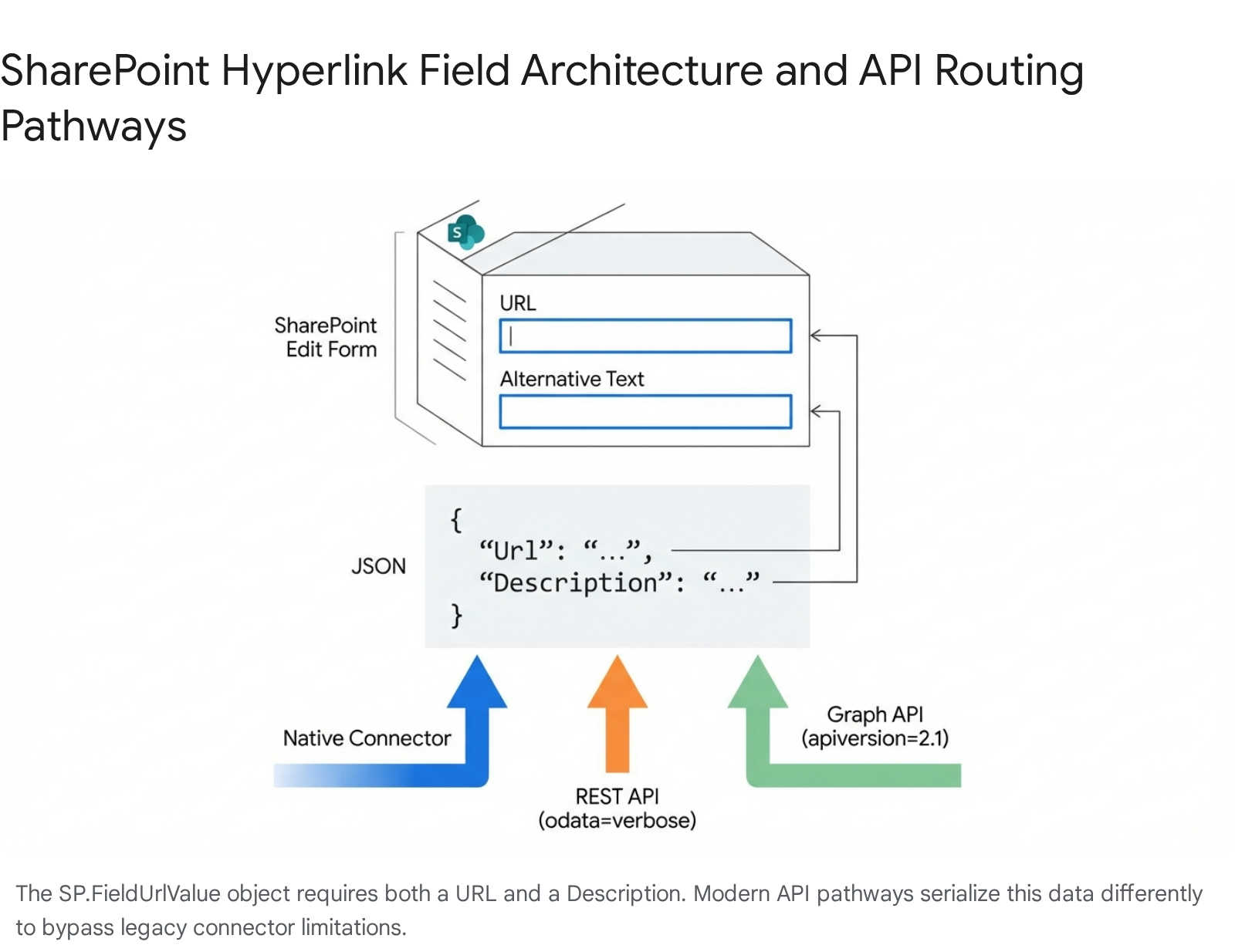
To understand why legacy automation actions failed so spectacularly, one must examine the underlying database architecture of a SharePoint list. When an administrator creates a column of the type "Hyperlink or Picture", SharePoint does not provision a simple string field in its SQL backend. Instead, it provisions a complex entity defined in the SharePoint Object Model as SP.FieldUrlValue.3
This specific object fundamentally consists of two distinct string properties:
- Url: The actual hyper-reference (href) destination that the browser navigates to (e.g., https://collab365.com). This string must evaluate as a valid, fully qualified URI, including the protocol.4
- Description: The alternative text or friendly name displayed in the SharePoint modern user interface (e.g., "Collab365 Spaces").4
When a user interacts with the standard SharePoint modern list interface manually, the edit form presents two separate text boxes for these properties.1 The UI seamlessly concatenates and serialises this data before committing it to the database. However, when an external application interacts with the list via an API or a connector, it must respect this dual-property requirement precisely.
Syntex Integration for Auto-Hyperlinks
The landscape of metadata management has been heavily augmented by artificial intelligence in 2026. Microsoft Syntex, which evolved into the broader SharePoint Premium suite, introduced Autofill columns powered by large language models (such as GPT-4 Turbo).19 This capability allows organisations to automatically extract data from documents and populate SharePoint columns without manual data entry or traditional, rigidly defined Power Automate workflows.21
Autofill columns natively support the Hyperlink column data type, alongside Text, Choice, and Date fields.22 The AI models can be prompted to read a document, locate a specific URL within the text, extract the relevant company name, and automatically format the SP.FieldUrlValue object. The service supports an extensive range of file types, including.pdf,.docx, and.eml, and can process files up to 65 pages in length.22
While this service operates on a pay-as-you-go Azure subscription model and is limited to a maximum of 10 columns per library 22, it represents a massive shift. For unstructured document processing, Syntex Autofill often removes the need for custom Power Automate extraction flows. However, for structured data moving between distinct systems—such as syncing a URL from Dynamics 365 directly into a SharePoint list—Power Automate remains the requisite tool.
Key Takeaway: If the source of the hyperlink is an unstructured document (like a PDF invoice), consider using SharePoint Premium Autofill columns to extract and format the link automatically. If the source is another application or database, Power Automate is the correct integration path.
Why Does the Standard "Create Item" Action Still Fail—and What's Fixed?
For years, the standard 'Create Item' or 'Update Item' actions within the Power Automate SharePoint connector presented a fundamental flaw regarding hyperlink fields. The connector UI exposed only a single input field for the hyperlink column, forcing developers to find creative ways to pass two pieces of data into one box.1
The Anatomy of Legacy Failures
The Collab365 team wasted hours on commas until JSON clicked. When practitioners attempted to pass data into this single field, they encountered several distinct failure states based on how they formatted the string:
- The Raw URL Failure: If a developer inputted purely the URL (e.g., https://example.com), the flow would execute successfully. However, the resulting SharePoint list item would display the raw URL as both the link destination and the clickable text.2 For long, parameter-heavy URLs, this ruined the aesthetics of the modern list view and caused severe user confusion, taking up valuable screen real estate.1
- The Comma Separation Hack: Early community documentation sometimes suggested mimicking the internal SharePoint comma-separated format by passing a string like https://example.com, Website.24 This approach consistently resulted in the flow failing with an Invalid URI: The URI is empty or Invalid URI format error.24 The connector's backend validation attempted to parse the entire string—including the comma, the space, and the description—as a valid web address, which predictably failed strict URI validation rules.26
- The Quote Hack: Attempting to wrap the elements in quotes to force separation, such as "https://example.com", "Website", yielded the exact same Invalid URI error, triggering Catch scopes and failing the process entirely.24
These failures occurred because the connector's internal schema translation lacked the intelligence to split strings into the SP.FieldUrlValue object properties.
Key Takeaway: Never attempt to use comma-separated strings to pass a URL and a description into a standard SharePoint connector field. The backend validation will always interpret the entire string as a web address, resulting in an immediate 'Invalid URI' error.
The Native Fix: JSON Input
Microsoft finally resolved this limitation. Instead of overhauling the connector's visual interface to include two physical text boxes, the product team updated the backend parsing logic to accept raw JSON strings. As of the March 2026 update, the single input box will actively parse a stringified JSON object that maps directly to the required properties.
If the connector detects a valid JSON string containing exact Url and Description keys, it bypasses the standard URI string validation and correctly maps the properties directly to the SharePoint database. This silent backend update fundamentally altered best practices, making the native connector viable for standard tasks that previously demanded premium REST API actions.
Method 1: Native Power Automate Connector (Easiest for Beginners)
The most efficient method for populating a hyperlink field in 2026 utilises the standard 'Create item' or 'Update item' SharePoint connector actions natively. This method requires no premium HTTP actions, avoids complex header configurations, and maintains the visual simplicity of the flow designer.
Step-by-Step Implementation
To implement this native JSON parsing, follow these numbered steps closely:
- Initialise the Flow: Begin with a trigger appropriate for the specific business process. This could be When a new email arrives, When a record is created, or a manual trigger.
- Add the SharePoint Action: Navigate through the menu path: Add action > SharePoint > Create item (or Update item). Select the target Site Address and List Name from the standard dropdown menus. Ensure the list contains a column explicitly defined in SharePoint as "Hyperlink or Picture".27
- Locate the Hyperlink Field: The connector will dynamically generate input fields based on the chosen list's schema. Locate the single input field corresponding to the hyperlink column.
- Construct the JSON String: Instead of entering a standard URL, the input must be formatted as a stringified JSON object. To prevent the flow designer from accidentally treating it as plain text and escaping characters incorrectly, it is highly recommended to use the expression builder.
- Apply the Expression: Click inside the hyperlink input field, navigate to the expression builder (fx), and utilise the json() function combined with string formatting, or simply construct the string directly using dynamic content.
The required, strict JSON structure is:
{
  "Url": "https://example.com",
  "Description": "Friendly Text"
}
When incorporating dynamic content (for example, variables or outputs from previous trigger steps), developers must ensure the JSON remains valid. Use a Compose action prior to the SharePoint step to assemble the string. For instance, constructing the payload using outputs from a trigger 28:
{
  "Url": "@{triggerOutputs()?\['body/CompanyUrl'\]}",
  "Description": "@{triggerOutputs()?\['body/CompanyName'\]}"
}
The output of this Compose action can then be mapped directly into the single hyperlink input field on the 'Create item' card. As long as the SharePoint list returns and accepts data in this precise format, the native connector processes it successfully, resulting in a perfectly formatted clickable link in the list UI.29
Key Takeaway: When using the native connector method, always use a 'Compose' action to construct the JSON string before passing it to the SharePoint 'Create item' action. This makes troubleshooting syntax errors significantly easier by allowing visibility into the exact payload generated before the API call is made.
Method 2: REST API PATCH (The Original Workaround, Improved)
Before the native connector supported JSON parsing, the only reliable method to set both the URL and the description was to bypass the standard connector entirely using the Send an HTTP request to SharePoint action.1 While this method requires more technical knowledge, it remains highly relevant in 2026 for updating legacy flows, handling complex multi-field updates simultaneously, or manipulating deep list item metadata directly.
The Mechanics of the REST API Call
The SharePoint REST API requires a highly specific payload structure. It relies heavily on the Open Data Protocol (OData) and requires explicit declaration of the list's internal entity type to process updates correctly.
1. Fetching the Entity Type
Every SharePoint list has a unique internal identifier known as the ListItemEntityTypeFullName, typically formatted as SP.Data.ListNameListItem.2 If the list name contains spaces or special characters, guessing this string manually often leads to errors (for example, spaces are translated to _x0020_ 1).
To ensure absolute reliability across environments, developers can dynamically fetch this type using a GET request before attempting the update 3:
- Method: GET
- URI: _api/web/lists/GetByTitle('YourListName')?$select=Id,ListItemEntityTypeFullName 3
- Expression to Extract: body('Send_an_HTTP_request_to_SharePoint')?['d']? 3
2. Constructing the POST/PATCH Request
Following the creation of the item, or retrieving the ID of an existing item, a second HTTP request is dispatched to update the hyperlink field.
- Action: Send an HTTP request to SharePoint
- Site Address: Select the target site.
- Method: POST 2
- URI: _api/web/lists/GetByTitle('YourListName')/items() 1
- Headers: The headers dictate exactly how SharePoint processes the payload. It is critical to switch the headers input to text mode in the flow designer to paste the exact JSON 2:
JSON
{
"Content-Type": "application/json;odata=verbose",
"X-HTTP-Method": "MERGE",
"IF-MATCH": "*"
}The X-HTTP-Method: MERGE header is vital; it tells the API to update only the specific fields provided in the body, leaving all other data intact. IF-MATCH: * overrides standard concurrency checks, forcing the update regardless of any recent modifications by other users.1 - Body: The body must explicitly define the metadata type for the list itself, and the metadata type for the hyperlink field (SP.FieldUrlValue).4
JSON
{
"__metadata": {
"type": "@{outputs('Compose_-_ListItemEntityTypeFullName')}"
},
"YourHyperlinkColumnInternalName": {
"__metadata": {
"type": "SP.FieldUrlValue"
},
"Description": "Friendly Link Name",
"Url": "https://www.example.com"
}
}
Comparison: REST API vs. Native Connector
| Feature | Native 'Create Item' | REST API PATCH |
|---|---|---|
| Development Complexity | Low | High (Requires exact OData payload structure) |
| Dynamic Entity Types | Handled Automatically by UI | Requires manual specification or dynamic GET fetch 3 |
| Header Configuration | None required | Mandatory (odata=verbose, MERGE) 2 |
| Execution Speed | Standard | Slightly slower due to multiple HTTP hops if fetching entity types |
| Metadata Control | Limited to standard inputs | Absolute (Can manipulate internal __metadata fields directly) |
Key Takeaway: The REST API method provides absolute, programmatic control over the data payload and allows for complex metadata manipulation. However, it requires a deep understanding of SharePoint's internal OData structures and exact entity naming conventions, making it prone to syntax errors for less experienced developers.
Method 3: Microsoft Graph API (Recommended for 2026 Scale)
As organisations scale their automation efforts, the Microsoft Graph API has become the definitive, modern standard for interacting with Microsoft 365 data. According to Collab365 analysis, the Graph API consumes significantly fewer tenant resources than legacy SharePoint REST endpoints and drastically reduces throttling incidents by utilising modern backend resource allocation.30
However, interacting with SharePoint hyperlink columns via the Graph API presents a highly specific technical challenge that has frustrated developers for years.
The "Invalid Request" Bottleneck
When a developer attempts to create or update a hyperlink field using the standard Graph API endpoint (whether targeting v1.0 or beta), the API typically returns a cryptic HTTP 400 Invalid Request error.5 This occurs because the request is ultimately routed to the internal legacy SharePoint API layer, which historically lacked the capability to process the nested JSON structure of the hyperlink object through the Graph gateway abstraction.5
For example, posting this seemingly logical payload to the standard v1.0/sites/{site-id}/lists/{list-id}/items endpoint will fail immediately:
{
  "fields": {
    "Title": "Project Alpha",
    "ProjectUrl": {
      "Description": "Project Home",
      "Url": "https://www.project1.com"
    }
  }
}
The 2026 Graph API Solution: The API Version Header
To successfully update a hyperlink field via Microsoft Graph, developers must force the Graph gateway to route the request directly to the beta version of the internal SharePoint API. This is achieved by appending a specific, often undocumented header to the HTTP request.5
- Endpoint: POST https://graph.microsoft.com/v1.0/sites/\{site-id}/lists/\{list-id}/items 5
- Mandatory Header: Prefer: apiversion=2.1 5
- Content-Type: application/json 5
By explicitly declaring Prefer: apiversion=2.1, the Graph API successfully parses the nested Url and Description object, creating the list item natively without throwing the dreaded HTTP 400 error.5
JSON Batching for High-Volume Updates
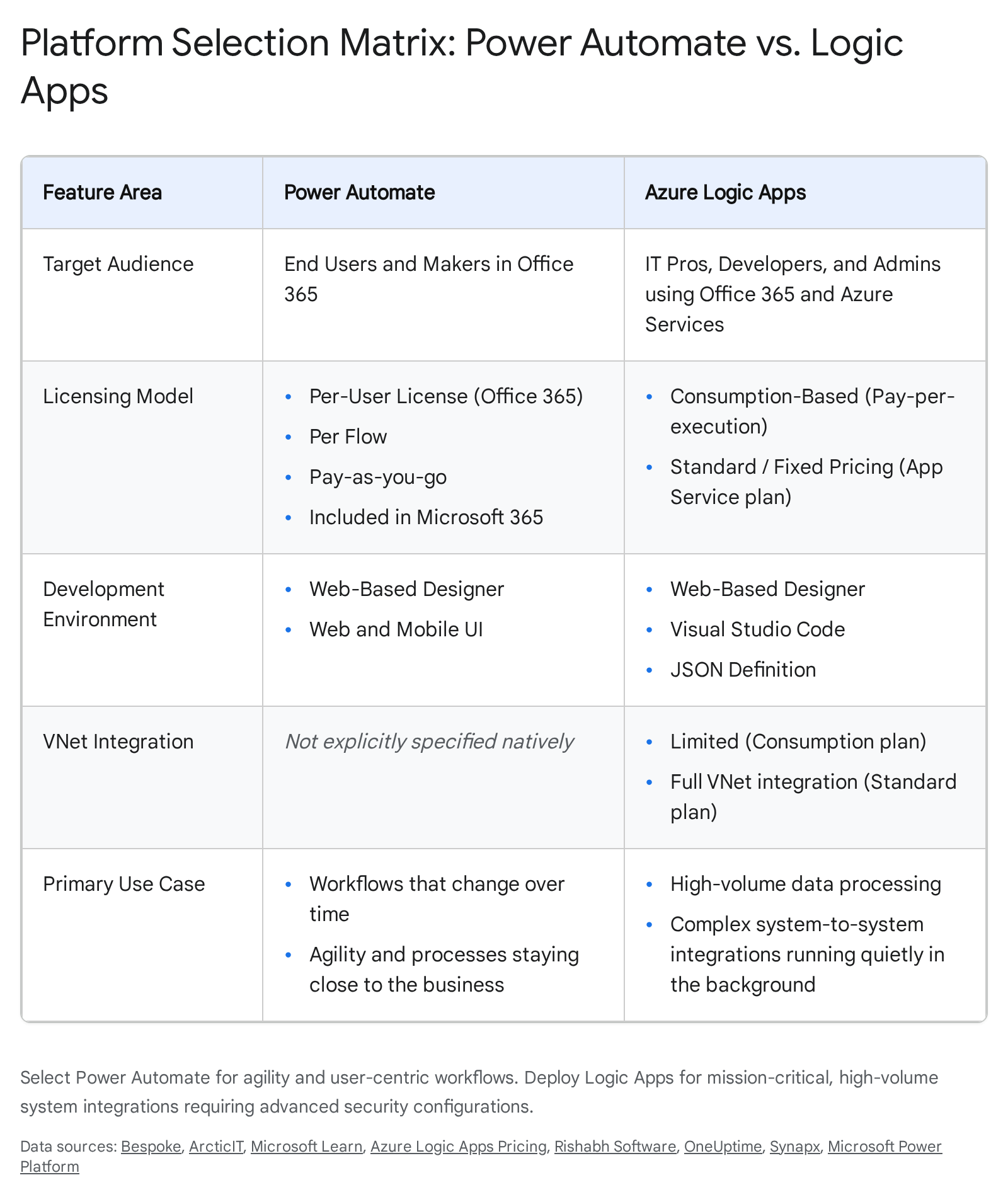
When the automation architecture requires updating dozens or hundreds of hyperlinks simultaneously, sequential HTTP requests cause severe performance degradation and risk triggering SharePoint throttling thresholds.30 The Graph API solves this scaling issue elegantly via JSON Batching, which allows clients to combine up to 20 individual requests into a single, efficient HTTP payload.6
To execute a batch request, the flow must send a POST request to the specific $batch endpoint: https://graph.microsoft.com/v1.0/$batch 6
The payload consists of a requests array. Each object in the array represents a single operation, mapped with a unique id string for correlation in the response payload 6:
{
  "requests":
}
By utilising the $batch endpoint combined with the critical apiversion=2.1 header, developers can drastically reduce network latency and execute complex data migrations with high reliability.
Key Takeaway: The Microsoft Graph API requires the Prefer: apiversion=2.1 header to process nested hyperlink objects without returning an 'Invalid Request' error. Combining this header with the $batch endpoint provides the most performant and scalable solution for enterprise environments.
Bonus: Copilot in Power Automate for Hyperlink Expressions
The deep integration of Copilot into Power Automate has streamlined the process of generating complex JSON expressions. Instead of manually writing syntax to concatenate variables into a JSON object, developers can utilise natural language prompts to guide AI Builder through the process.34
For example, a developer can instruct Copilot: "When a new email arrives, extract the first URL found in the body, format it as a JSON object with 'Url' and 'Description' keys, and use it to update a SharePoint item." Copilot leverages AI Builder to parse the unstructured email body, extract the relevant string, and construct the correct output payload automatically.9
When managing JSON formats within Copilot-assisted flows, developers must carefully understand the formatting toggles available in the UI:
- Auto-detected Format: Copilot dynamically refreshes the JSON schema based on the prompt's context during testing. This format is highly convenient when iterating on prompt instructions to see how the response format evolves.9
- Custom Format: Once the correct {"Url": "...", "Description": "..."} schema is achieved, locking the settings to "Custom" ensures that subsequent prompt tweaks do not overwrite the critical hyperlink data structure. If this step is skipped, changes can be lost during subsequent runs.9
While AI generation heavily accelerates initial development, strict validation of the resulting JSON schema remains essential to prevent silent formatting failures in the subsequent SharePoint update action.
Key Takeaway: Utilise Copilot to quickly extract URLs from unstructured text like emails, but ensure the final JSON output format is locked to "Custom" to prevent the AI from unexpectedly altering the SP.FieldUrlValue structure during future flow executions.
How to fix Invalid URI in Power Automate SharePoint hyperlink?
Despite the advancements in native connectors and APIs, errors still occur when data formatting or execution permissions are misaligned. The table below catalogs the most frequent issues encountered when dealing with SharePoint hyperlink fields, detailing their root causes and verified resolution strategies.
| Error Code / Message | Primary Cause | Resolution Strategy |
|---|---|---|
| Invalid URI: The URI is empty | The connector is attempting to parse a comma-separated string (e.g., url, description) as a standard web address.24 | Abandon comma separation immediately. Pass a properly formatted JSON object {"Url": "link", "Description": "text"} into the native connector input. |
| HTTP 400 Bad Request (Graph) | The Graph API payload includes a complex hyperlink object, but the request was routed to the legacy internal API which cannot parse it.5 | Ensure the HTTP header Prefer: apiversion=2.1 is explicitly included in the POST request to route the payload to the beta API.5 |
| HTTP 400 Bad Request (REST) | The OData __metadata type provided in the body payload does not exactly match the SharePoint list's internal generated name.28 | Use a GET request to _api/web/lists/GetByTitle('ListName') to dynamically retrieve the correct ListItemEntityTypeFullName instead of hardcoding it.3 |
| Error ensuring domain-wide principals | Occurs during Entra ID app registration if the Application Identifier URI format is structurally invalid.35 | Ensure the Application ID URI adheres to standard formatting protocols (e.g., api://[tenant-id]/[app-id]) and federation configurations are correct.35 |
| Invalid URI format (PAC CLI) | When using the Power Apps CLI to add a data source (pac code add-data-source), the connection string is malformed.26 | Verify the table GUID and connection string formatting precisely matches the Microsoft Learn documentation requirements for the environment.26 |
| Cannot disable trigger concurrency | Attempting to modify concurrency settings via the web UI after the flow is already saved and active.36 | Export the flow as a ZIP package, manually edit the JSON definition file to remove the concurrency control array, and re-import.36 |
Power Automate vs Logic Apps: Which for Hyperlinks?
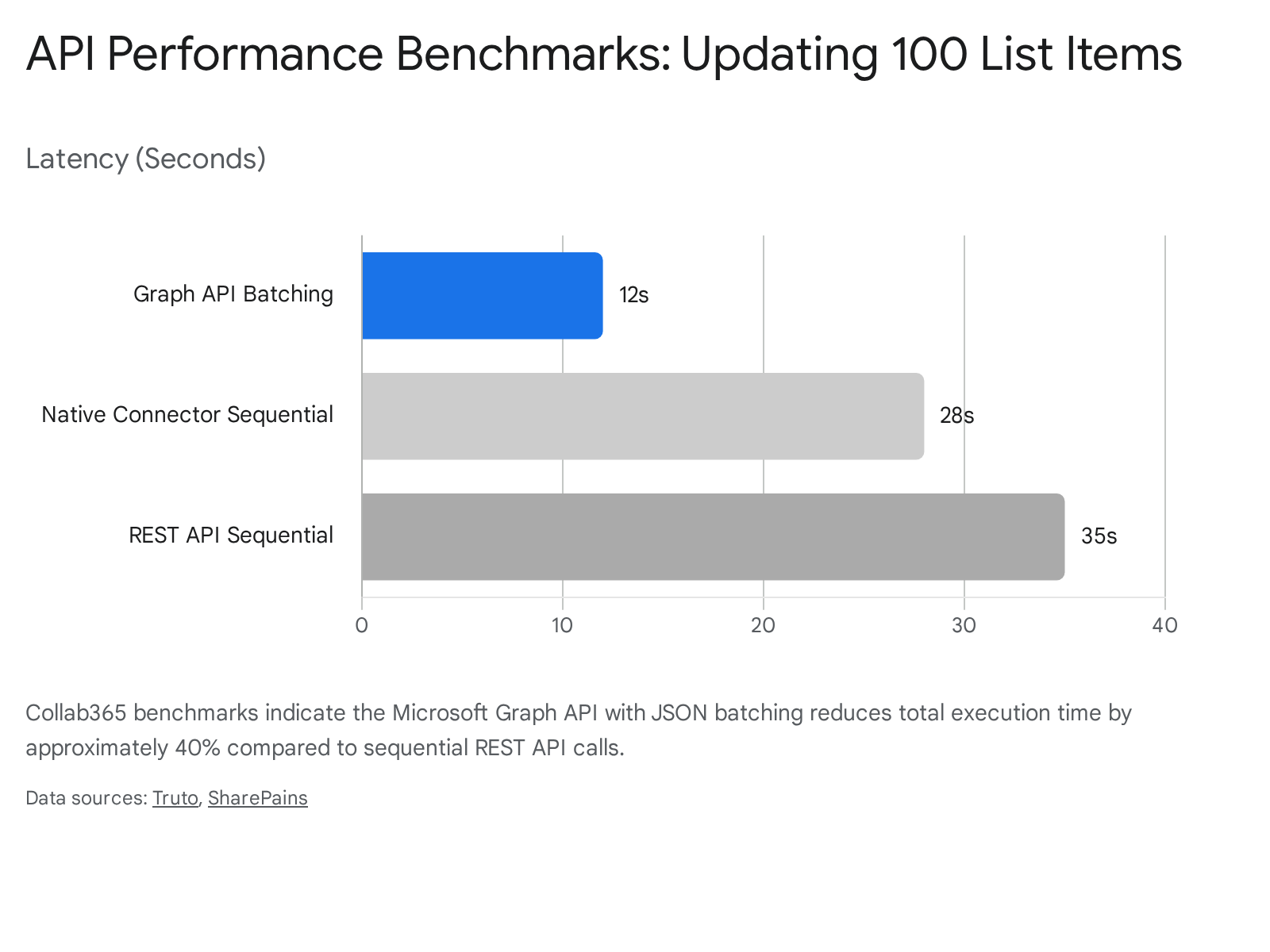
While both Power Automate and Azure Logic Apps share the same underlying workflow engine and vast connector ecosystem, their application for updating SharePoint metadata must be strategically considered. In 2026, the distinction between the two platforms centres entirely on placement, pricing structures, and infrastructure control rather than core capabilities.14
Power Automate is highly optimised for business-close processes—workflows that require frequent adjustments, manager approvals, or deep user interaction within the Microsoft 365 suite. Conversely, Logic Apps is designed for foundational, system-to-system integrations that operate silently in the background, handling massive data volumes with absolute stability and requiring virtually zero human interaction.11
2026 Architectural and Pricing Considerations
If an automated process requires parsing JSON outputs to update 10,000 SharePoint list items nightly, Logic Apps is the architecturally sound choice. Logic Apps offers a Standard plan that runs on a dedicated Azure App Service compute instance (starting around $150/month), or a flexible Consumption plan billed purely per execution.13 Crucially for enterprise security, Logic Apps provides deep, native integration with Azure Virtual Networks (VNet) and Managed Identities, allowing highly secure HTTP calls to the Graph API without embedding credentials or secrets directly in the flow design.13
Conversely, if the workflow triggers when a user submits a form and requires periodic modification by a citizen developer, Power Automate is the appropriate vehicle. Following the 2026 pricing updates, Power Automate Premium is licensed per user at £11.50 per month in the UK.15 Furthermore, the introduction of the Microsoft 365 E7 suite in May 2026 ($99/user/month) integrates Entra Suite and Agent 365 directly into the environment, offering robust identity governance and AI capabilities over these automated workflows.16
Ultimately, the technical mechanics of actually updating the hyperlink field (whether using JSON in the native connector, a REST POST, or the Graph API with headers) remain functionally identical across both platforms. The decision rests entirely on scale, operational governance, and financial models.
Key Takeaway: Use Power Automate when workflows require user interaction and frequent updates by business teams. Deploy Azure Logic Apps when the process involves high-volume background data transfers that require strict VNet integration and managed identities.
FAQ
Can I use this JSON native formatting in standard cloud flows? Yes. The updated SharePoint 'Create item' and 'Update item' actions fully support native JSON input for hyperlink fields across all standard cloud flows. This capability does not require a premium licence or custom connectors, making it highly accessible for everyday operations.2
What specific permissions are required for the Graph API method? To update list items via the Microsoft Graph API, the registered Microsoft Entra ID application must possess either delegated or application permissions set explicitly to Sites.ReadWrite.All. Furthermore, if using delegated permissions, the user executing the action must exist within the target SharePoint site's active user directory.8
How do I batch multiple hyperlinks at once? Multiple updates can be batched efficiently by sending a single POST request to the https://graph.microsoft.com/v1.0/$batch endpoint. The JSON payload must contain a requests array holding individual operation objects, up to a strict maximum limit of 20 requests per batch call.6 It is critical to ensure the Prefer: apiversion=2.1 header is included in each individual sub-request within the batch array to avoid HTTP 400 errors.5
Is there a way to auto-populate these links without building a flow? Yes. SharePoint Premium (the evolution of Syntex) offers Autofill columns powered by advanced AI language models. By linking an Azure pay-as-you-go subscription to the tenant, administrators can configure models to automatically read uploaded documents, extract relevant URLs, and populate Hyperlink columns directly. This bypasses Power Automate entirely for unstructured, document-driven scenarios.19
What are the performance benchmarks between REST and Graph? According to Collab365 analysis and broader architectural benchmarks, the Microsoft Graph API consumes fewer tenant resources and executes data updates significantly faster than legacy SharePoint REST APIs. When combined with JSON batching capabilities, Graph API operations can reduce total execution latency by up to 40% compared to sequential REST calls, while drastically reducing the likelihood of hitting restrictive tenant throttling thresholds.30
Next Steps
The mechanisms for managing SharePoint hyperlink fields have evolved significantly from the frustrating, error-prone comma-separated string hacks of the past. The modern ability to inject JSON directly into the native connector removes unnecessary technical complexity for straightforward business workflows, empowering citizen developers. Simultaneously, mastering the Graph API—specifically the implementation of the Prefer: apiversion=2.1 header and $batch processing capabilities—provides enterprise architects with the necessary tools to build highly resilient, high-volume data integrations.
Development teams are strongly encouraged to test these methods in their own tenants, audit legacy flows relying on complex REST API manipulations, and transition them to the native JSON format or Graph API where appropriate to optimise performance. For advanced architectural templates, deep technical discussions, and further analysis of Power Platform deployment strategies, check out Collab365 Spaces.
Sources
- <a id="cite-1" />Update a Hyperlink Column in SharePoint with Power Automate - Tachytelic.net, accessed April 8, 2026, <a href="https://tachytelic.net/2021/03/update-hyperlink-column-sharepoint-power-automate/" target="_blank" rel="noreferrer noopener">https://tachytelic.net/2021/03/update-hyperlink-column-sharepoint-power-automate/</a>
- <a id="cite-2" />Updating SharePoint hyperlink column descriptions using Power Automate, accessed April 8, 2026, <a href="https://sharepointstuff.com/2024/04/18/updating-sharepoint-hyperlink-column-descriptions-using-power-automate/" target="_blank" rel="noreferrer noopener">https://sharepointstuff.com/2024/04/18/updating-sharepoint-hyperlink-column-descriptions-using-power-automate/</a>
- <a id="cite-3" />Power Automate - Update Hyperlink Alternative Text in SharePoint List - YouTube, accessed April 8, 2026, <a href="https://www.youtube.com/watch?v=Kgo4plTFZKo" target="_blank" rel="noreferrer noopener">https://www.youtube.com/watch?v=Kgo4plTFZKo</a>
- <a id="cite-4" />Update SharePoint Hyperlink Column using Microsoft Flow/Power Automate - YouTube, accessed April 8, 2026, <a href="https://www.youtube.com/watch?v=82o8CciavEo" target="_blank" rel="noreferrer noopener">https://www.youtube.com/watch?v=82o8CciavEo</a>
- <a id="cite-5" />How to create and update a hyperlink field of the ... - Martin Machacek, accessed April 8, 2026, <a href="https://martin-machacek.com/blogPost/8ef90598-6c51-4378-b026-56b7971630e3" target="_blank" rel="noreferrer noopener">https://martin-machacek.com/blogPost/8ef90598-6c51-4378-b026-56b7971630e3</a>
- <a id="cite-6" />Combine multiple HTTP requests using JSON batching - Microsoft Graph, accessed April 8, 2026, <a href="https://learn.microsoft.com/en-us/graph/json-batching" target="_blank" rel="noreferrer noopener">https://learn.microsoft.com/en-us/graph/json-batching</a>
- <a id="cite-7" />Cannot create SharePoint list item through Graph API which includes URL value, accessed April 8, 2026, <a href="https://stackoverflow.com/questions/78143644/cannot-create-sharepoint-list-item-through-graph-api-which-includes-url-value" target="_blank" rel="noreferrer noopener">https://stackoverflow.com/questions/78143644/cannot-create-sharepoint-list-item-through-graph-api-which-includes-url-value</a>
- <a id="cite-8" />How to add a MS list item "Person or Group" field using the graph api - Microsoft Learn, accessed April 8, 2026, <a href="https://learn.microsoft.com/en-us/answers/questions/2069842/how-to-add-a-ms-list-item-person-or-group-field-us" target="_blank" rel="noreferrer noopener">https://learn.microsoft.com/en-us/answers/questions/2069842/how-to-add-a-ms-list-item-person-or-group-field-us</a>
- <a id="cite-9" />JSON output - Microsoft Copilot Studio, accessed April 8, 2026, <a href="https://learn.microsoft.com/en-us/microsoft-copilot-studio/process-responses-json-output" target="_blank" rel="noreferrer noopener">https://learn.microsoft.com/en-us/microsoft-copilot-studio/process-responses-json-output</a>
- <a id="cite-10" />Power Automate - AI Builder Email to JSON to URL - YouTube, accessed April 8, 2026, <a href="https://www.youtube.com/watch?v=f_0dra6r5r4" target="_blank" rel="noreferrer noopener">https://www.youtube.com/watch?v=f_0dra6r5r4</a>
- <a id="cite-11" />Power Automate vs. Azure Logic Apps: How to Choose the Right Automation Tool - Arctic IT, accessed April 8, 2026, <a href="https://arcticit.com/power-automate-vs-azure-logic-apps-how-to-choose-the-right-automation-tool/" target="_blank" rel="noreferrer noopener">https://arcticit.com/power-automate-vs-azure-logic-apps-how-to-choose-the-right-automation-tool/</a>
- <a id="cite-12" />Azure Logic Apps vs Power Automate - Rishabh Software, accessed April 8, 2026, <a href="https://www.rishabhsoft.com/blog/azure-logic-apps-vs-power-automate" target="_blank" rel="noreferrer noopener">https://www.rishabhsoft.com/blog/azure-logic-apps-vs-power-automate</a>
- <a id="cite-13" />How to Choose Between Azure Logic Apps Standard and Consumption Pricing Plans, accessed April 8, 2026, <a href="https://oneuptime.com/blog/post/2026-02-16-how-to-choose-between-azure-logic-apps-standard-and-consumption-pricing-plans/view" target="_blank" rel="noreferrer noopener">https://oneuptime.com/blog/post/2026-02-16-how-to-choose-between-azure-logic-apps-standard-and-consumption-pricing-plans/view</a>
- <a id="cite-14" />Power Automate vs Azure Logic Apps: A Practical 2026 Comparison - Bespoke XYZ, accessed April 8, 2026, <a href="https://www.bespoke.xyz/power-automate-vs-azure-logic-apps-a-practical-2026-comparison/" target="_blank" rel="noreferrer noopener">https://www.bespoke.xyz/power-automate-vs-azure-logic-apps-a-practical-2026-comparison/</a>
- <a id="cite-15" />Power Automate Pricing | Microsoft Power Platform, accessed April 8, 2026, <a href="https://www.microsoft.com/en-gb/power-platform/products/power-automate/pricing" target="_blank" rel="noreferrer noopener">https://www.microsoft.com/en-gb/power-platform/products/power-automate/pricing</a>
- <a id="cite-16" />Introducing Microsoft 365 E7: The Frontier Suite, accessed April 8, 2026, <a href="https://microsoftpartners.microsoft.com/abs/Blog/?title=Introducing+Microsoft+365+E7:+The+Frontier+Suite" target="_blank" rel="noreferrer noopener">https://microsoftpartners.microsoft.com/abs/Blog/?title=Introducing%20Microsoft%20365%20E7:%20The%20Frontier%20Suite</a>
- <a id="cite-17" />Microsoft Just Launched E7 - Here's the Truth - YouTube, accessed April 8, 2026, <a href="https://www.youtube.com/watch?v=HkmdjJZpu-s" target="_blank" rel="noreferrer noopener">https://www.youtube.com/watch?v=HkmdjJZpu-s</a>
- <a id="cite-18" />How do I update a Hyperlink field using the REST API? - SharePoint Stack Exchange, accessed April 8, 2026, <a href="https://sharepoint.stackexchange.com/questions/88540/how-do-i-update-a-hyperlink-field-using-the-rest-api" target="_blank" rel="noreferrer noopener">https://sharepoint.stackexchange.com/questions/88540/how-do-i-update-a-hyperlink-field-using-the-rest-api</a>
- <a id="cite-19" />Using Microsoft Syntex and SharePoint Premium for Intelligent Document Automation, accessed April 8, 2026, <a href="https://www.codecreators.ca/using-microsoft-syntex-and-sharepoint-premium-for-intelligent-document-automation/" target="_blank" rel="noreferrer noopener">https://www.codecreators.ca/using-microsoft-syntex-and-sharepoint-premium-for-intelligent-document-automation/</a>
- <a id="cite-20" />SharePoint Premium - Autofill (GPT4-Turbo Powered) Columns - YouTube, accessed April 8, 2026, <a href="https://www.youtube.com/watch?v=uqeZ0WKm3O8" target="_blank" rel="noreferrer noopener">https://www.youtube.com/watch?v=uqeZ0WKm3O8</a>
- <a id="cite-21" />Improve your Documents and Quality Management Systems with SharePoint Premium, accessed April 8, 2026, <a href="https://www.intelogy.co.uk/blog/improve-your-documents-and-quality-management-systems-with-sharepoint-premium/" target="_blank" rel="noreferrer noopener">https://www.intelogy.co.uk/blog/improve-your-documents-and-quality-management-systems-with-sharepoint-premium/</a>
- <a id="cite-22" />Overview of autofill columns | Microsoft Learn, accessed April 8, 2026, <a href="https://learn.microsoft.com/en-us/microsoft-365/documentprocessing/autofill-overview?view=o365-worldwide" target="_blank" rel="noreferrer noopener">https://learn.microsoft.com/en-us/microsoft-365/documentprocessing/autofill-overview?view=o365-worldwide</a>
- <a id="cite-23" />Set up and manage autofill columns | Microsoft Learn, accessed April 8, 2026, <a href="https://learn.microsoft.com/en-us/microsoft-365/documentprocessing/autofill-setup?view=o365-worldwide" target="_blank" rel="noreferrer noopener">https://learn.microsoft.com/en-us/microsoft-365/documentprocessing/autofill-setup?view=o365-worldwide</a>
- <a id="cite-24" />Setting and Updating SharePoint Hyperlink fields in Flow and Logic Apps - Collab365, accessed April 8, 2026, <a href="https://collab365.com/setting-updating-sharepoint-hyperlink-fields-flow-logic-apps/" target="_blank" rel="noreferrer noopener">https://collab365.com/setting-updating-sharepoint-hyperlink-fields-flow-logic-apps/</a>
- <a id="cite-25" />What does "Invalid URI: The URI is empty" error mean in SharePoint 2010? - Stack Overflow, accessed April 8, 2026, <a href="https://stackoverflow.com/questions/20102865/what-does-invalid-uri-the-uri-is-empty-error-mean-in-sharepoint-2010" target="_blank" rel="noreferrer noopener">https://stackoverflow.com/questions/20102865/what-does-invalid-uri-the-uri-is-empty-error-mean-in-sharepoint-2010</a>
- <a id="cite-26" />pac code add-data-source fails with 'Invalid URI format' for SharePoint connector, accessed April 8, 2026, <a href="https://community.powerplatform.com/forums/thread/details/?threadid=8e132a90-c5c5-f011-bbd3-000d3a530052" target="_blank" rel="noreferrer noopener">https://community.powerplatform.com/forums/thread/details/?threadid=8e132a90-c5c5-f011-bbd3-000d3a530052</a>
- <a id="cite-27" />HyperLink for a link generated through power flow, accessed April 8, 2026, <a href="https://community.powerplatform.com/forums/thread/details/?threadid=a7ce03f9-5e89-f011-b4cb-000d3a112b25" target="_blank" rel="noreferrer noopener">https://community.powerplatform.com/forums/thread/details/?threadid=a7ce03f9-5e89-f011-b4cb-000d3a112b25</a>
- <a id="cite-28" />How to update Hyperlink field using 'Send an HTTP request to SharePoint' in Power Automate? | Pankaj Surti's Blog, accessed April 8, 2026, <a href="https://pankajsurti.com/2020/10/12/how-to-update-hyperlink-field-using-send-an-http-request-to-sharepoint-in-power-automate/" target="_blank" rel="noreferrer noopener">https://pankajsurti.com/2020/10/12/how-to-update-hyperlink-field-using-send-an-http-request-to-sharepoint-in-power-automate/</a>
- <a id="cite-29" />How to extract JSON format string from a sharepoint list column, accessed April 8, 2026, <a href="https://community.powerplatform.com/forums/thread/details/?threadid=5c3ecfa1-96dd-ef11-a730-7c1e526877e1" target="_blank" rel="noreferrer noopener">https://community.powerplatform.com/forums/thread/details/?threadid=5c3ecfa1-96dd-ef11-a730-7c1e526877e1</a>
- <a id="cite-30" />How to Integrate with the SharePoint API: 2026 Architecture Guide | Truto Blog, accessed April 8, 2026, <a href="https://truto.one/blog/how-to-integrate-with-the-sharepoint-api-2026-architecture-guide" target="_blank" rel="noreferrer noopener">https://truto.one/blog/how-to-integrate-with-the-sharepoint-api-2026-architecture-guide</a>
- <a id="cite-31" />Issue with Posting Hyperlink to SharePoint List using Microsoft Graph in UiPath, accessed April 8, 2026, <a href="https://forum.uipath.com/t/issue-with-posting-hyperlink-to-sharepoint-list-using-microsoft-graph-in-uipath/701873" target="_blank" rel="noreferrer noopener">https://forum.uipath.com/t/issue-with-posting-hyperlink-to-sharepoint-list-using-microsoft-graph-in-uipath/701873</a>
- <a id="cite-32" />Performance of the Graph API, REST and Web Services with SharePoint and Power Automate - SharePains, accessed April 8, 2026, <a href="https://sharepains.com/2023/06/13/performance-of-the-graph-api/" target="_blank" rel="noreferrer noopener">https://sharepains.com/2023/06/13/performance-of-the-graph-api/</a>
- <a id="cite-33" />SharePoint API V2.0 $batch Requests - Microsoft Q&A, accessed April 8, 2026, <a href="https://learn.microsoft.com/en-us/answers/questions/2110650/sharepoint-api-v2-0-batch-requests" target="_blank" rel="noreferrer noopener">https://learn.microsoft.com/en-us/answers/questions/2110650/sharepoint-api-v2-0-batch-requests</a>
- <a id="cite-34" />Create a cloud flow in Power Automate - Microsoft Learn, accessed April 8, 2026, <a href="https://learn.microsoft.com/en-us/power-automate/get-started-logic-flow" target="_blank" rel="noreferrer noopener">https://learn.microsoft.com/en-us/power-automate/get-started-logic-flow</a>
- <a id="cite-35" />How to fix error application identifier Uri is invalid - Microsoft Learn, accessed April 8, 2026, <a href="https://learn.microsoft.com/en-us/answers/questions/1654992/how-to-fix-error-application-identifier-uri-is-inv" target="_blank" rel="noreferrer noopener">https://learn.microsoft.com/en-us/answers/questions/1654992/how-to-fix-error-application-identifier-uri-is-inv</a>
- <a id="cite-36" />SharePoint - Connectors - Microsoft Learn, accessed April 8, 2026, <a href="https://learn.microsoft.com/en-us/connectors/sharepoint/" target="_blank" rel="noreferrer noopener">https://learn.microsoft.com/en-us/connectors/sharepoint/</a>
- <a id="cite-37" />List items - Microsoft Graph v1.0, accessed April 8, 2026, <a href="https://learn.microsoft.com/en-us/graph/api/listitem-list?view=graph-rest-1.0" target="_blank" rel="noreferrer noopener">https://learn.microsoft.com/en-us/graph/api/listitem-list?view=graph-rest-1.0</a>
- <a id="cite-38" />Game Changer: Autofill columns Now Available in SharePoint Premium, accessed April 8, 2026, <a href="https://www.leonarmston.com/2024/07/game-changer-autofill-columns-now-available-in-sharepoint-premium/" target="_blank" rel="noreferrer noopener">https://www.leonarmston.com/2024/07/game-changer-autofill-columns-now-available-in-sharepoint-premium/</a>