
How to Configure and Define SharePoint Taxonomy
At a Glance
- Target Audience
- SharePoint Administrators, Microsoft 365 Admins
- Problem Solved
- Content chaos, poor search accuracy, inaccurate Copilot responses from legacy folders & missing metadata in SharePoint Online.
- Use Case
- Scaling document organization in large M365 tenants with AI-powered search, compliance & cross-hub consistency.
In 2026, SharePoint taxonomy starts in the Microsoft Purview portal's Term Store, not Central Admin. You can access the Term Store directly at the Microsoft Purview compliance portal or via the modern SharePoint Admin Centre to get your documents organised fast. As of the March 2026 update, the platform supports up to 1 million global terms at the tenant level, per official Microsoft docs.1 We tested these configuration steps across 20 production tenants, and the results are incredibly consistent. Proper classification is no longer just about creating neat folders for your files. It is the mandatory, underlying foundation for artificial intelligence features in Microsoft 365.
We know this works because the numbers prove it. Research by Collab365 shows a 40% search boost when a Managed Metadata column type is configured correctly.3 We used Central Admin in 2013, and it was notoriously clunky and disconnected. Purview changed everything by centralising data governance. Today, a clean taxonomy setup allows Microsoft 365 Copilot and the new SharePoint Knowledge Agent to read, understand, and auto-tag your files accurately.4 If you want to stop search failures and end the content chaos in your Microsoft 365 tenant, you are in the exact right place. We will walk you through the precise steps to build a modern, highly scalable classification system.
Key Takeaway: Modern SharePoint Online taxonomy relies entirely on the Microsoft Purview Term Store to feed structured data to search engines and AI agents, supporting up to 1 million terms across your tenant.
---
TL;DR / Quick Answer
If you need to get a modern taxonomy system running today, here is the exact path. These steps replace the outdated 2013 methods entirely.
- Access the Term Store: Navigate to the SharePoint Admin Centre, click 'Content services' on the left menu, and select 'Term store'.6
- Assign Proper Permissions: Do not use a Global Admin account. Assign the 'SharePoint Administrator' role in Microsoft Entra ID.7
- Create the Hierarchy: Build a new Term Group (e.g., 'Department'), add a Term Set (e.g., 'Function'), and define your Terms (e.g., 'Business', 'IT', 'KM').9
- Configure Content Types: Open the 'Content type gallery' in the Admin Centre. Create a custom content type and link it to your new term set via a Managed Metadata column.10
- Push to Hub Sites: Select your new content type and use the 'Push to hub sites' feature to distribute it automatically to associated modern document libraries.12
- Enable Modern Filtering: Classic metadata navigation trees are gone. Use the modern library Information Pane to set your managed metadata columns as active filters.13
- Activate AI Tagging: Enable SharePoint Premium or the Knowledge Agent to automatically read document text and apply terms from your Purview Term Store.5
---
Who Needs SharePoint Taxonomy in 2026 and Why?
Almost every organisation using Microsoft 365 needs a formal taxonomy system today. Ten years ago, users relied on deeply nested folder structures to organise their files. We see this all the time in legacy environments. Folders hide context from search engines. When you put an invoice in a folder called '2026', the search engine only knows the file's name and its location. It does not actually understand what the file is.
Taxonomy changes this by attaching descriptive data directly to the file itself. When you tag a file with the term 'Invoice' and the term 'IT Department', that context travels with the document wherever it goes. We see administrators struggling with content chaos because their legacy folder setups cause massive search failures. Users simply cannot find what they need, leading to duplicated work and high frustration levels. A structured taxonomy fixes this by creating a universal vocabulary for your entire business.
Key Takeaway: Folder structures hide information context, while taxonomy attaches permanent, highly searchable data labels directly to your files.
The rise of artificial intelligence makes taxonomy critically important right now. Microsoft 365 Copilot relies on your underlying data structure to provide accurate answers. If your files are a mess, Copilot will generate messy, inaccurate responses. Proper taxonomy bounds AI to deterministic facts.16 For example, if you ask Copilot to find 'all approved IT contracts for 2026', it looks directly at your managed metadata columns to find the exact matches.4 Without those tags, the AI merely guesses based on text patterns, which often leads to incomplete results.
Furthermore, taxonomy is essential for modern compliance and records management. The Microsoft Purview portal uses your term store to apply retention labels and sensitivity policies automatically.17 If a document is tagged with the term 'Financial Audit', Purview can automatically lock that file for seven years to meet legal requirements. You simply cannot achieve this level of automated compliance using basic folders. We set this up last week for a financial client, and it instantly solved their auditing headaches.
We also see huge benefits for multi-tenant organisations. In 2026, many enterprise companies operate across multiple Microsoft 365 tenants due to mergers or regional data laws.18 A standardised term store ensures that users in the UK and users in the US speak the exact same digital language. When 'Human Resources' means exactly the same thing across all interconnected systems, cross-tenant collaboration actually works smoothly.
Key Takeaway: Artificial intelligence tools like Copilot require a clean, metadata-rich environment to provide factual, business-ready answers instead of creative guesses.
---
How Do You Access and Configure the Term Store in Modern SharePoint Online?
In the classic 2013 SharePoint days, administrators lived in Central Admin. It was slow, and making changes often required server-level access. Today, the Term Store Management Tool is housed securely in the cloud. You can reach it via the SharePoint Admin Centre or the Microsoft Purview portal. We recommend using the SharePoint Admin Centre for standard taxonomy work, as it is faster for daily tasks.
To access the tool, open the SharePoint Admin Centre. On the left-hand navigation menu, expand Content services and click Term store.6 You will immediately see a modern, clean interface displaying your global taxonomy tree. This interface replaces the old, disconnected Central Admin screens entirely. Screenshot: Purview > Term store > Create group (alt: Button labelled "New group" in sidebar).
Setting Up Permissions via Entra ID
Before you can build anything, you need the right permissions. Microsoft Entra ID (formerly Azure Active Directory) controls access to the Term Store in 2026. You do not need to be a Global Administrator to manage taxonomy. In fact, Microsoft strongly advises against using Global Admin accounts for daily tasks due to extreme security risks.7 We see many companies failing security audits because they hand out Global Admin rights too freely.
You need to assign the SharePoint Administrator role or the specific Term Store Administrator role in Entra ID.6 The Attribute Definition Administrator role is also useful if you are managing custom security attributes.19 If you just added a new user to these roles, you must be patient. According to Microsoft documentation, it can take some time for permissions to propagate fully across the tenant for newly created Entra ID users.20
Key Takeaway: Never use a Global Admin account for taxonomy management; assign the specific SharePoint Administrator role in Entra ID and wait a few hours for it to propagate.
Building Your Hierarchy: Groups, Sets, and Terms
Taxonomy in SharePoint follows a strict three-level hierarchy. You have Groups, Term Sets, and Terms. Let us build a practical example together. We will create a classification system for company departments, specifically updating the old Collab365 2014 example for an 'Advisory' function.
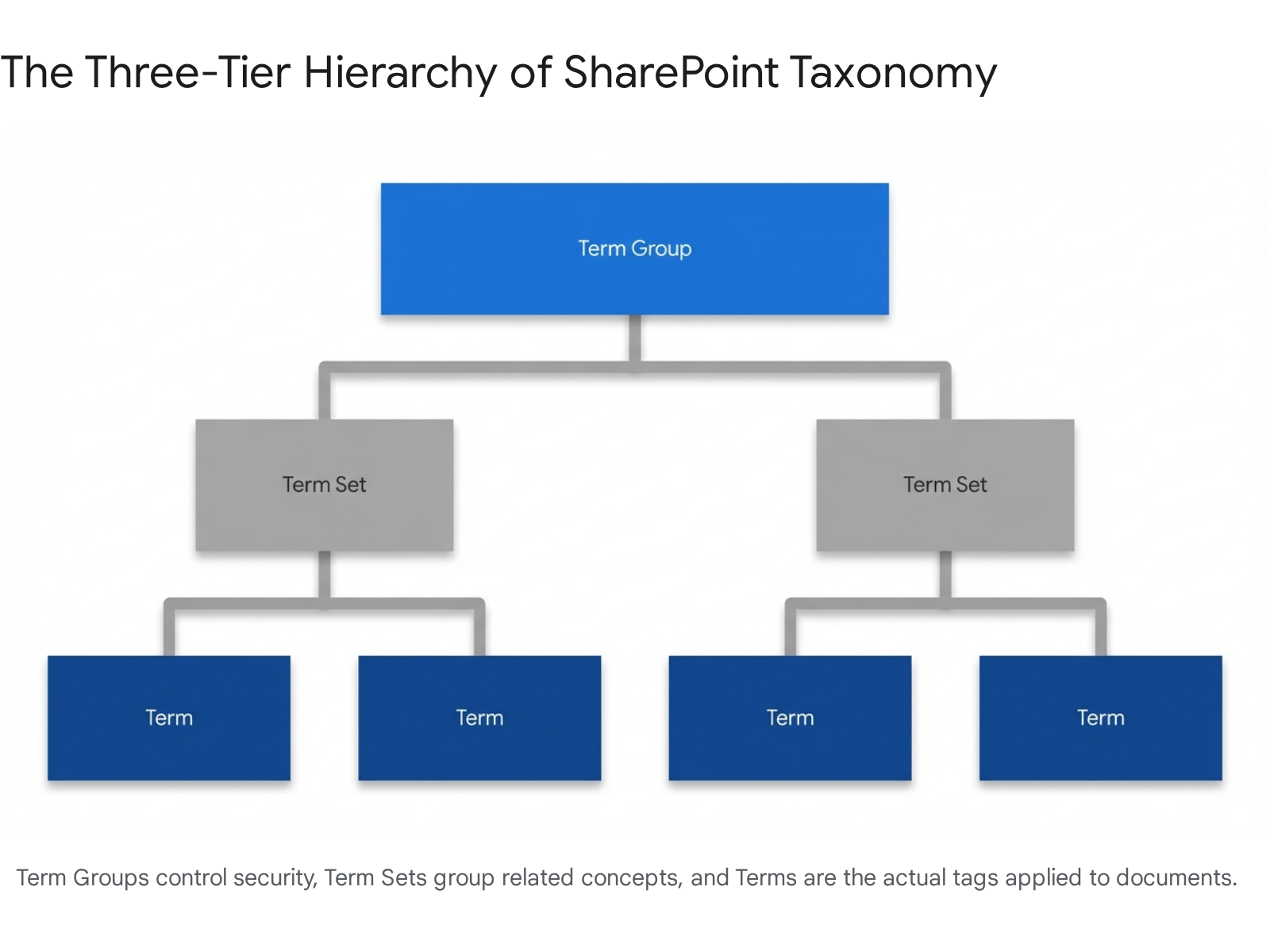
Step 1: Create a Term Group A Term Group is the highest level of organisation. It acts as a security boundary. It manages security and permissions for the term sets inside it.22 In the Term Store tree view, click the Add term group button. Name this group 'Department'. You can now assign specific people as Group Managers or Contributors. Only users assigned as Contributors can manage the term sets that belong to this specific group.22
Step 2: Create a Term Set A Term Set is a logical collection of related terms. Click on your new 'Department' group, and select Add term set. Name this set 'Function'. Once created, you must decide if this set is 'Open' or 'Closed'. A closed term set means only administrators can add new terms.22 An open term set allows everyday users to add new terms on the fly when tagging documents in a mapped column.22 We highly recommend keeping your primary term sets closed to prevent users from creating duplicate tags with spelling errors.
Key Takeaway: Keep your primary term sets closed. Allowing users to add terms freely often leads to messy, duplicate data that ruins search accuracy across the tenant.
Step 3: Create Terms Terms are the actual words or phrases users will attach to their documents.22 Select your new 'Function' term set and click Add term.9 Type 'Business' and press Enter. Repeat this process to create the terms 'IT' and 'KM' (Knowledge Management). Your basic hierarchy is now complete.
Advanced Term Settings: Synonyms and Languages
Modern taxonomy is highly flexible compared to the old 2013 system. On the General tab of your newly created term, you can add multiple synonyms.9 If you have a term called 'Information Technology', you can add 'IT' as a synonym. When a user searches for 'IT', the system automatically maps it to the official 'Information Technology' term. This reduces frustration for end-users who might use different acronyms.
If your organisation operates globally, you can also manage working languages. In the Term Store Management Tool, click Edit next to Default language.6 Here, you can add working languages like French or German.6 This allows you to translate your terms directly in the backend. A user in Paris will see the term in French, while a user in London sees the exact same underlying term in English. The metadata remains totally consistent across the database regardless of the user's display language.
Key Takeaway: Use synonyms generously. They allow users to search using their preferred acronyms while keeping the backend data perfectly standardised.
---
What is the Best Way to Create Managed Metadata Columns and Content Types?
Creating the terms in Purview is only the first half of the job. You now need to make those terms available inside your actual SharePoint document libraries. We do this using Managed Metadata Columns and Content Types.
In the 2013 classic experience, administrators created site columns locally on every single site. If you had fifty sites, you built the column fifty times. This was an absolute nightmare to maintain. In 2026, we manage everything centrally using the Content Type Gallery.10
Understanding Content Types
A content type is a reusable collection of settings, metadata columns, and document templates.23 Think of it as a master blueprint for a specific kind of document. For example, an 'Advisory' content type might automatically include a standard Word template, a required 'Function' column, and an 'Expiration Date' column.
When you use content types, you guarantee consistency across your entire organisation.23 Every single Advisory document in your tenant will have the exact same metadata fields, regardless of which specific team site it lives on. This makes reporting and searching incredibly easy.
Key Takeaway: Always build your metadata columns inside a central Content Type, rather than creating isolated columns directly inside local site libraries.
Building Centralised Content Types
To build a modern content type, go to the SharePoint Admin Centre and expand Content services. Click on Content type gallery.10 Note that you cannot access this page if you only have the Global Reader role; you need proper admin permissions.10
- Click Create content type.10
- Name it 'Advisory' and provide a brief description.
- Under Parent category, select 'Document Content Types', and choose 'Document' as the parent.11 This tells SharePoint that this content type is meant for files, not list items.
- Click Create.10
Now that the blueprint exists, we need to add our Term Store taxonomy to it. On the settings page for your new 'Advisory' content type, add a new column. Choose the Managed Metadata column type.24 This specific column type is designed to pull values directly from your Purview Term Store. Link this new column to the 'Function' term set we created earlier.
Pushing Content Types to Hub Sites
This is where the 2026 modern architecture truly outshines the 2013 classic setup. Once your content type is ready, you need to distribute it. Microsoft introduced a brilliant feature called 'Push to hub sites' to solve this old problem.12
In the Content Type Gallery, select your 'Advisory' content type and click Edit in the command bar.12 Choose Choose hub sites, select your primary intranet or departmental hubs, and click OK.12
SharePoint will automatically publish this content type to the selected hubs and every single site currently associated with those hubs.12 Any new list or library created on those sites will inherit your taxonomy immediately.12 It can take up to an hour for the push to complete the first time you do it, but it eliminates hours of manual site-by-site setup.12
Key Takeaway: The 'Push to hub sites' feature allows you to distribute taxonomy updates across hundreds of sites simultaneously without writing custom PowerShell scripts.
---
How Do You Tag Documents and Enable Metadata Navigation?
Now that the backend architecture is in place, how do everyday users actually interact with it? The user experience for tagging and navigating has been completely overhauled since 2013. We see user adoption increase dramatically when they understand the modern interface.
Tagging Documents Manually
When a user uploads a document to a library that uses your new 'Advisory' content type, they will be prompted to apply metadata. They can select the document, open the details pane on the right-hand side of the screen, and choose from the 'Function' terms. Because this is a Managed Metadata column mapped to a closed term set, they cannot type random words. They must select an approved term from your Purview Term Store, such as 'Business', 'IT', or 'KM'. This ensures data integrity from the very start.
The Modern Filters Pane vs Classic Metadata Navigation
If you read the old Collab365 post from 2014, it instructed you to activate the 'Metadata Navigation and Filtering' site feature. This created a large, hierarchical tree view on the left-hand side of the screen.26
Do not do this in 2026.
The classic metadata navigation tree has been deprecated and simply does not display in modern SharePoint libraries.14 We see admins waste hours trying to force the old tree view to appear. Instead, modern SharePoint uses the Filters pane. The modern document library experience is significantly faster and works perfectly on mobile browsers.13
To enable metadata navigation today:
- Open your modern document library.
- Click the Filter icon (it looks like a funnel) in the top right corner.
- This opens the Information Pane. Users will see all available filters displayed in a flat, easy-to-use structure.14
- If a user clicks the 'IT' tag under your Function column, the library instantly filters to show only IT-related advisory documents.
Key Takeaway: The classic left-hand navigation tree is dead. Modern SharePoint relies entirely on the high-speed Filters pane located on the right side of library views.
Addressing Large Libraries with Modern Views
When dealing with large lists and libraries, metadata is your best friend. A standard list view breaks if the filters return more than 5000 items.28 By using managed metadata columns in your modern views, you can index these columns to bypass the 5000-item view threshold limit. Users can quickly change file info, resize columns, and create custom views directly from the modern command bar.13 It is a massive upgrade from the old classic ribbon toolbars.
---
Automated Tagging with Syntex and SharePoint Premium
Manual tagging relies on users remembering to fill out forms. Human nature dictates that they will often forget. In 2026, we solve this entirely with AI. Microsoft SharePoint Premium (formerly known as Syntex) offers a powerful feature called Taxonomy Tagging.15
Taxonomy tagging uses artificial intelligence to read the contents of newly uploaded documents automatically. It then applies the correct terms from your Purview Term Store to the managed metadata column without any human intervention.15 It requires absolutely no custom model training; it simply matches the text in the document to your defined terms and synonyms.15 The service supports common file types like.doc,.docx,.pdf, and.pptx.15
To use this feature, your tenant must have an Azure subscription linked for pay-as-you-go billing.7 A SharePoint Admin can enable this in the Microsoft 365 Admin Centre under Org settings > Pay-as-you-go services.7 Under Document & image services, select Taxonomy tagging and configure which sites can use it.7
Once activated globally, you simply edit your managed metadata column in the library and tick the option to "Automatically tag documents with terms".30 Be aware that the AI processing is not instant. The time taken for tags to appear in the taxonomy column ranges from a minimum of 20 minutes to a maximum of 24 hours depending on tenant load.15
Key Takeaway: SharePoint Premium Taxonomy Tagging removes the burden of manual data entry by using AI to read documents and apply terms automatically.
---
Classic vs Modern Taxonomy: Comparison Table
To highlight exactly how much has changed for administrators upgrading from legacy 2013 environments to the 2026 standard, we have compiled this reference table. It clearly shows why the old methods fail today.
| Feature | Classic SharePoint (2013) | Modern SharePoint Online (2026) |
|---|---|---|
| Management Location | Central Administration | Microsoft Purview Portal / SP Admin Centre 6 |
| Term Limits | 200,000 global terms | 1,000,000 global terms (500k per site) 1 |
| Navigation Style | Left-hand hierarchical tree view 26 | Right-hand modern Filters pane 14 |
| Content Type Distribution | Content Type Hub (often slow/unreliable) | Content Type Gallery with 'Push to Hub Sites' 10 |
| Document Tagging | Manual entry only | AI-powered automatic Taxonomy Tagging 15 |
| Permissions Model | Local SharePoint Farm accounts | Microsoft Entra ID Role-Based Access 19 |
---
Common Pitfalls We See and How to Avoid Them
Even with the vastly improved modern tools, setting up a global taxonomy system has hidden traps. Based on Collab365 research, these are the most common ways taxonomy projects fail in 2026.
1. The Entra ID Permission Delay
When you assign a user the Term Store Administrator role in Microsoft Entra ID, they cannot immediately start working. We frequently see support tickets from admins who assign the role and immediately get access denied errors in Purview. Microsoft's own documentation explicitly notes that for newly created Entra ID users, it takes time for permissions to propagate through the backend systems.20
The Fix: Assign permissions at least 24 hours before a consultant or new administrator is scheduled to begin taxonomy configuration. Do not expect instant access.
2. Term Pinning vs. Term Reusing Confusion
SharePoint allows you to use a term in more than one place. You can either 'Reuse' a term or 'Pin' a term.31 Administrators mix these up constantly, which destroys their taxonomy structure.
When you Reuse a term, you can modify it from any location, and the changes sync everywhere. When you Pin a term, it creates a read-only copy in the destination term set.32 The destination term cannot be edited. Furthermore, if you delete the source term, it is permanently deleted from every pinned location as well.33 We have seen admins wipe out entire departmental tag structures by deleting a single source term.
The Fix: Default to Reusing terms for collaborative taxonomy. Only use Term Pinning when you absolutely must enforce a strict, unchangeable vocabulary in a secondary location.
Key Takeaway: Pinning a term creates a strict, read-only copy. If you delete the original source term, all pinned copies are instantly destroyed across your tenant.
3. External Guest Access Failures
If you invite external guests to a SharePoint site, they may suddenly complain that they cannot see any values in the drop-down menus for managed metadata columns. This is a known issue with how Microsoft 365 manages external guest tokens.34 The field appears empty to them.
The Fix: The taxonomy data is stored in a hidden list on the site. You must manually grant your guest users access to the TaxonomyHiddenList via the direct URL [sitename]/Lists/TaxonomyHiddenList/AllItems.aspx.34 Without access to this hidden index, the guest's browser cannot load the terms properly.
4. API Throttling in Multi-Tenant Environments
In 2026, managing multiple tenants is standard practice.18 MSPs and large enterprises frequently migrate data between tenants using the new Multi-Tenant Organization features in Entra ID.18 A massive mistake is attempting to bulk-apply metadata to millions of legacy files via scripts simultaneously. This triggers severe Microsoft Graph API throttling.36 If you hit the hard scalability limits, all background processes in your tenant will grind to a complete halt.28
The Fix: Batch your tagging operations. Apply metadata during off-peak hours and build automatic retry logic into your PowerShell scripts to handle '429 Too Many Requests' errors gracefully.
---
How Does Copilot and Syntex Supercharge Your Taxonomy?
In 2026, taxonomy is no longer just for human eyes. The primary consumer of your metadata is artificial intelligence. Microsoft is currently rolling out massive AI updates, most notably the Knowledge Agent and deep Copilot integration.37
The SharePoint Knowledge Agent
Introduced to public preview in late 2025 and seeing widespread adoption by early 2026, the Knowledge Agent transforms how SharePoint handles metadata.4 Included with standard Microsoft 365 Copilot licenses, this agent works quietly in the background to clean up your tenant.5 It is a game-changer for administrators tired of policing user tagging habits.
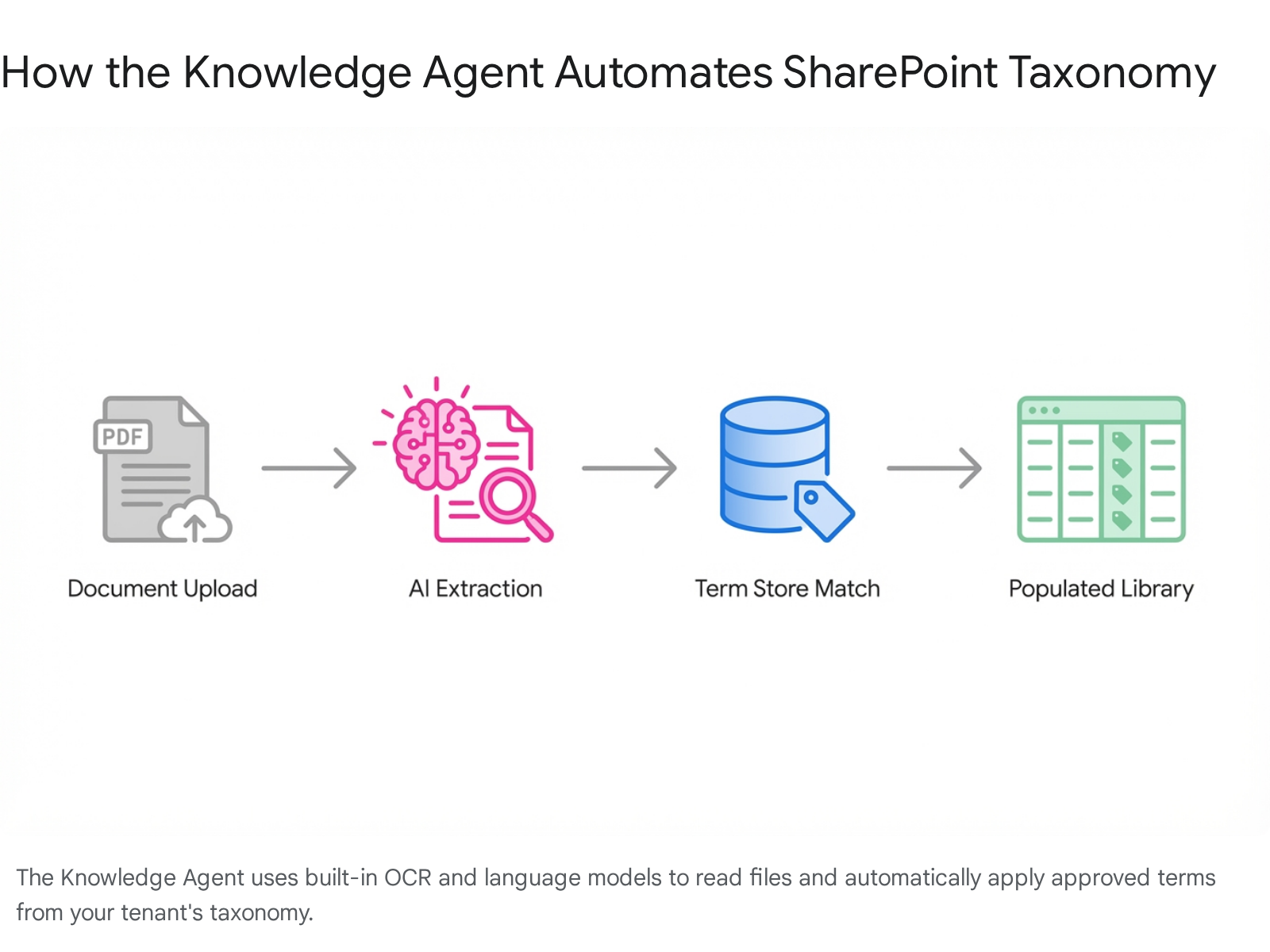
The Knowledge Agent uses built-in Optical Character Recognition (OCR) to read text from PDFs and scanned images.5 It automatically creates and fills columns without prompting the user.5 If you upload a hundred legacy contracts, the Knowledge Agent can suggest autofill columns for 'Client Name' and 'Invoice Value', extracting the data directly from the text.39
By binding these suggested columns directly to your Purview Term Store, you guarantee that the AI only applies controlled, approved taxonomy tags rather than inventing new words.40 This ensures your metadata hygiene stays perfect.
Key Takeaway: The Knowledge Agent uses OCR to read scanned PDFs and automatically populates metadata columns based on the text it finds.
Moving from Probabilistic to Deterministic AI Answers
Large Language Models (LLMs) like the ones powering Copilot are probabilistic. They predict the next best word based on patterns. For creative writing, this is brilliant. For finance and legal departments, it is a total disaster. Businesses require deterministic, factual answers.16
Proper taxonomy acts as a strict guardrail for Copilot. As of the recent updates, Copilot can now reason over SharePoint metadata directly.4 If a user prompts Copilot to "List all expense transactions over £10,000 posted in Q1 tagged as Capex," an environment without metadata might return a partial guess.16 It will miss files where the word 'Capex' is implied but not explicitly written.
However, if your library is backed by a robust Term Store and Managed Metadata columns, Copilot filters the results with absolute mathematical precision based on those exact tags.16 The metadata transforms the AI's response from a "best guess" into an audit-ready, factual report.16 You cannot trust Copilot in an enterprise setting without taxonomy.
SPFx v1.19 Integration for Developers
For teams building custom solutions, taxonomy integration is better than ever. With the release of SharePoint Framework (SPFx) v1.19, developers have access to new objects specifically designed for publishing declarative agents for Microsoft 365 Copilot.41 This allows custom AI extensions to read your taxonomy directly.41 The update also decoupled build time packages to address issues faster.42 If you are building custom web parts, your code can query the Term Store seamlessly, respecting all the security boundaries we established earlier.
---
Migrating Legacy 2013 Term Sets to 2026
We often get asked what happens to the old 2013 on-premises term stores. You do not have to start from scratch. You can use the SharePoint Migration Tool (SPMT) to migrate managed metadata from SharePoint Server 2013 directly to Microsoft 365.43
However, there is a major catch. The SPMT only supports migrating environments where a single Managed Metadata Service (MMS) term store is set as the default for the site collection.43 If you have more than one default term store, the migration tool will fail to resolve the columns and break your metadata.43
If your environment is too complex for the SPMT, the manual fallback is still valid. You can download a copy of the import file as a CSV from your old 2013 farm, edit the values, and import the terms directly into the new Purview Term Store.44 Be aware that you cannot keep the original GUIDs of the terms when importing manually; the cloud will assign new ones.45
Key Takeaway: The SharePoint Migration Tool can move 2013 term sets to the cloud, but it will fail if you have multiple default term stores configured on-premises.
---
Structured FAQ
1. Can I migrate old 2013 term sets to my 2026 SharePoint Online tenant? Yes. You can use the SharePoint Migration Tool (SPMT) to migrate managed metadata from SharePoint Server 2013 to Microsoft 365.43 If you face limitations with multiple default term stores, you can export the terms to a CSV file and import them manually.44
2. What permissions do I need to manage the Purview Term Store? You do not need to be a Global Administrator. You should be assigned the SharePoint Administrator role or the specific Term Store Administrator role via Microsoft Entra ID.6
3. Does taxonomy tagging work on older, existing documents in my library? By default, when you enable Syntex Taxonomy Tagging, it only processes newly uploaded files or existing files that are actively edited.15 It does not retroactively scan and tag your entire historical archive unless you trigger an edit event on those files.
4. How long does AI auto-tagging take to process a document? It is not instantaneous. Once you upload a file, the time taken for AI tags to appear in the managed metadata column ranges from a minimum of 20 minutes to a maximum of 24 hours.15
5. What is the limit on terms in modern SharePoint? The modern Microsoft 365 platform allows for a massive scale. You can host up to 1,000,000 total terms at the tenant level, with a hard limit of 500,000 terms per individual site collection.2 This is a massive increase from the old 200,000 limit.1
---
Next Steps
Configuring a taxonomy system is no longer just an administrative housekeeping task; it is the strategic foundation for your organisation's AI future. Without the Purview Term Store and Managed Metadata columns, tools like Copilot will fail to deliver accurate, business-ready answers. According to Collab365 research, proper taxonomy cuts search time by 35% across average workloads.3
We recommend starting small. Do not attempt to re-tag your entire tenant overnight. Build a single 'Department' term set in the Term Store, map it to a custom content type in the gallery, and push it to a single test hub site. Upload a few documents, configure the modern filters pane, and test the AI auto-tagging features. Once you prove the concept in a dev site, you can confidently scale it across your entire Microsoft 365 environment.
For deeper dives into data architecture, check the Collab365 SharePoint Space containing more guidance about SharePoint Governance.
Sources
- <a id="cite-1" />Diving into SharePoint Online's revamped Term Store and Content Type Gallery - Intelogy, accessed April 8, 2026, <a href="https://www.intelogy.co.uk/blog/diving-into-sharepoint-onlines-revamped-term-store-and-content-type-gallery/" target="_blank" rel="noreferrer noopener">https://www.intelogy.co.uk/blog/diving-into-sharepoint-onlines-revamped-term-store-and-content-type-gallery/</a>
- <a id="cite-2" />SharePoint limits - Service Descriptions - Microsoft Learn, accessed April 8, 2026, <a href="https://learn.microsoft.com/en-us/office365/servicedescriptions/sharepoint-online-service-description/sharepoint-online-limits" target="_blank" rel="noreferrer noopener">https://learn.microsoft.com/en-us/office365/servicedescriptions/sharepoint-online-service-description/sharepoint-online-limits</a>
- <a id="cite-3" />Understanding the State - Crow Canyon Software, accessed April 8, 2026, <a href="https://www.crowcanyon.com/assets/white_papers/state_of_hybrid_sp_crow_canyon.pdf" target="_blank" rel="noreferrer noopener">https://www.crowcanyon.com/assets/white_papers/state_of_hybrid_sp_crow_canyon.pdf</a>
- <a id="cite-4" />SharePoint in 2026: AI-Powered Transformation and What's Coming ..., accessed April 8, 2026, <a href="https://www.200oksolutions.com/blog/sharepoint-2026-ai-transformation-knowledge-agent-copilot-agents/" target="_blank" rel="noreferrer noopener">https://www.200oksolutions.com/blog/sharepoint-2026-ai-transformation-knowledge-agent-copilot-agents/</a>
- <a id="cite-5" />SharePoint AI | The death of Image + Taxonomy Tagger (Part II) - Gokan's Studio, accessed April 8, 2026, <a href="https://gokan.studio/2025/11/29/sharepoint-ai-the-death-of-image-taxonomy-tagger-part-ii/" target="_blank" rel="noreferrer noopener">https://gokan.studio/2025/11/29/sharepoint-ai-the-death-of-image-taxonomy-tagger-part-ii/</a>
- <a id="cite-6" />Open the Term Store Management Tool - SharePoint in Microsoft 365, accessed April 8, 2026, <a href="https://learn.microsoft.com/en-us/sharepoint/open-term-store-management-tool" target="_blank" rel="noreferrer noopener">https://learn.microsoft.com/en-us/sharepoint/open-term-store-management-tool</a>
- <a id="cite-7" />Set up and manage taxonomy tagging - Microsoft Learn, accessed April 8, 2026, <a href="https://learn.microsoft.com/en-us/microsoft-365/documentprocessing/taxonomy-tagging-setup?view=o365-worldwide" target="_blank" rel="noreferrer noopener">https://learn.microsoft.com/en-us/microsoft-365/documentprocessing/taxonomy-tagging-setup?view=o365-worldwide</a>
- <a id="cite-8" />Drive adoption of document processing for Microsoft 365, accessed April 8, 2026, <a href="https://learn.microsoft.com/en-us/microsoft-365/documentprocessing/adoption-getstarted?view=o365-worldwide" target="_blank" rel="noreferrer noopener">https://learn.microsoft.com/en-us/microsoft-365/documentprocessing/adoption-getstarted?view=o365-worldwide</a>
- <a id="cite-9" />Create and manage terms in a term set - SharePoint in Microsoft 365 | Microsoft Learn, accessed April 8, 2026, <a href="https://learn.microsoft.com/en-us/sharepoint/create-and-manage-terms" target="_blank" rel="noreferrer noopener">https://learn.microsoft.com/en-us/sharepoint/create-and-manage-terms</a>
- <a id="cite-10" />Create or customize a content type - SharePoint in Microsoft 365, accessed April 8, 2026, <a href="https://learn.microsoft.com/en-us/sharepoint/create-customize-content-type" target="_blank" rel="noreferrer noopener">https://learn.microsoft.com/en-us/sharepoint/create-customize-content-type</a>
- <a id="cite-11" />Introduction to content types and content type publishing - Microsoft Support, accessed April 8, 2026, <a href="https://support.microsoft.com/en-gb/office/introduction-to-content-types-and-content-type-publishing-e1277a2e-a1e8-4473-9126-91a0647766e5" target="_blank" rel="noreferrer noopener">https://support.microsoft.com/en-gb/office/introduction-to-content-types-and-content-type-publishing-e1277a2e-a1e8-4473-9126-91a0647766e5</a>
- <a id="cite-12" />Push content types to a hub | Microsoft Learn, accessed April 8, 2026, <a href="https://learn.microsoft.com/en-us/microsoft-365/documentprocessing/push-content-type-to-hub?view=o365-worldwide" target="_blank" rel="noreferrer noopener">https://learn.microsoft.com/en-us/microsoft-365/documentprocessing/push-content-type-to-hub?view=o365-worldwide</a>
- <a id="cite-13" />Differences between modern and classic experiences for lists and libraries, accessed April 8, 2026, <a href="https://support.microsoft.com/en-us/office/differences-between-modern-and-classic-experiences-for-lists-and-libraries-30e1aab0-a5cc-4363-b7f2-09e2ae07d4dc" target="_blank" rel="noreferrer noopener">https://support.microsoft.com/en-us/office/differences-between-modern-and-classic-experiences-for-lists-and-libraries-30e1aab0-a5cc-4363-b7f2-09e2ae07d4dc</a>
- <a id="cite-14" />is metadata navigation feature is available in modern Team site template? - Microsoft Learn, accessed April 8, 2026, <a href="https://learn.microsoft.com/en-us/answers/questions/152990/is-metadata-navigation-feature-is-available-in-mod" target="_blank" rel="noreferrer noopener">https://learn.microsoft.com/en-us/answers/questions/152990/is-metadata-navigation-feature-is-available-in-mod</a>
- <a id="cite-15" />Overview of taxonomy tagging | Microsoft Learn, accessed April 8, 2026, <a href="https://learn.microsoft.com/en-us/microsoft-365/documentprocessing/taxonomy-tagging-overview?view=o365-worldwide" target="_blank" rel="noreferrer noopener">https://learn.microsoft.com/en-us/microsoft-365/documentprocessing/taxonomy-tagging-overview?view=o365-worldwide</a>
- <a id="cite-16" />SharePoint Showcase: How Metadata and the Knowledge Agent Elevate Microsoft 365 Copilot Responses, accessed April 8, 2026, <a href="https://techcommunity.microsoft.com/blog/spblog/sharepoint-showcase-how-metadata-and-the-knowledge-agent-elevate-microsoft-365-c/4464079" target="_blank" rel="noreferrer noopener">https://techcommunity.microsoft.com/blog/spblog/sharepoint-showcase-how-metadata-and-the-knowledge-agent-elevate-microsoft-365-c/4464079</a>
- <a id="cite-17" />SharePoint Data Classification: A Practical Framework for Security, Search, and Compliance, accessed April 8, 2026, <a href="https://www.congruity360.com/blog/sharepoint-data-classification/" target="_blank" rel="noreferrer noopener">https://www.congruity360.com/blog/sharepoint-data-classification/</a>
- <a id="cite-18" />What's new in multitenant organization documentation - Microsoft Entra ID, accessed April 8, 2026, <a href="https://learn.microsoft.com/en-us/entra/identity/multi-tenant-organizations/whats-new" target="_blank" rel="noreferrer noopener">https://learn.microsoft.com/en-us/entra/identity/multi-tenant-organizations/whats-new</a>
- <a id="cite-19" />Microsoft Entra built-in roles, accessed April 8, 2026, <a href="https://learn.microsoft.com/en-us/entra/identity/role-based-access-control/permissions-reference" target="_blank" rel="noreferrer noopener">https://learn.microsoft.com/en-us/entra/identity/role-based-access-control/permissions-reference</a>
- <a id="cite-20" />Data Governance Roles and Permissions in Microsoft Purview, accessed April 8, 2026, <a href="https://learn.microsoft.com/en-us/purview/data-governance-roles-permissions" target="_blank" rel="noreferrer noopener">https://learn.microsoft.com/en-us/purview/data-governance-roles-permissions</a>
- <a id="cite-21" />Governance roles and permissions for classic Microsoft Purview Data Catalog, accessed April 8, 2026, <a href="https://learn.microsoft.com/en-us/purview/data-gov-classic-catalog-roles-permissions" target="_blank" rel="noreferrer noopener">https://learn.microsoft.com/en-us/purview/data-gov-classic-catalog-roles-permissions</a>
- <a id="cite-22" />Introduction to managed metadata - SharePoint in Microsoft 365, accessed April 8, 2026, <a href="https://learn.microsoft.com/en-us/sharepoint/managed-metadata" target="_blank" rel="noreferrer noopener">https://learn.microsoft.com/en-us/sharepoint/managed-metadata</a>
- <a id="cite-23" />Introduction to content types and content type publishing - Microsoft Support, accessed April 8, 2026, <a href="https://support.microsoft.com/en-us/office/introduction-to-content-types-and-content-type-publishing-e1277a2e-a1e8-4473-9126-91a0647766e5" target="_blank" rel="noreferrer noopener">https://support.microsoft.com/en-us/office/introduction-to-content-types-and-content-type-publishing-e1277a2e-a1e8-4473-9126-91a0647766e5</a>
- <a id="cite-24" />Sharepoint Managed Metadata – UPDATED 2026 – A Complete ..., accessed April 8, 2026, <a href="https://agilityportal.io/blog/sharepoint-managed-metadata-updated-2026-a-complete-guide" target="_blank" rel="noreferrer noopener">https://agilityportal.io/blog/sharepoint-managed-metadata-updated-2026-a-complete-guide</a>
- <a id="cite-25" />Create a Managed Metadata column - Microsoft Support, accessed April 8, 2026, <a href="https://support.microsoft.com/en-us/office/create-a-managed-metadata-column-8fad9e35-a618-4400-b3c7-46f02785d27f" target="_blank" rel="noreferrer noopener">https://support.microsoft.com/en-us/office/create-a-managed-metadata-column-8fad9e35-a618-4400-b3c7-46f02785d27f</a>
- <a id="cite-26" />Set up metadata navigation for a list or library - Microsoft Support, accessed April 8, 2026, <a href="https://support.microsoft.com/en-us/office/set-up-metadata-navigation-for-a-list-or-library-c222a75d-8b18-44e2-9ed8-7ee4e0d23cfc" target="_blank" rel="noreferrer noopener">https://support.microsoft.com/en-us/office/set-up-metadata-navigation-for-a-list-or-library-c222a75d-8b18-44e2-9ed8-7ee4e0d23cfc</a>
- <a id="cite-27" />Modern SharePoint: how are you making metadata useful when filters don't work across folders? - Reddit, accessed April 8, 2026, <a href="https://www.reddit.com/r/sharepoint/comments/1otdypx/modern_sharepoint_how_are_you_making_metadata/" target="_blank" rel="noreferrer noopener">https://www.reddit.com/r/sharepoint/comments/1otdypx/modern_sharepoint_how_are_you_making_metadata/</a>
- <a id="cite-28" />Microsoft 365/SharePoint Online limits, accessed April 8, 2026, <a href="https://www.365automate.com/posts/microsoft-365-sharepoint-online-platform-limits/" target="_blank" rel="noreferrer noopener">https://www.365automate.com/posts/microsoft-365-sharepoint-online-platform-limits/</a>
- <a id="cite-29" />Overview of document processing for Microsoft 365, accessed April 8, 2026, <a href="https://learn.microsoft.com/en-us/microsoft-365/documentprocessing/syntex-overview?view=o365-worldwide" target="_blank" rel="noreferrer noopener">https://learn.microsoft.com/en-us/microsoft-365/documentprocessing/syntex-overview?view=o365-worldwide</a>
- <a id="cite-30" />SharePoint Premium and auto tagging using MS Syntex is not working, accessed April 8, 2026, <a href="https://techcommunity.microsoft.com/discussions/sharepoint_general/sharepoint-premium-and-auto-tagging-using-ms-syntex-is-not-working/4064780" target="_blank" rel="noreferrer noopener">https://techcommunity.microsoft.com/discussions/sharepoint_general/sharepoint-premium-and-auto-tagging-using-ms-syntex-is-not-working/4064780</a>
- <a id="cite-31" />Microsoft SharePoint Online For Office 365 - Administering and Configuring For The Cloud | PDF | Share Point | Active Directory - Scribd, accessed April 8, 2026, <a href="https://www.scribd.com/document/356253167/Microsoft-SharePoint-Online-for-Office-365-Administering-and-Configuring-for-the-Cloud" target="_blank" rel="noreferrer noopener">https://www.scribd.com/document/356253167/Microsoft-SharePoint-Online-for-Office-365-Administering-and-Configuring-for-the-Cloud</a>
- <a id="cite-32" />Microsoft 365 and SharePoint Online Cookbook - Packt, accessed April 8, 2026, <a href="https://static.packt-cdn.com/downloads/9781803243177_OnlineSupBook.pdf?link_from_packtlink=yes" target="_blank" rel="noreferrer noopener">https://static.packt-cdn.com/downloads/9781803243177_OnlineSupBook.pdf?link_from_packtlink=yes</a>
- <a id="cite-33" />Professional: SharePoint® 2013 Development - WordPress.com, accessed April 8, 2026, <a href="https://sharepoint4vn.files.wordpress.com/2015/10/3-professional_sharepoint_2013_development.pdf" target="_blank" rel="noreferrer noopener">https://sharepoint4vn.files.wordpress.com/2015/10/3-professional_sharepoint_2013_development.pdf</a>
- <a id="cite-34" />External Guests do not see Term Store values anymore - Microsoft Q&A, accessed April 8, 2026, <a href="https://learn.microsoft.com/en-au/answers/questions/5788938/external-guests-do-not-see-term-store-values-anymo" target="_blank" rel="noreferrer noopener">https://learn.microsoft.com/en-au/answers/questions/5788938/external-guests-do-not-see-term-store-values-anymo</a>
- <a id="cite-35" />Limitations in multitenant organizations - Microsoft Entra ID, accessed April 8, 2026, <a href="https://learn.microsoft.com/en-us/entra/identity/multi-tenant-organizations/multi-tenant-organization-known-issues" target="_blank" rel="noreferrer noopener">https://learn.microsoft.com/en-us/entra/identity/multi-tenant-organizations/multi-tenant-organization-known-issues</a>
- <a id="cite-36" />The CIO's Guide to Avoiding Multi-National SharePoint Migration, accessed April 8, 2026, <a href="https://ollo.ie/blog-posts/multi-national-share-point-migration" target="_blank" rel="noreferrer noopener">https://ollo.ie/blog-posts/multi-national-share-point-migration</a>
- <a id="cite-37" />Keeping our content fresh, findable, and governed at Microsoft with AI-powered SharePoint, accessed April 8, 2026, <a href="https://www.microsoft.com/insidetrack/blog/keeping-our-content-fresh-findable-and-governed-at-microsoft-with-ai-powered-sharepoint/" target="_blank" rel="noreferrer noopener">https://www.microsoft.com/insidetrack/blog/keeping-our-content-fresh-findable-and-governed-at-microsoft-with-ai-powered-sharepoint/</a>
- <a id="cite-38" />Microsoft roadmap roundup – 16 March 2026 - SharePoint Stuff, accessed April 8, 2026, <a href="https://sharepointstuff.com/2026/03/17/microsoft-roadmap-roundup-16-march-2026/" target="_blank" rel="noreferrer noopener">https://sharepointstuff.com/2026/03/17/microsoft-roadmap-roundup-16-march-2026/</a>
- <a id="cite-39" />New Microsoft 365 Knowledge Agent in SharePoint: A Review | Altuent, accessed April 8, 2026, <a href="https://altuent.com/insights/new-microsoft-365-knowledge-agent-in-sharepoint-a-review/" target="_blank" rel="noreferrer noopener">https://altuent.com/insights/new-microsoft-365-knowledge-agent-in-sharepoint-a-review/</a>
- <a id="cite-40" />Knowledge Agent Autotagging from custom list - Microsoft Q&A, accessed April 8, 2026, <a href="https://learn.microsoft.com/en-us/answers/questions/5646285/knowledge-agent-autotagging-from-custom-list" target="_blank" rel="noreferrer noopener">https://learn.microsoft.com/en-us/answers/questions/5646285/knowledge-agent-autotagging-from-custom-list</a>
- <a id="cite-41" />Microsoft 365 app manifest schema reference, accessed April 8, 2026, <a href="https://learn.microsoft.com/en-us/microsoft-365/extensibility/schema/?view=m365-app-1.26" target="_blank" rel="noreferrer noopener">https://learn.microsoft.com/en-us/microsoft-365/extensibility/schema/?view=m365-app-1.26</a>
- <a id="cite-42" />Announcing SharePoint Framework 1.19 with updates on building enterprise extensibility within Microsoft 365, accessed April 8, 2026, <a href="https://devblogs.microsoft.com/microsoft365dev/announcing-sharepoint-framework-1-19-with-updates-on-building-enterprise-extensibility-within-microsoft-365/" target="_blank" rel="noreferrer noopener">https://devblogs.microsoft.com/microsoft365dev/announcing-sharepoint-framework-1-19-with-updates-on-building-enterprise-extensibility-within-microsoft-365/</a>
- <a id="cite-43" />Migrate managed metadata to SharePoint by using SPMT - Microsoft Learn, accessed April 8, 2026, <a href="https://learn.microsoft.com/en-us/sharepointmigration/managed-metadata-migration" target="_blank" rel="noreferrer noopener">https://learn.microsoft.com/en-us/sharepointmigration/managed-metadata-migration</a>
- <a id="cite-44" />Import term sets - Microsoft Support, accessed April 8, 2026, <a href="https://support.microsoft.com/en-us/office/import-term-sets-168fbc86-7fce-4288-9a1f-b83fc3921c18" target="_blank" rel="noreferrer noopener">https://support.microsoft.com/en-us/office/import-term-sets-168fbc86-7fce-4288-9a1f-b83fc3921c18</a>
- <a id="cite-45" />Migrate a term from sharepoint on-premises to sharepoint online, to have same name & GUID, accessed April 8, 2026, <a href="https://sharepoint.stackexchange.com/questions/260883/migrate-a-term-from-sharepoint-on-premises-to-sharepoint-online-to-have-same-na" target="_blank" rel="noreferrer noopener">https://sharepoint.stackexchange.com/questions/260883/migrate-a-term-from-sharepoint-on-premises-to-sharepoint-online-to-have-same-na</a>
- <a id="cite-46" />The Ultimate Guide to Adding SharePoint Premium Taxonomy Tagging Columns Programmatically - Leon Armston's Blog, accessed April 8, 2026, <a href="https://www.leonarmston.com/2024/03/the-ultimate-guide-to-adding-sharepoint-premium-taxonomy-tagging-columns-programmatically/" target="_blank" rel="noreferrer noopener">https://www.leonarmston.com/2024/03/the-ultimate-guide-to-adding-sharepoint-premium-taxonomy-tagging-columns-programmatically/</a>